How to write documents, post SOPs, and policies
about 15 minutes
Use a document to prepare formatted instructions for staff. Use a post's standard operating procedure (SOP) to put instructions beside the role that does the work. This guide also creates a policy for a shared rule.
Before you start
Have a post ready on the board and a PNG image ready to insert. The example uses the post “Order fulfillment” and a simple packing diagram.
Documents and post SOPs have separate editors. This guide creates an SOP from the post.
Step 1 — Open the document creator
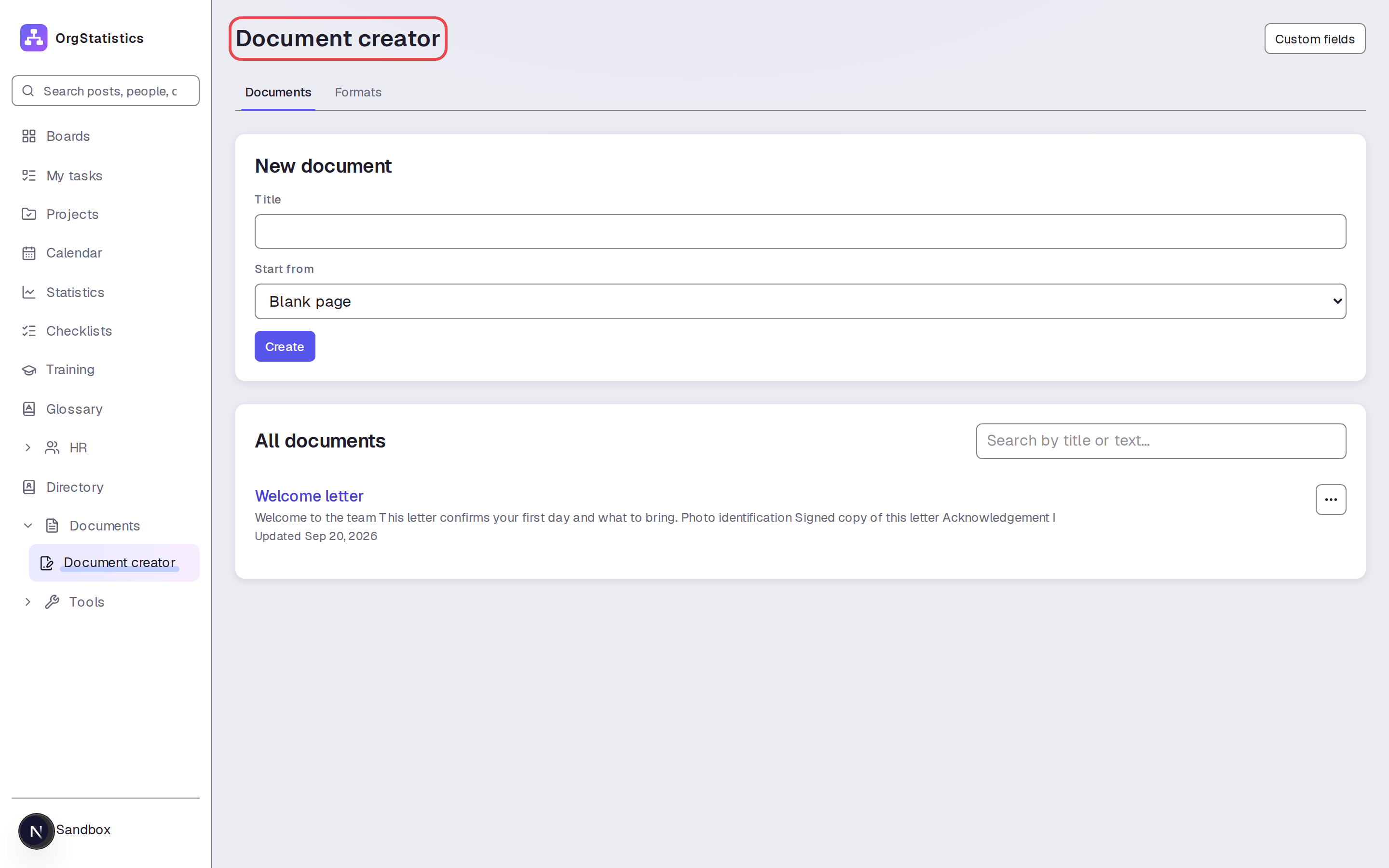
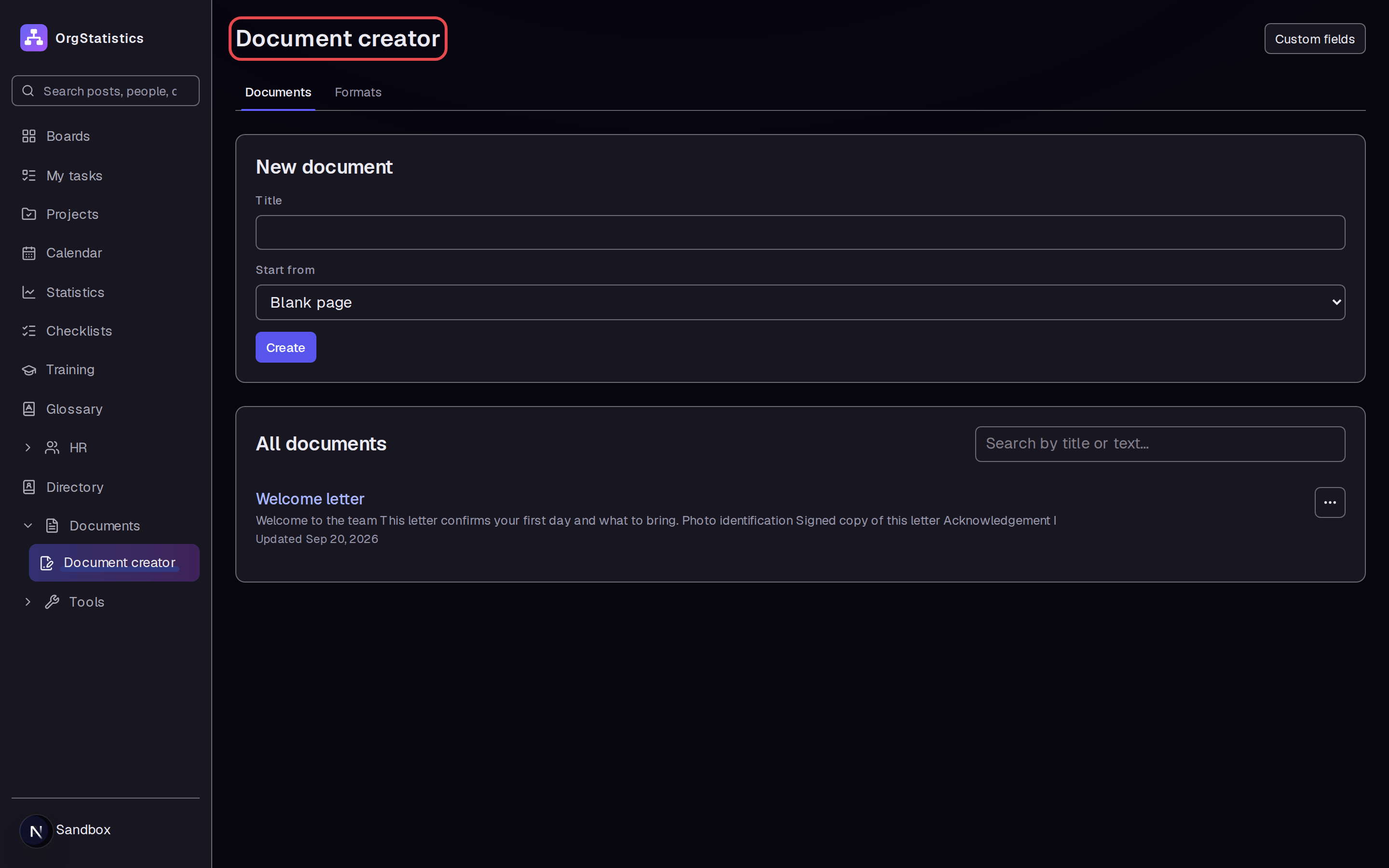
In the left menu, expand Documents and select Document creator.
Step 2 — Create a blank document
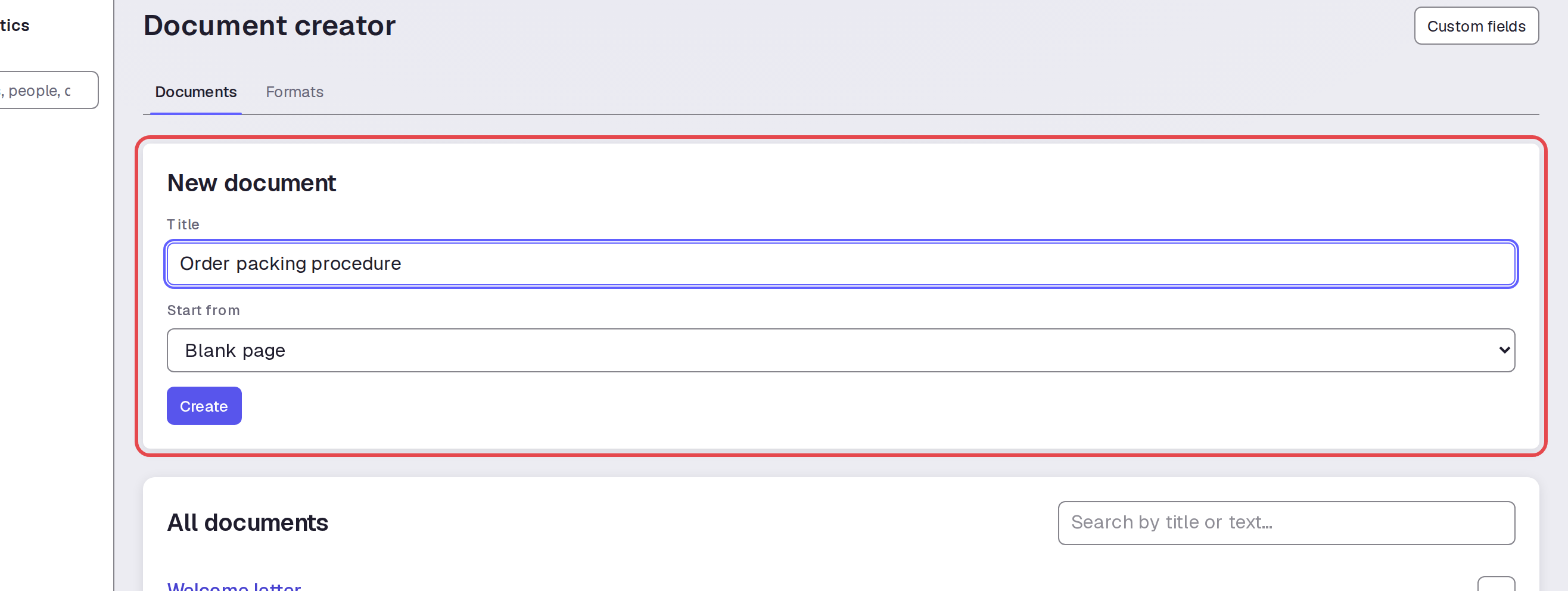
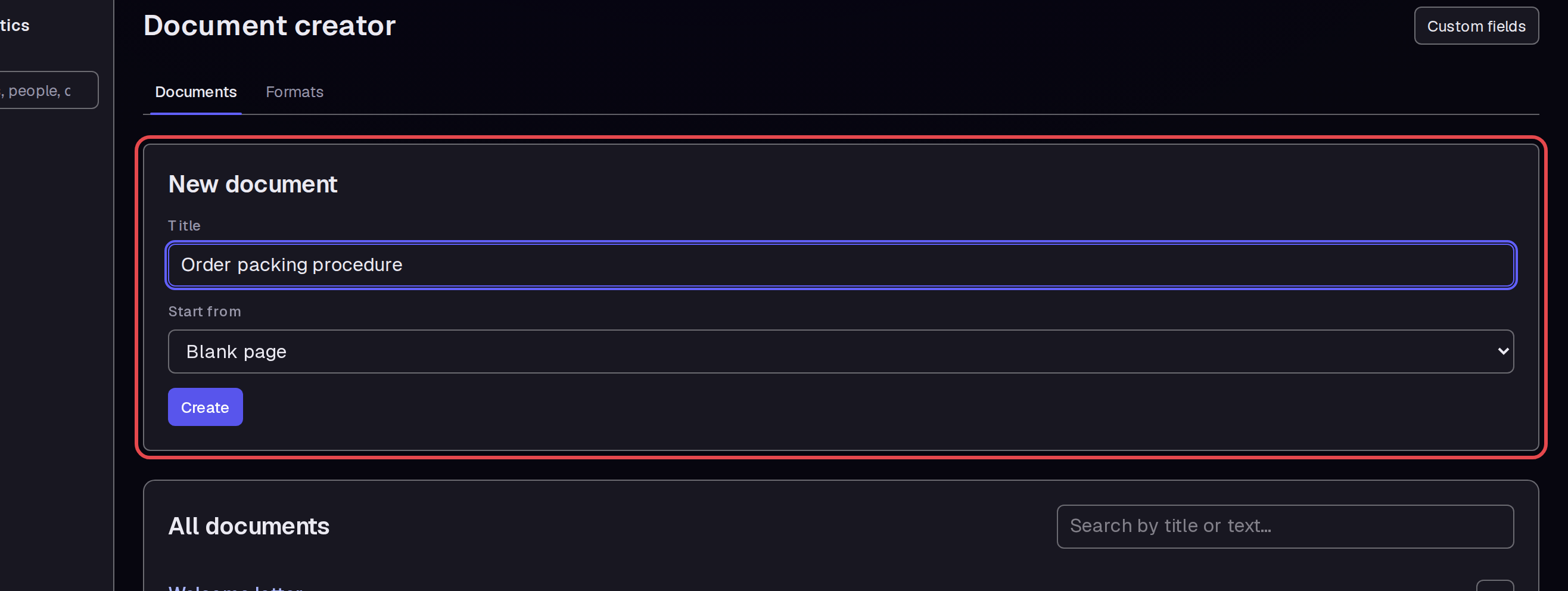
Enter “Order packing procedure” in Title. Keep Start from set to Blank page, then select Create.
Step 3 — Write and format the text
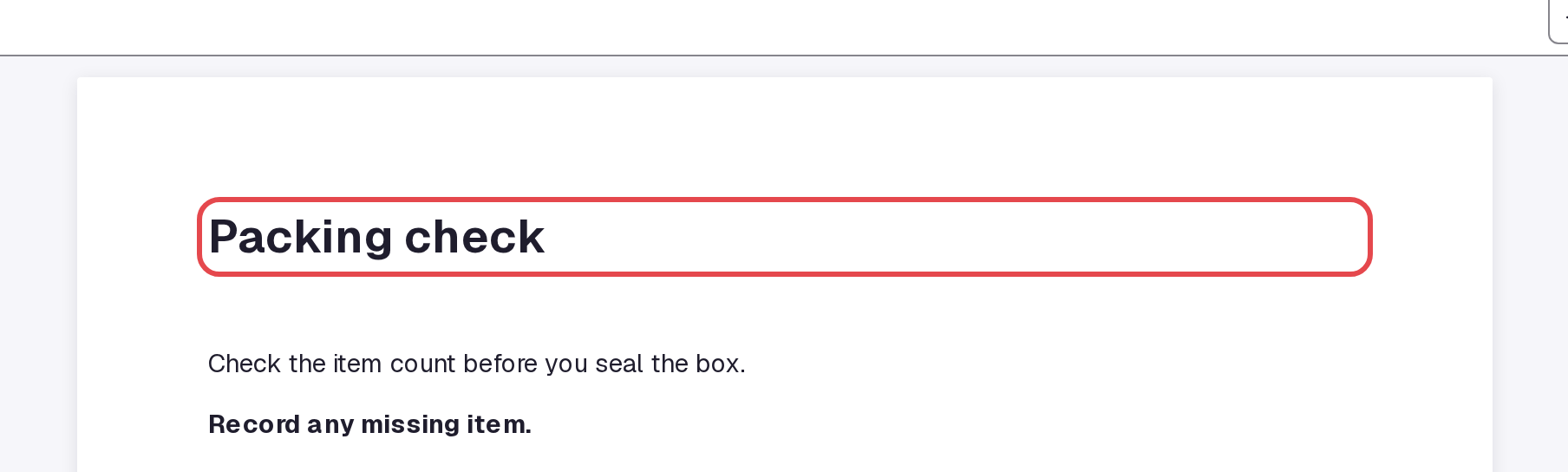
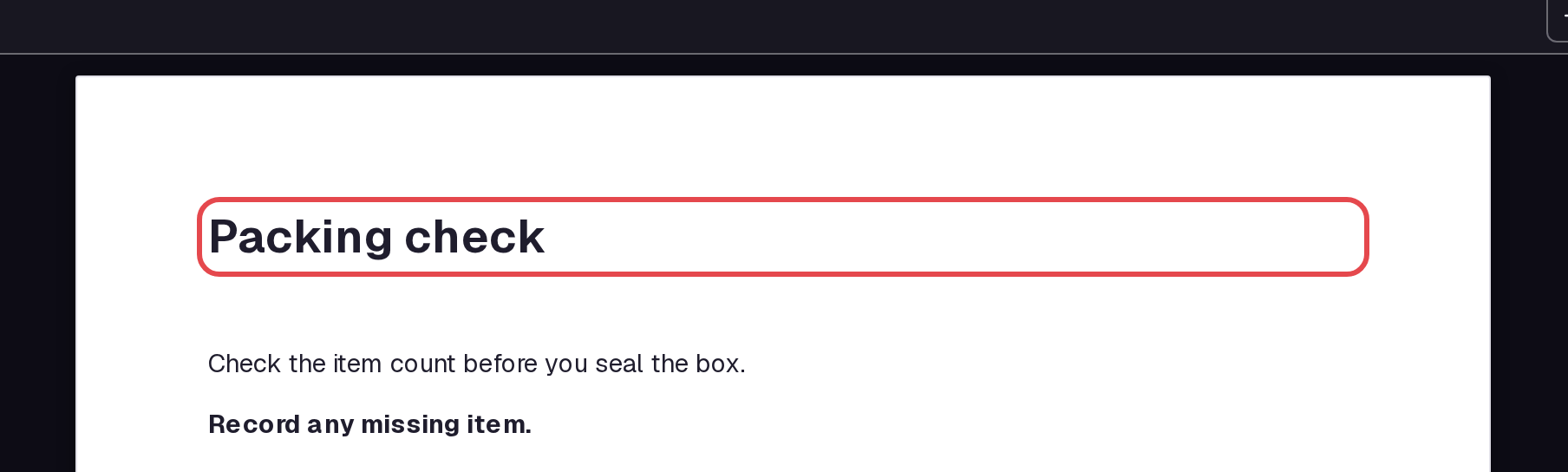
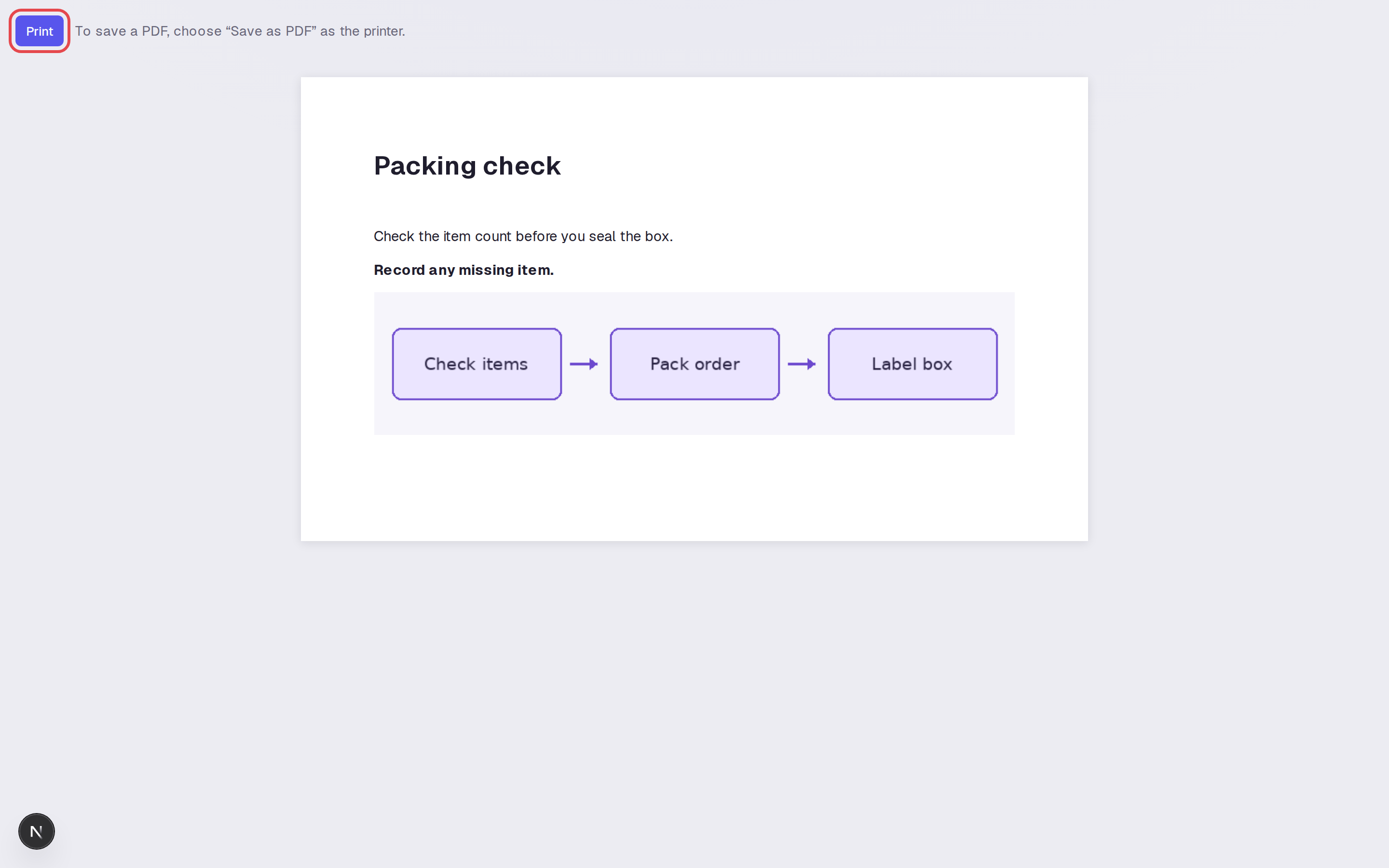
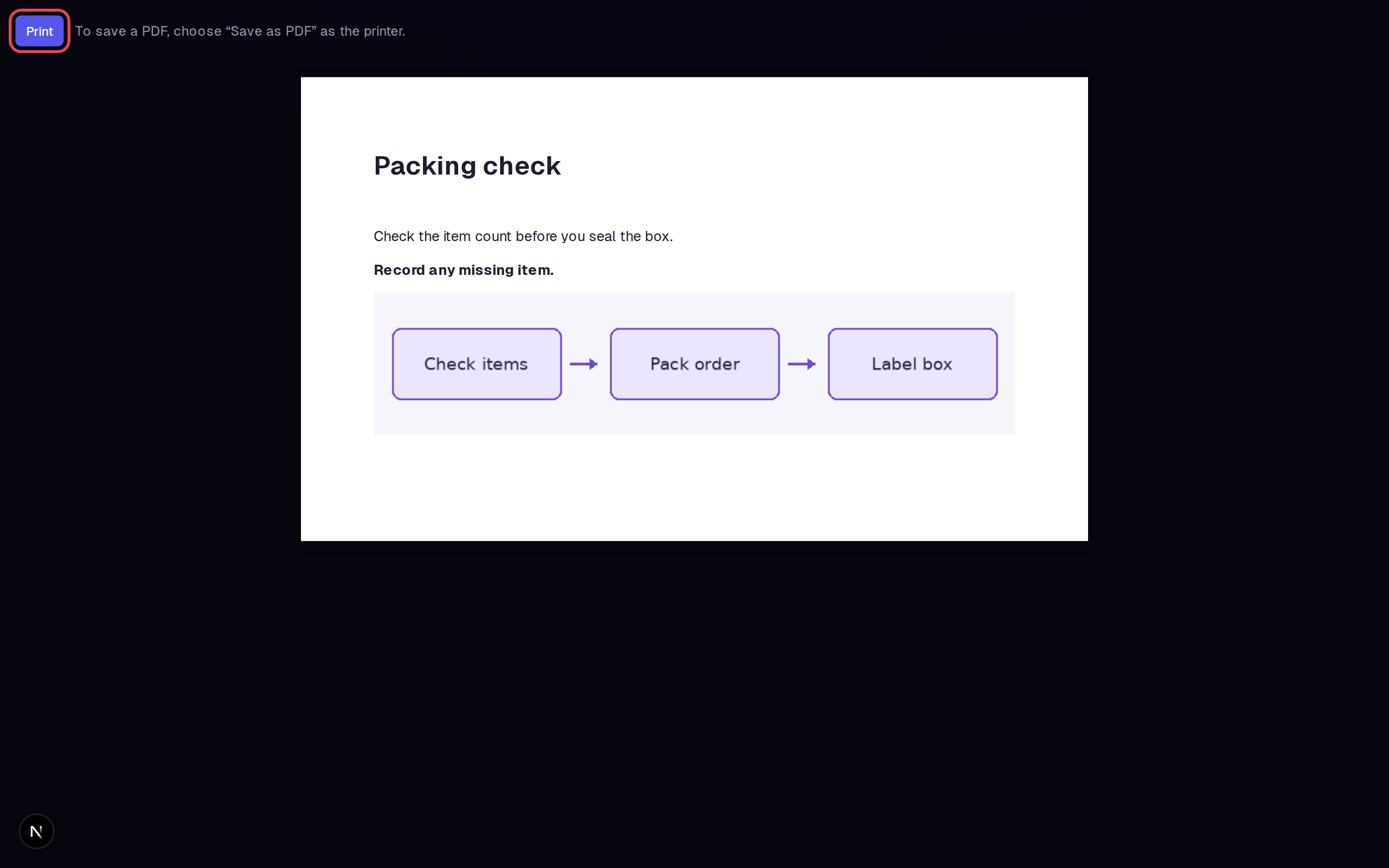
Type “Packing check” and use Heading 1 for that line. Press Enter and type “Check the item count before you seal the box.” On the next line, turn Bold on, type “Record any missing item.”, then turn Bold off.
Step 4 — Insert an image
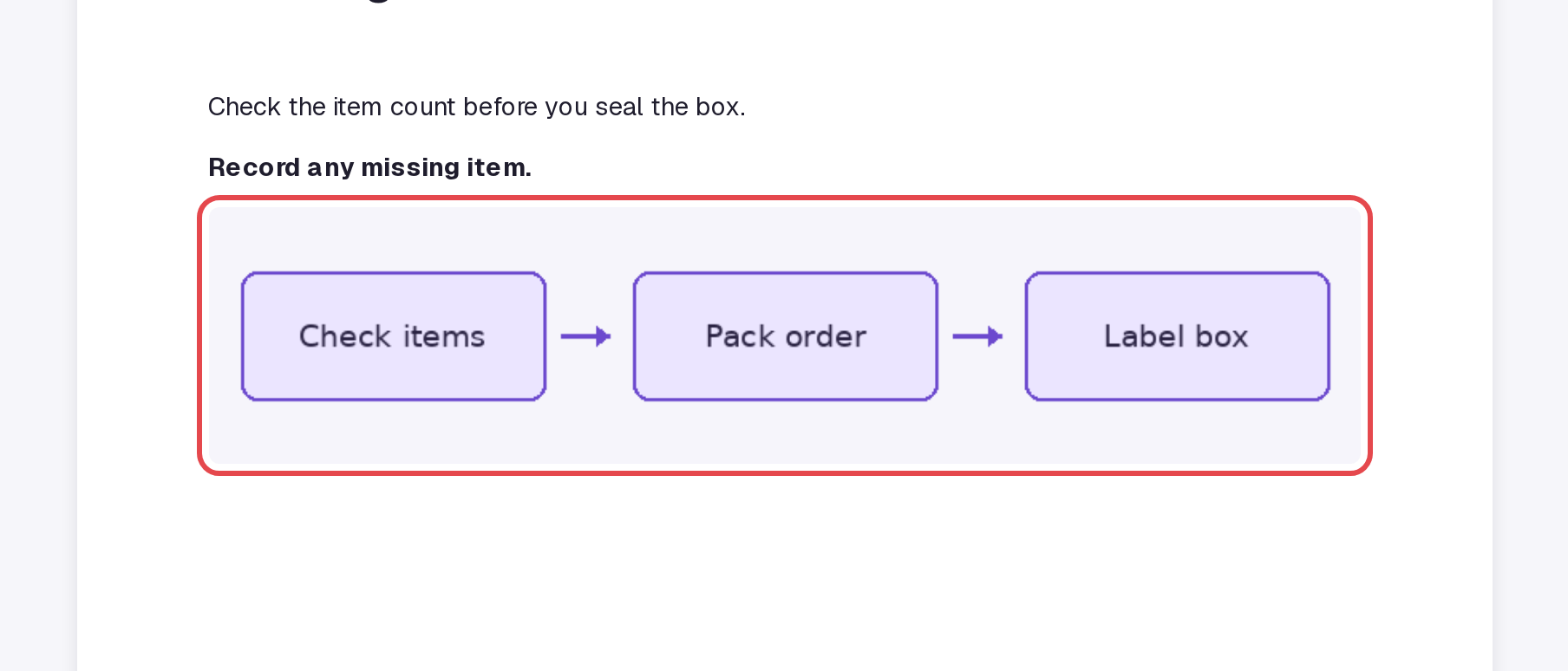
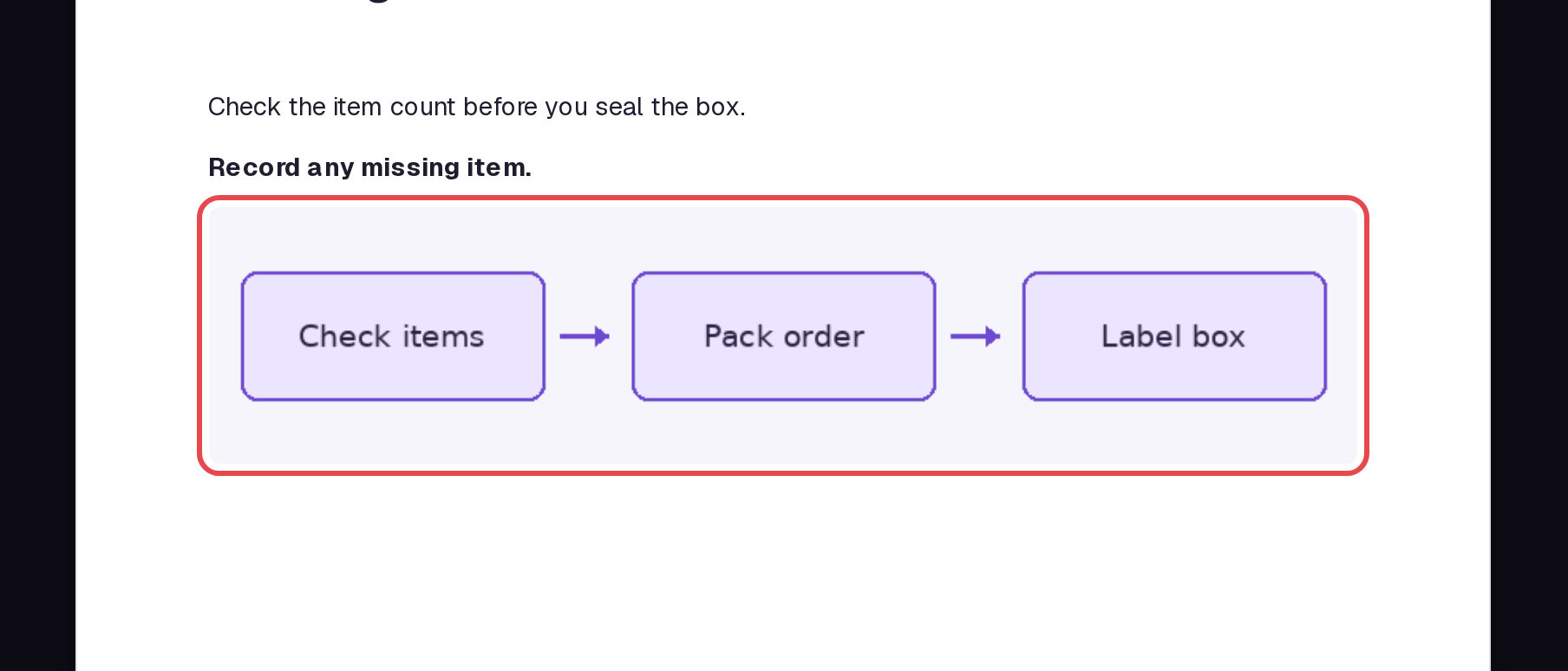
Place the cursor on a new line below the text. Select Image in the toolbar and choose your PNG file. The example shows a packing diagram inside the document.
Step 5 — Check that the document is saved
Wait until the top status shows Saved. The example's text, formatting, and image remained after a page reload.
Step 6 — Open the print page
Select Print / Save as PDF in the editor. A separate print page opens with a Print button and instructions to choose Save as PDF as the printer. Select Print to start printing.
Step 7 — Open the post's SOP tab
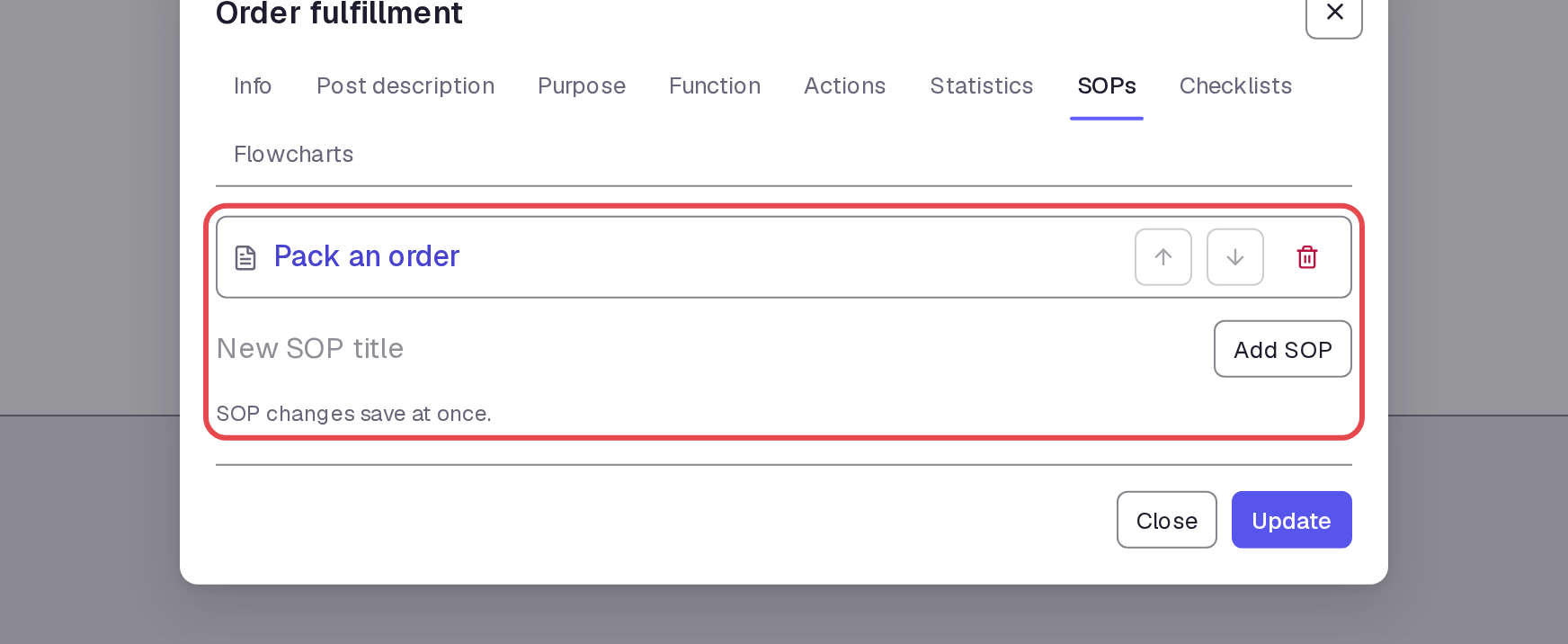
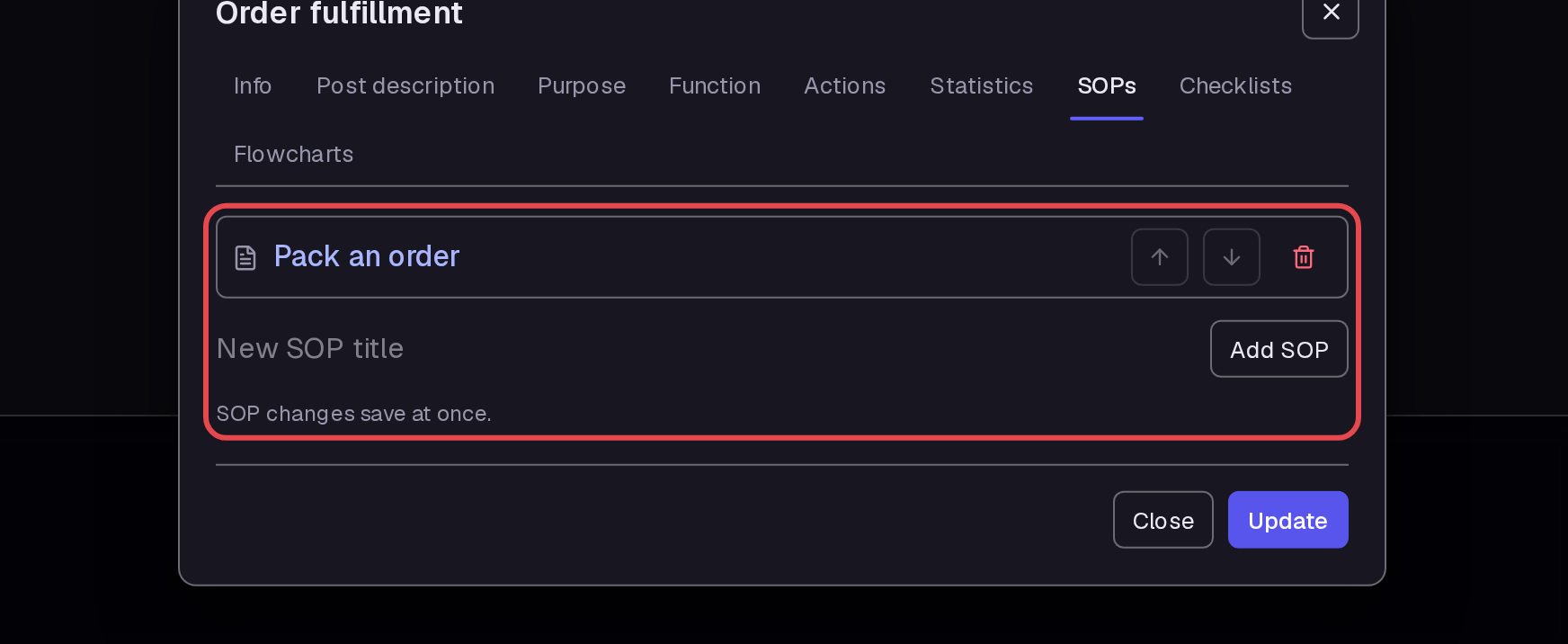
Return to Boards and open the arrow menu on your post. Select Edit, then open SOPs.
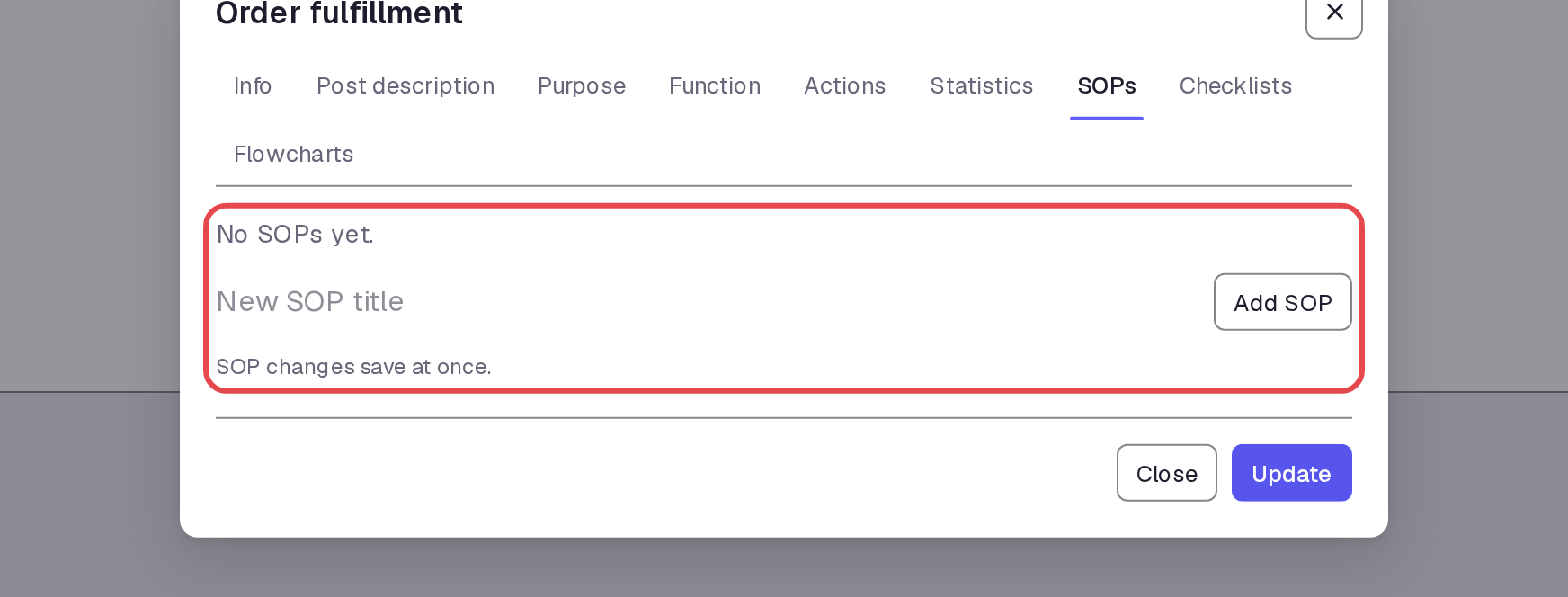
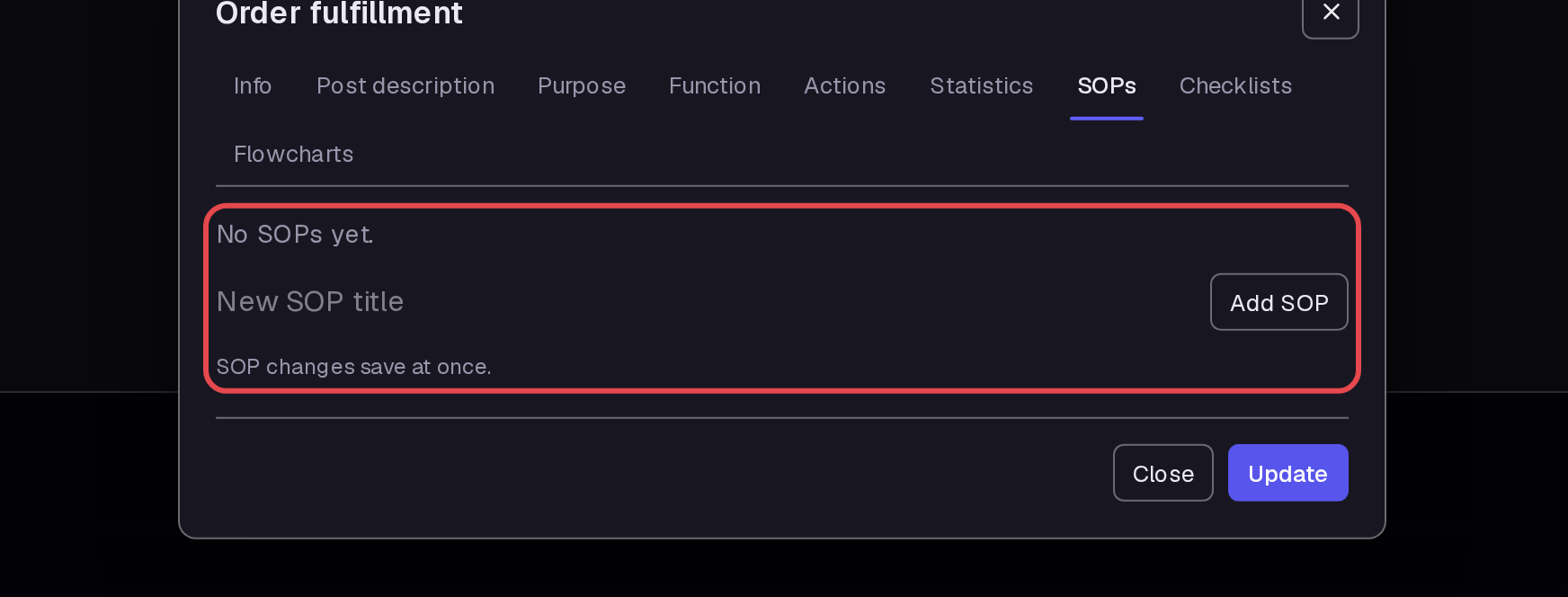
Step 8 — Create the post SOP
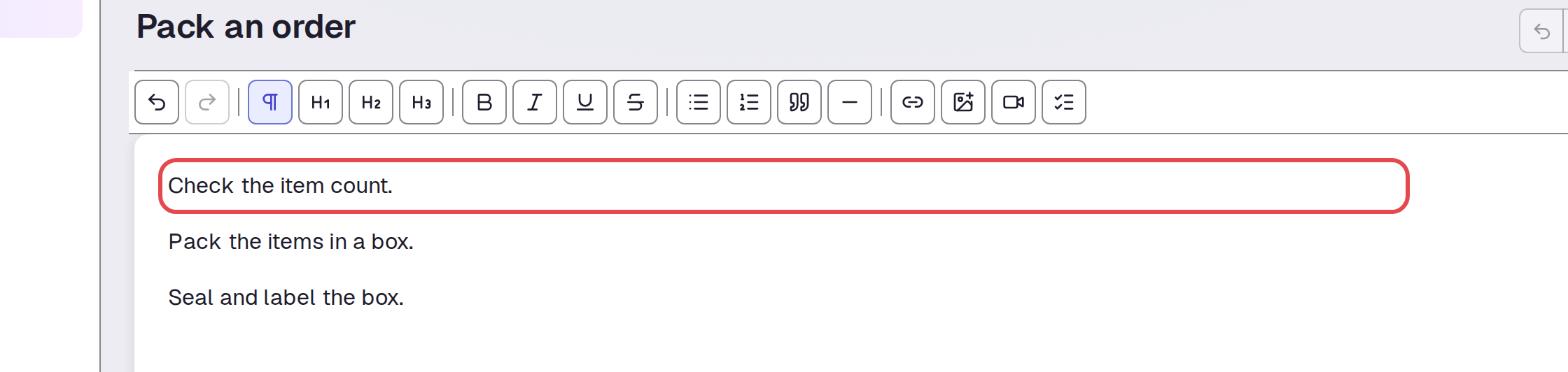
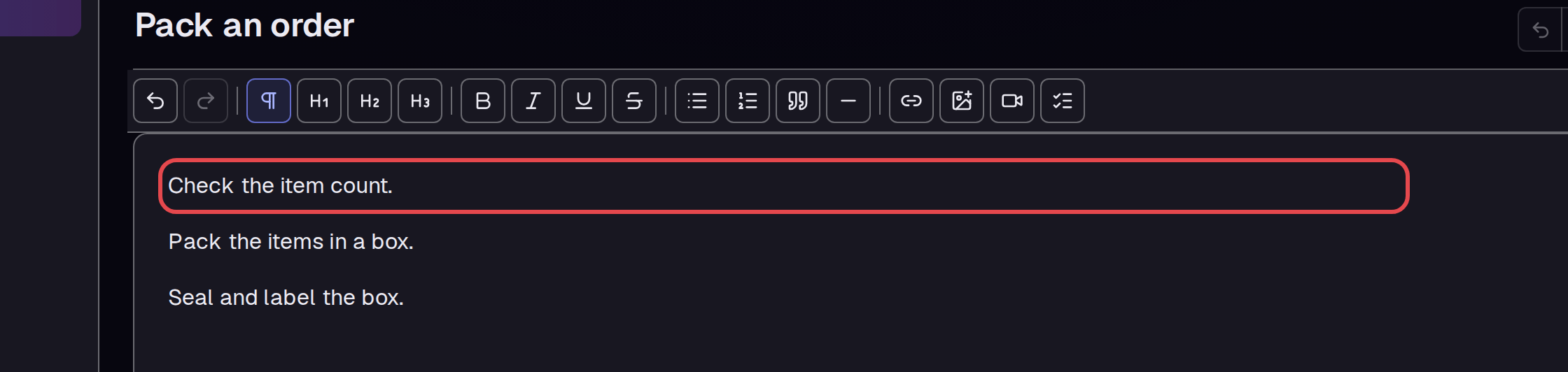
Enter “Pack an order” in New SOP title. Press Enter to add it, then select Pack an order to open its editor.
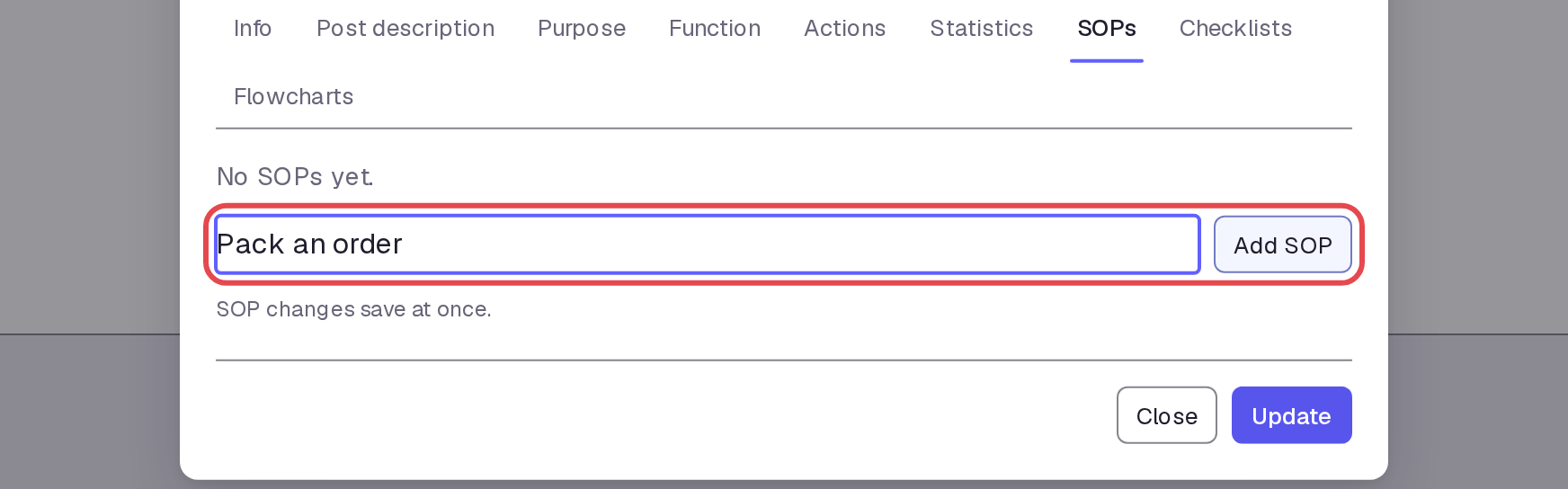
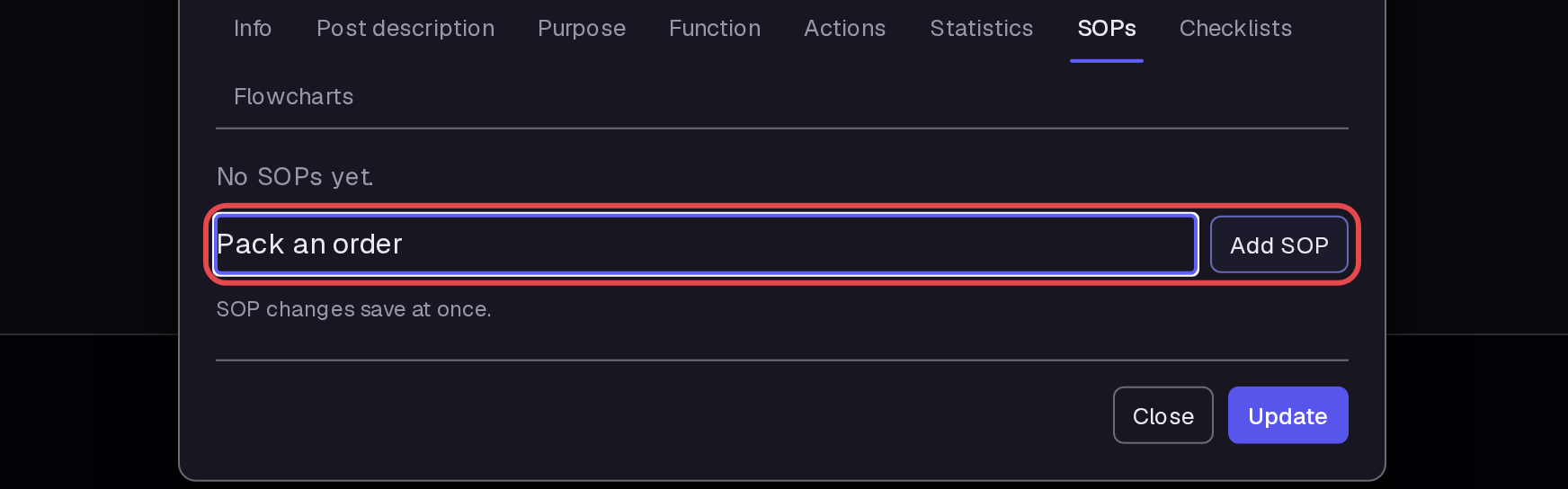
Step 9 — Write the procedure
Write “Check the item count,” “Pack the items in a box,” and “Seal and label the box” on separate lines. Wait for Saved.
Step 10 — Check the SOP on the post
Return to Boards and open the same post's Edit menu. Open SOPs and check that Pack an order appears in the list. The SOP remained attached after a reload.
Step 11 — Create a policy
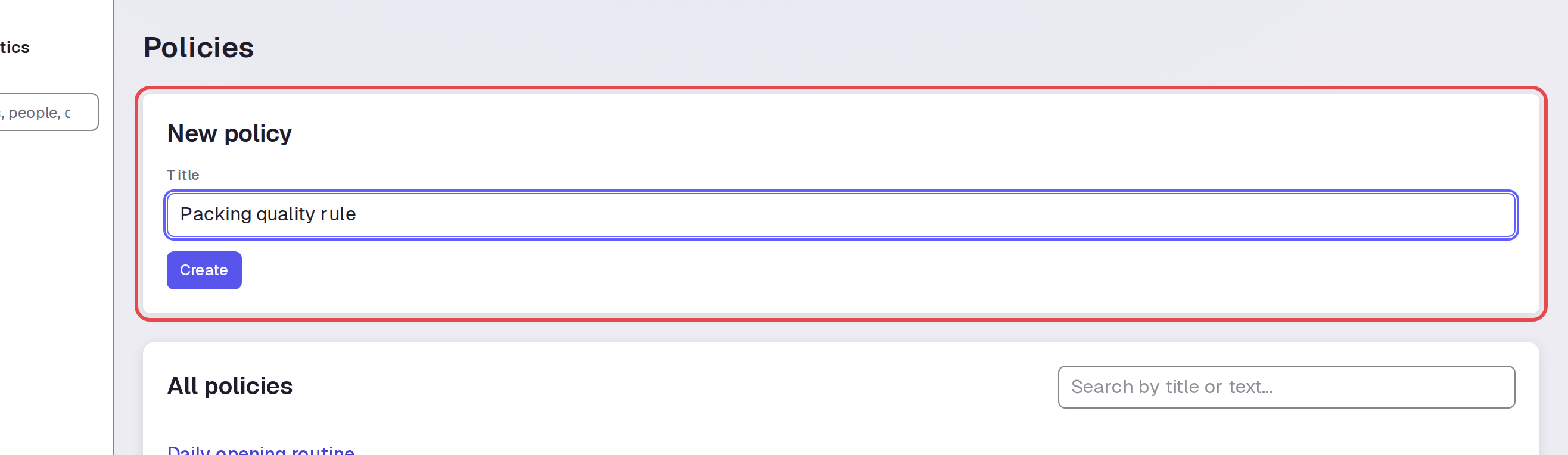
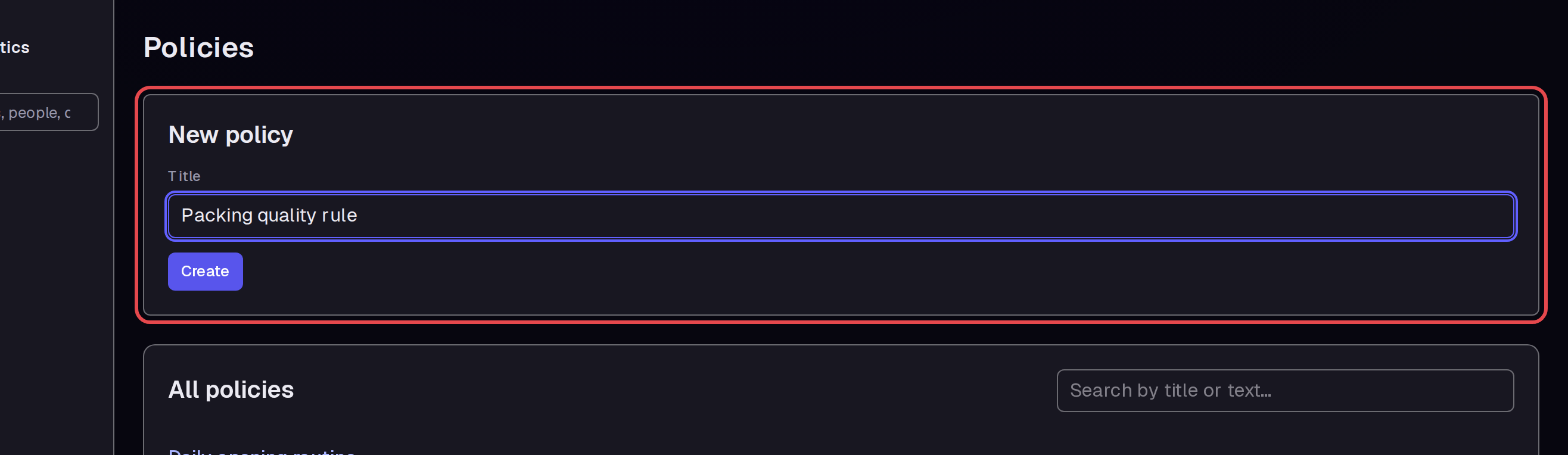
Expand HR and select Policies. Enter “Packing quality rule” in Title, then select Create.
Step 12 — Write the policy
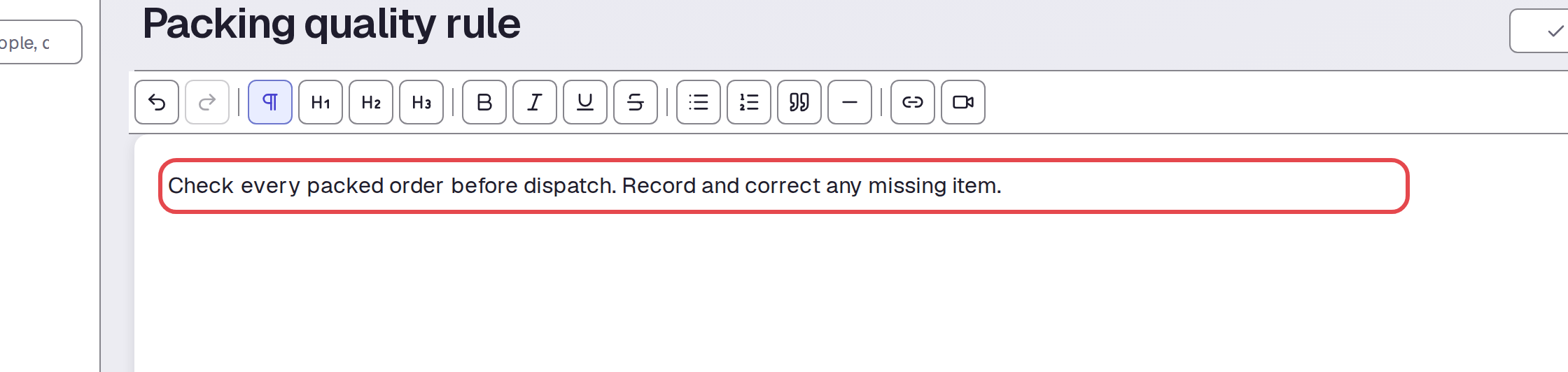
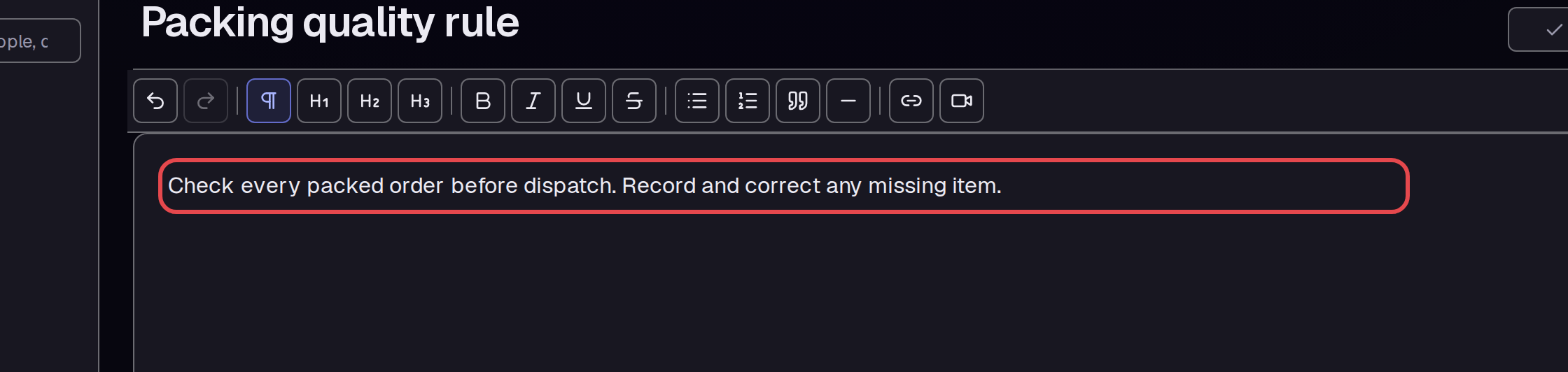
The Packing quality rule editor opens after Create. Write “Check every packed order before dispatch. Record and correct any missing item.” Wait for Saved; this text remained after a reload.
Tips
- Wait for Saved before you leave an editor.
- Use Heading 1 for a document heading and Bold for a short reminder; both formats remained after reloading.
- Add a post SOP through SOPs in the post editor. The tab says SOP changes save at once.
- Use Print / Save as PDF to open the document's separate print page.
What next
Track statistics to measure the results of the procedure.