How to create and complete a management plan
about 5 minutes
A management plan gives a person a stated purpose and a record of completion. A manager can use one for a workplace conduct review or another follow-up.
Before you start
This example uses the workspace owner, Test Owner, as both creator and assignee. The plan is called Respectful workplace review.
Step 1 — Open Management plan
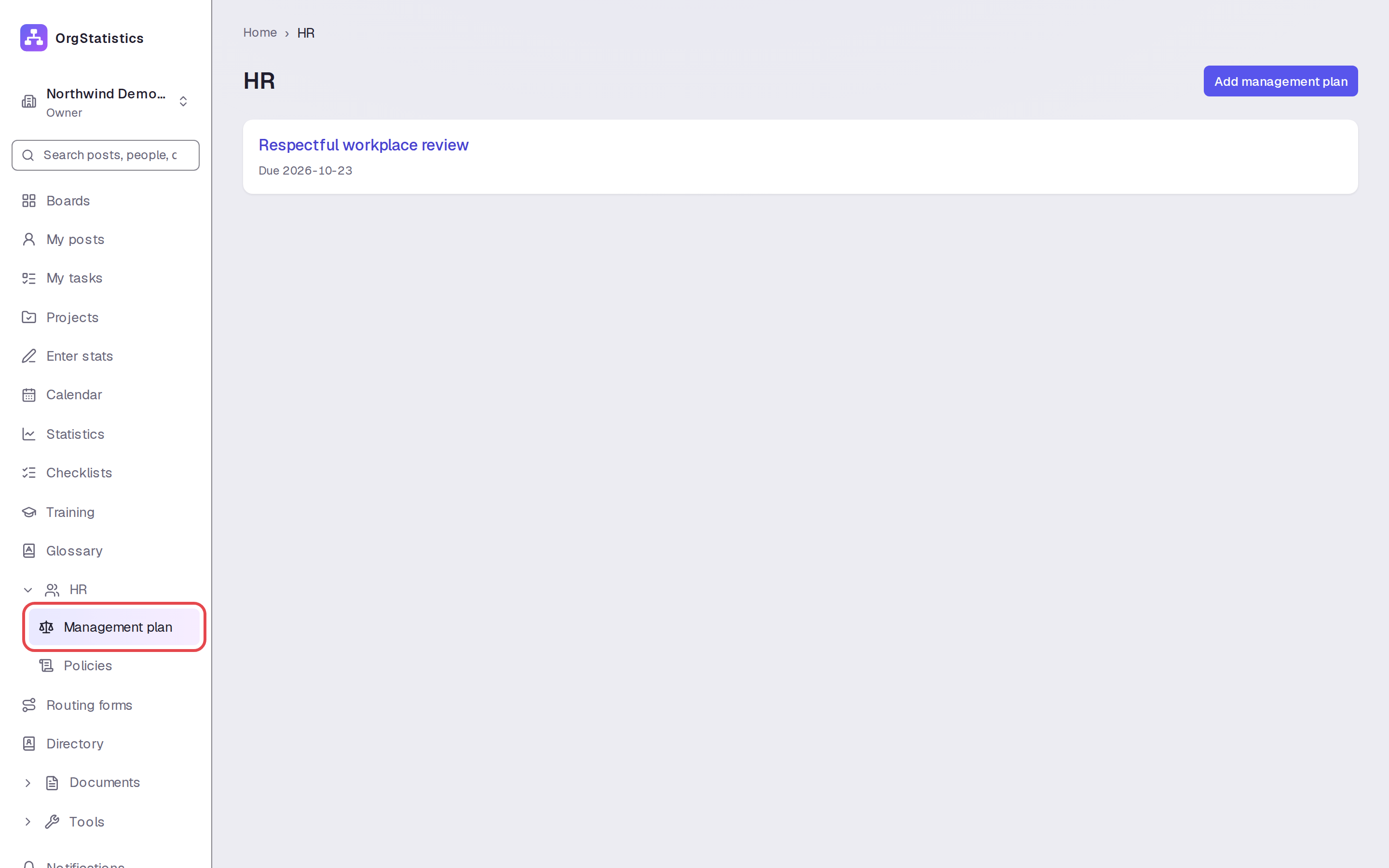
Expand HR in the sidebar. Click Management plan, then click Add management plan.

Step 2 — Describe the plan
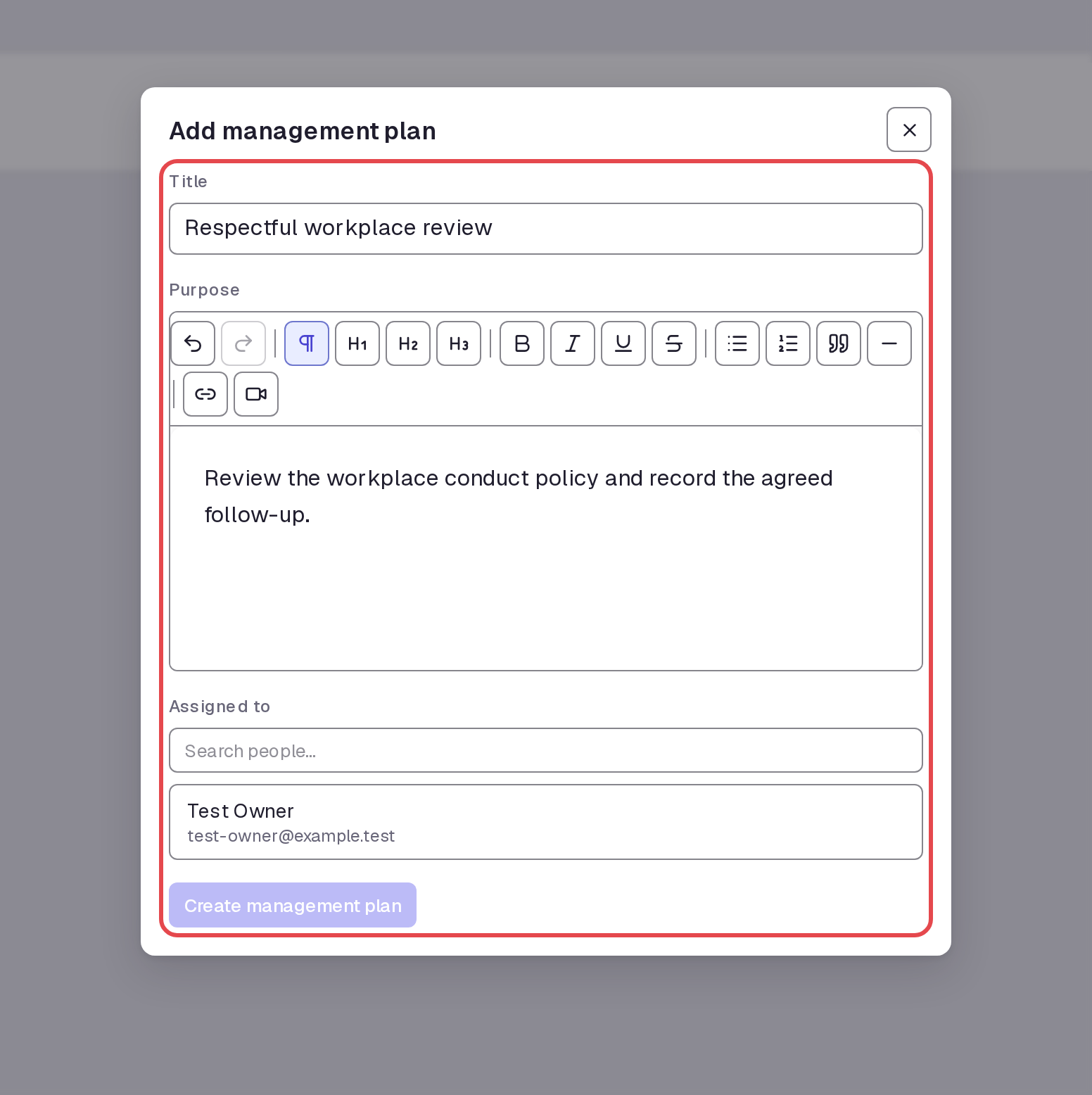
Enter a Title. In Purpose, state what the person must do. We entered a workplace policy review and an agreed follow-up.
Step 3 — Assign and create the plan
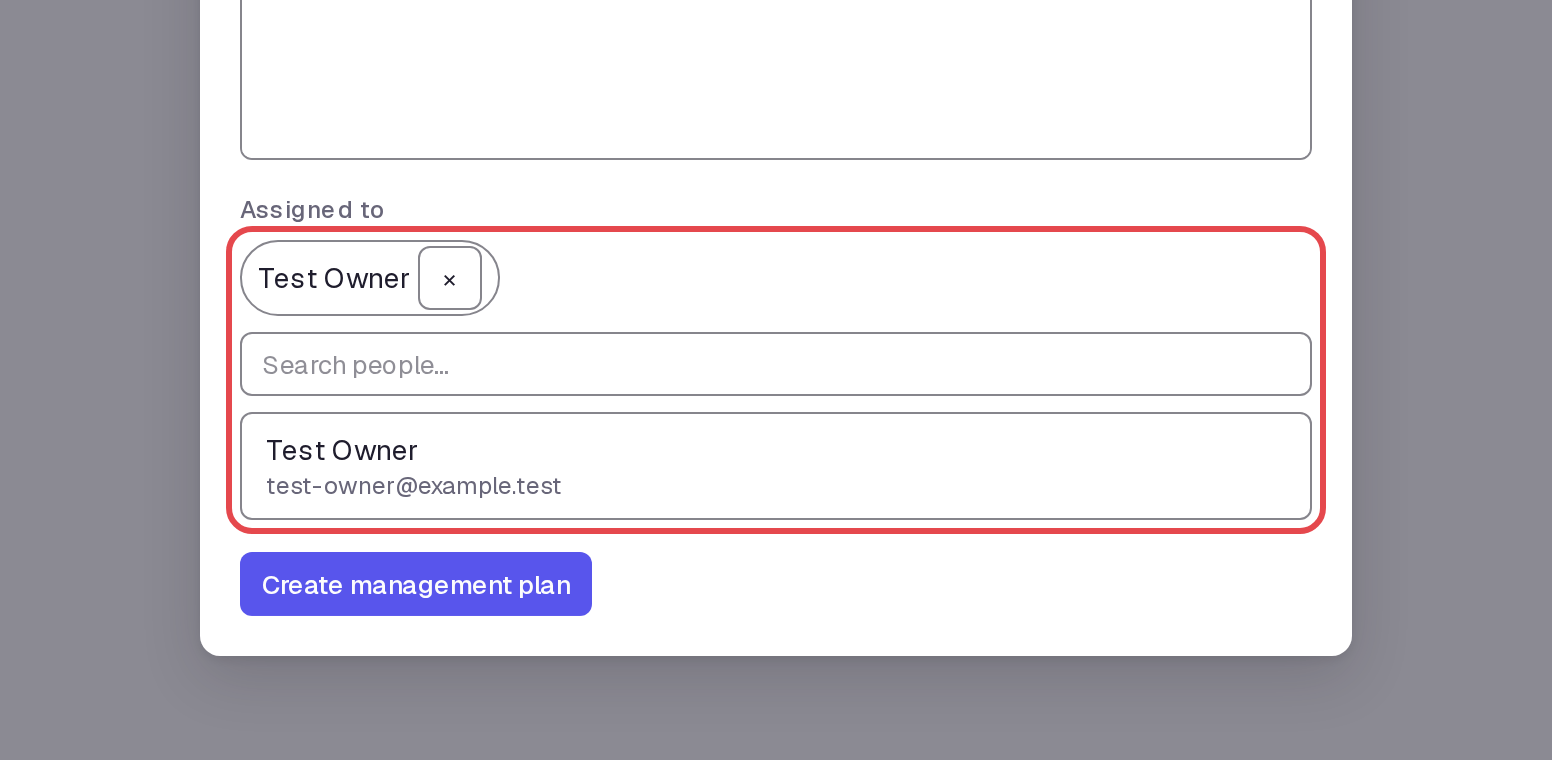
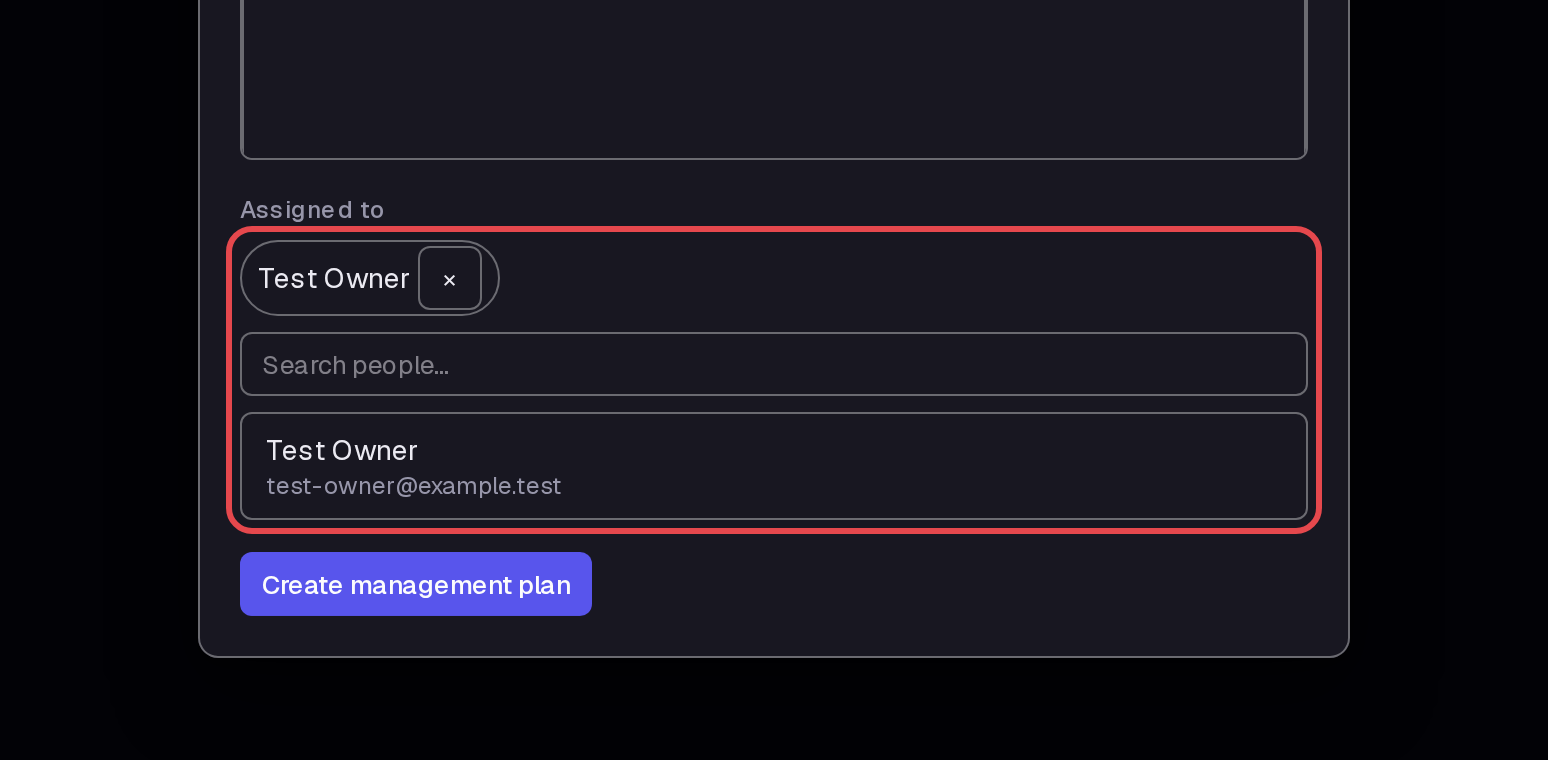
Under Assigned to, select Test Owner for this example. The selected name appears above the search box. Click Create management plan.
Step 4 — Open the created plan
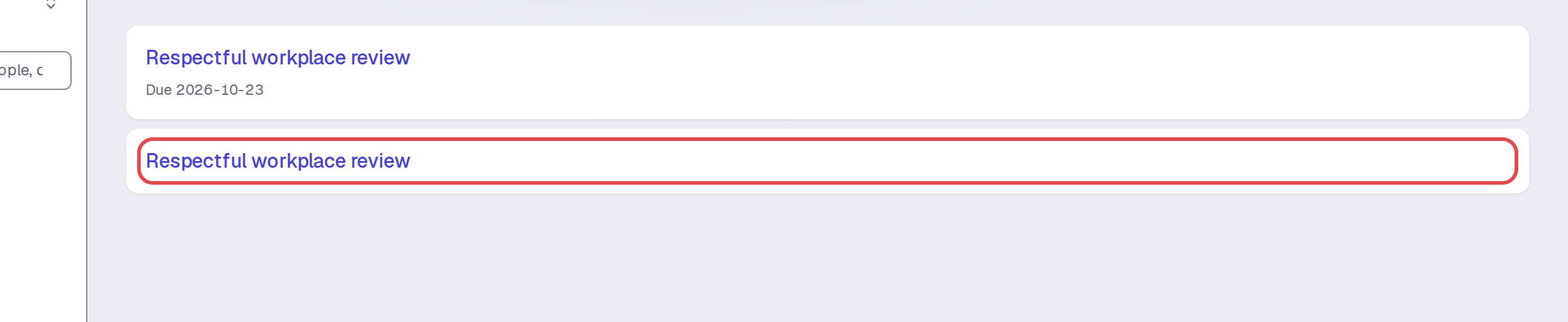
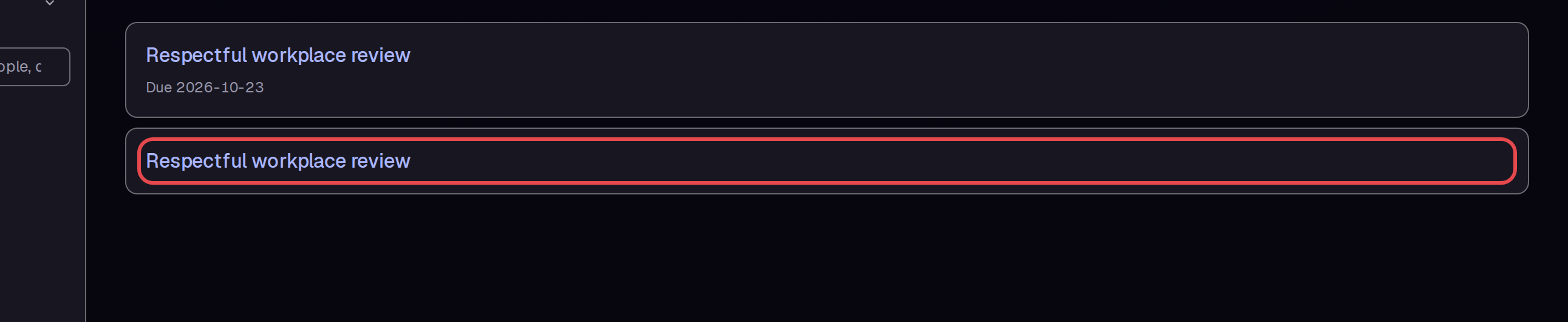
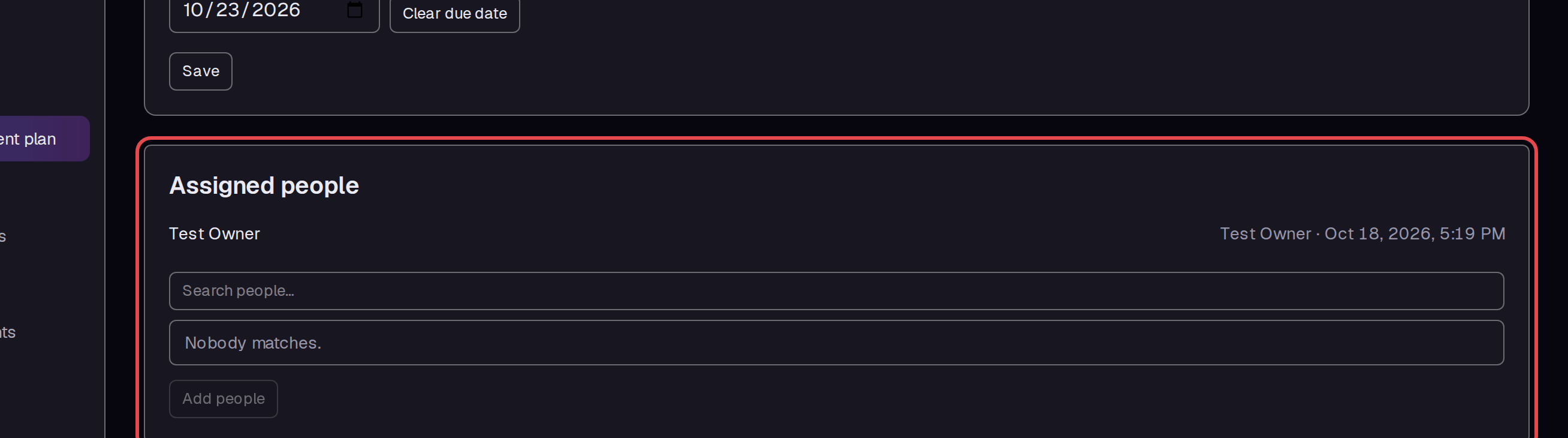
Click Respectful workplace review in the list. The detail page shows the purpose and Assigned people. Test Owner initially has Pending beside the name.
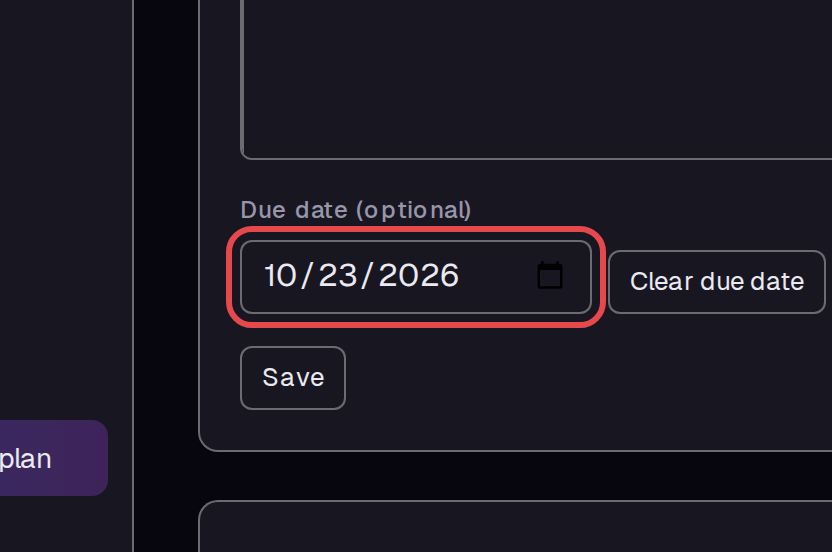
Step 5 — Save a due date
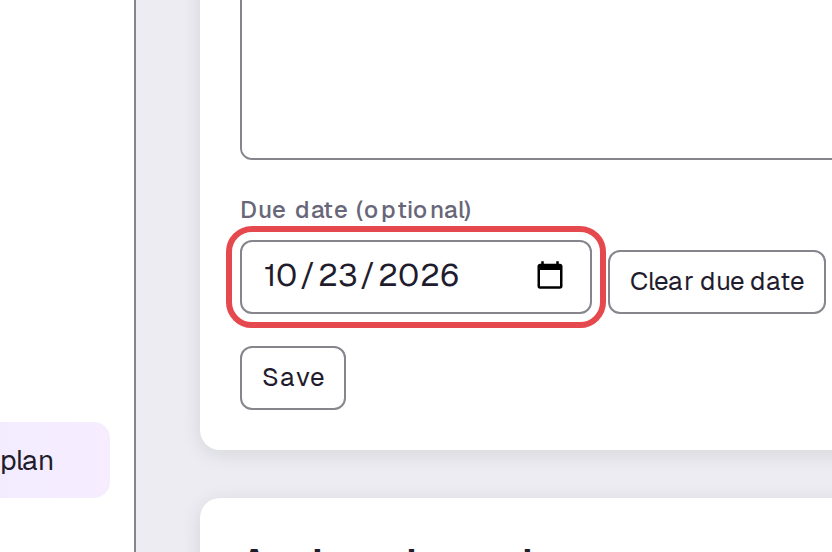
Enter a date in Due date (optional). We used October 23, 2026. Click Save.
Step 6 — Record your completion
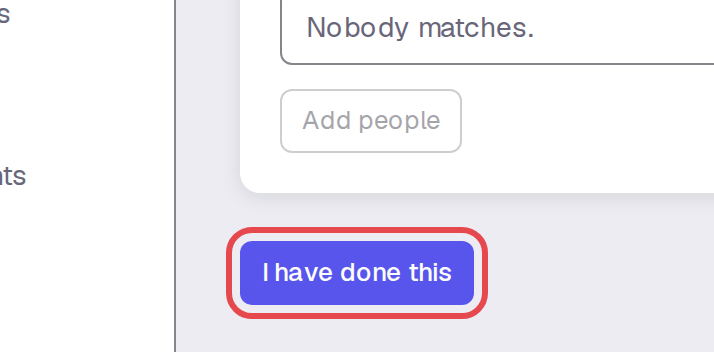
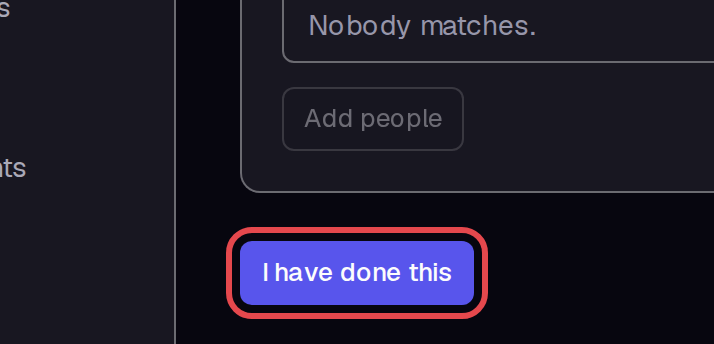
As the assigned person, finish the work described in Purpose. Then click I have done this. In this example, Test Owner records their own completion.
Step 7 — Check the completion record
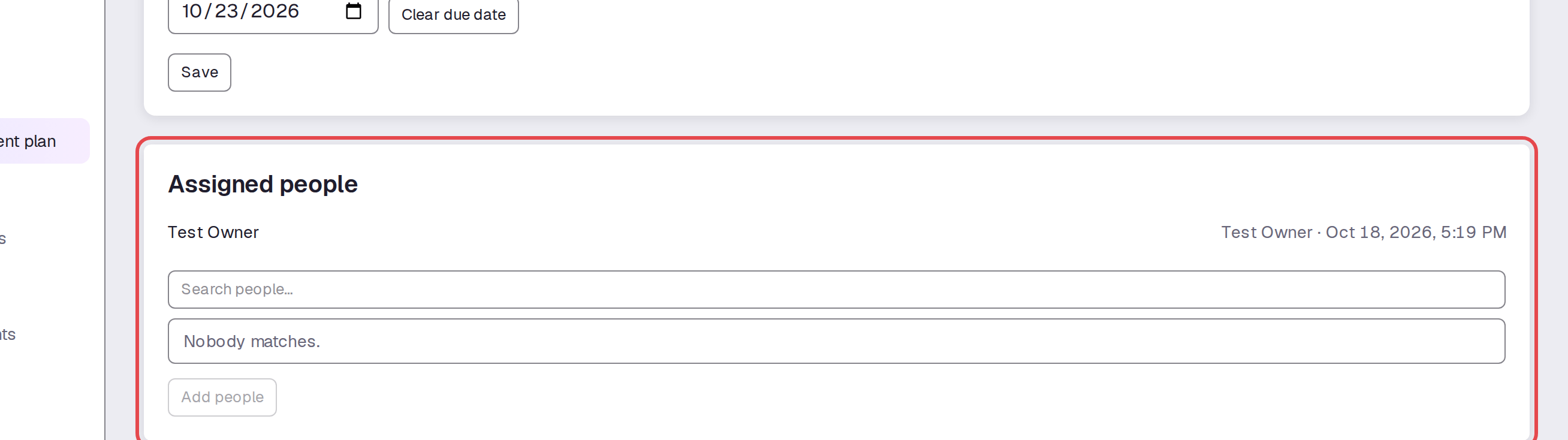
Reload the plan. Under Assigned people, check the name and completion time in place of Pending. We also checked that the due date remained saved.
Tips
- The navigation says Management plan; the page heading says HR.
- Purpose has a text-formatting toolbar.
- Before completion, the assignee shows Pending. After completion, the page shows the person's name and time.
- After a due date is saved, Clear due date appears beside it.