How to find, update, and reuse SOPs
about 10 minutes
An SOP (standard operating procedure) gives the steps for one task. Each SOP belongs to a post on your org board. Use this guide to find an SOP fast, keep it up to date, and reuse it to train new staff.
Before you start
This example uses the post “Front desk” (position “Receptionist”). The post has two SOPs: “Answer the phone” and “Greet a visitor”. To make a post and an SOP, see post details and people and write SOPs and documents.
Step 1 — Search for the SOP
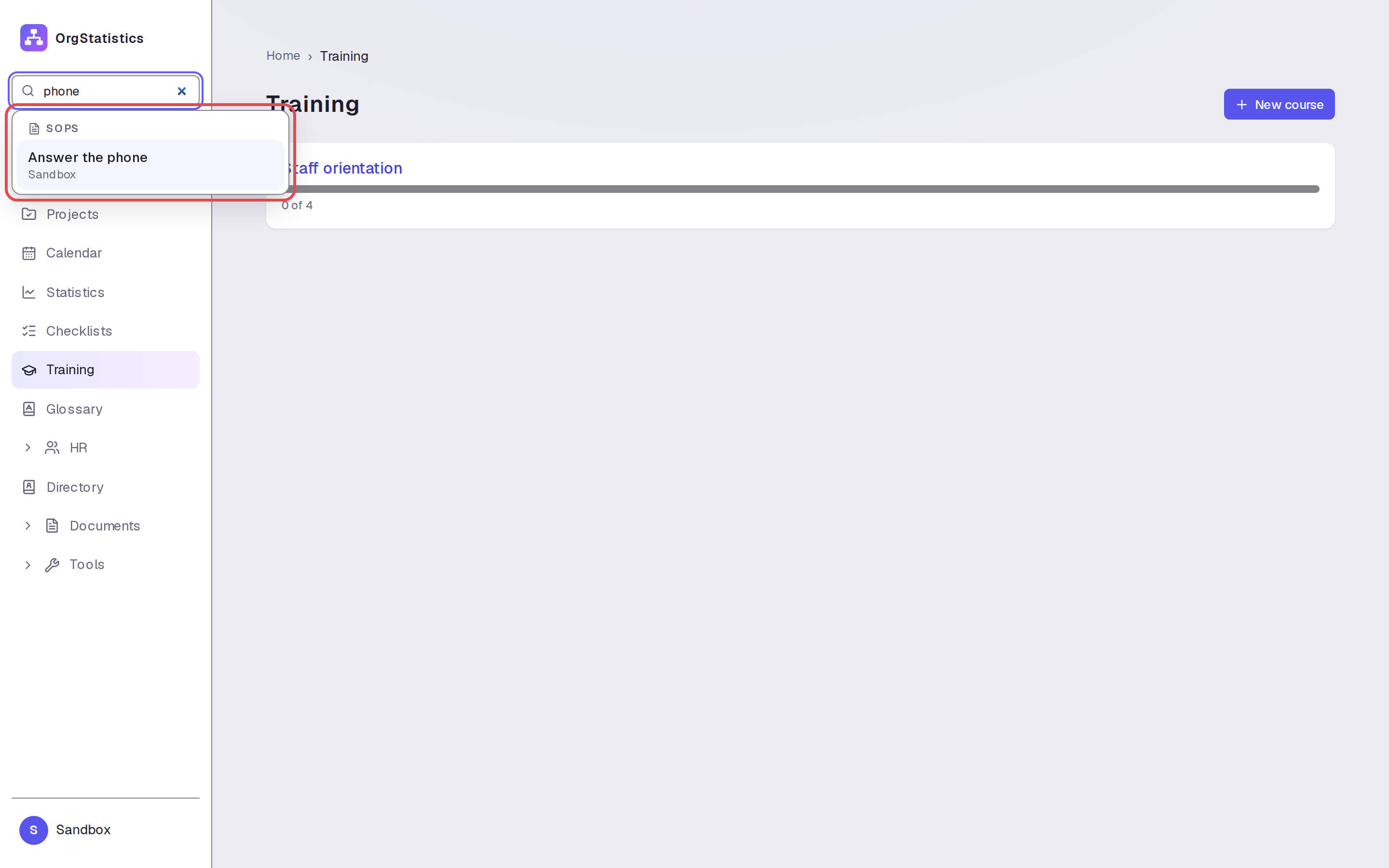
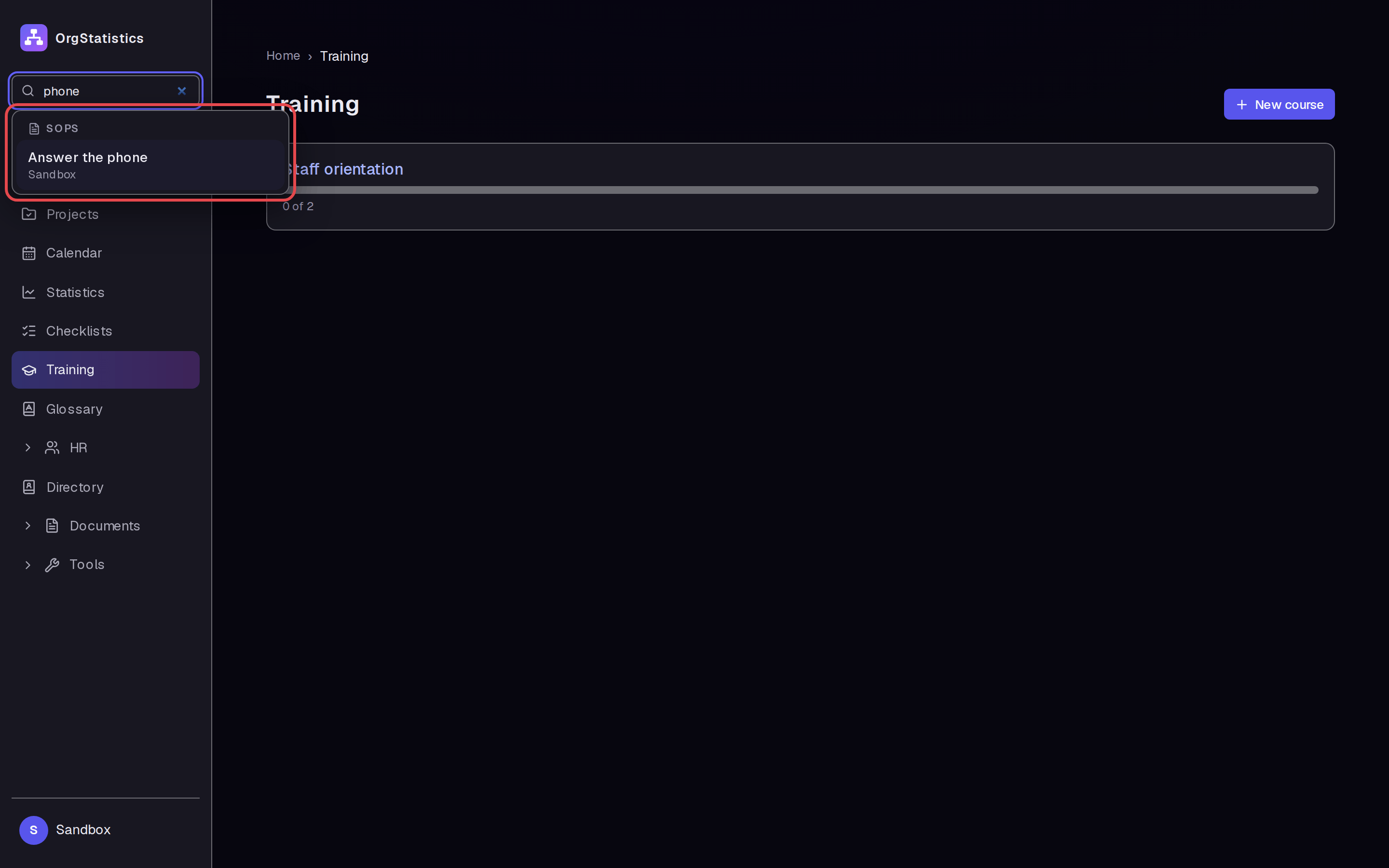
Click the search box at the top of the left menu. Type a word from the SOP name, for example “phone”. The results show the SOP under SOPS.
Step 2 — Open the SOP
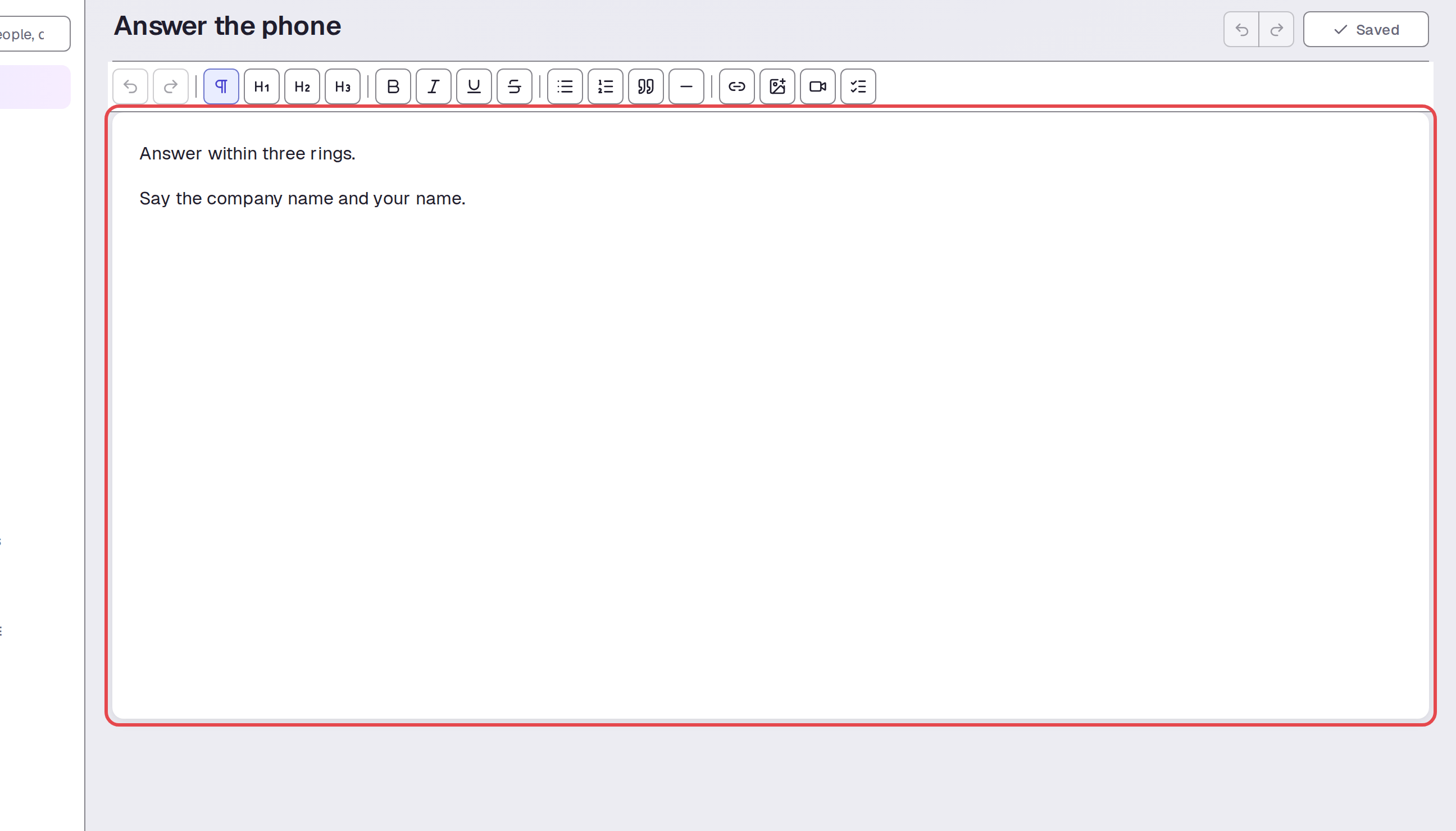
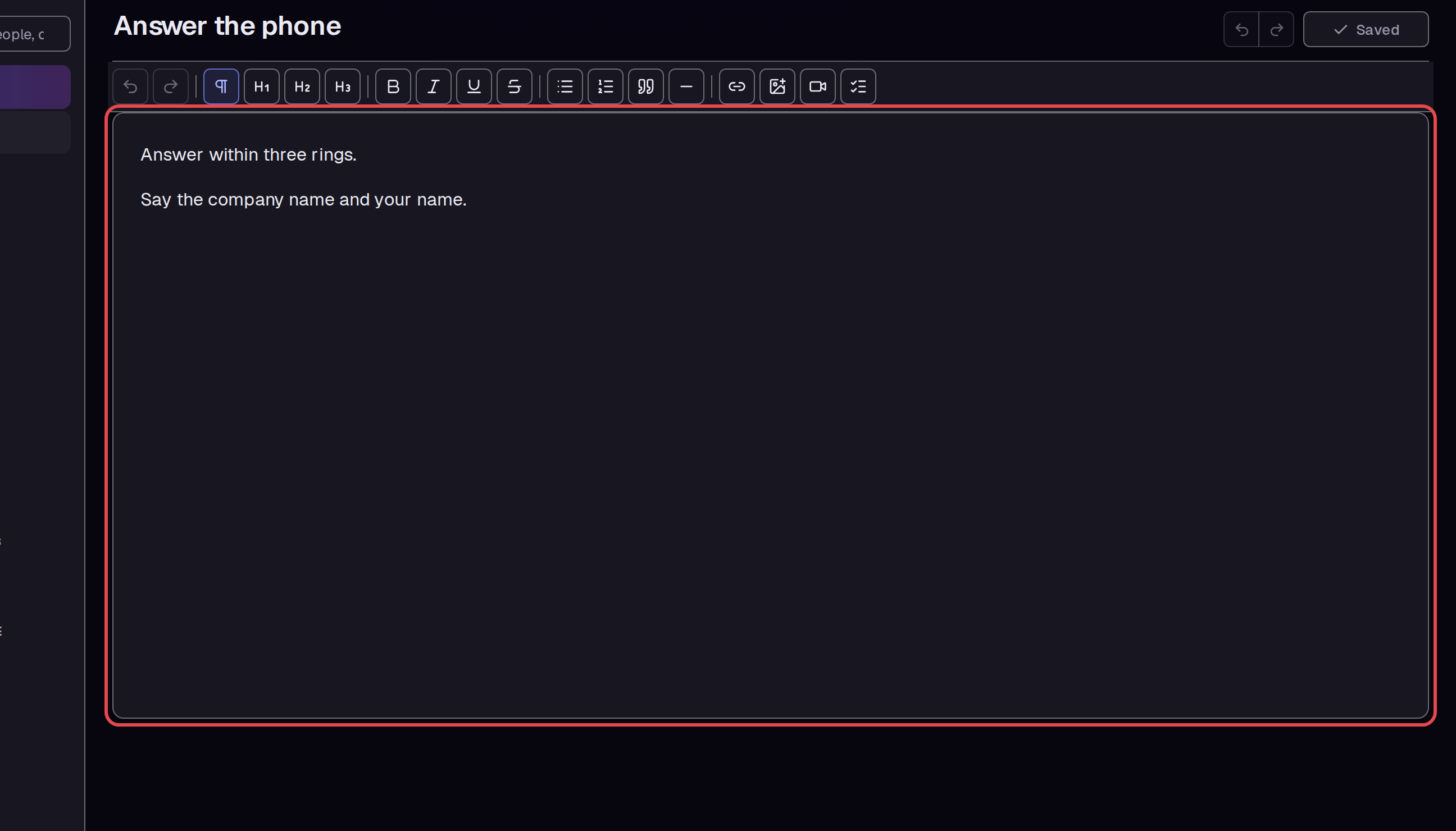
Click the SOP in the results. The SOP page opens with its steps in the editor.
Step 3 — See which post it belongs to
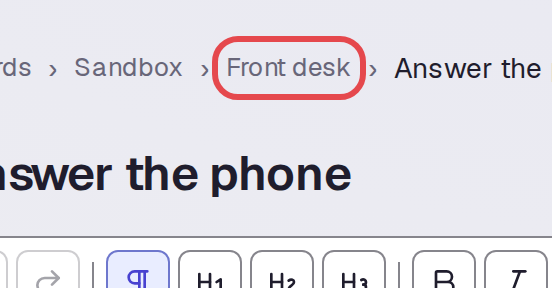
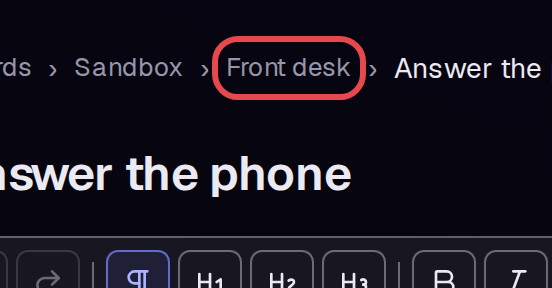
Look at the page path above the SOP name. The name before the SOP name is the post, here Front desk. Click it to open the post page, then click Answer the phone to return to the SOP.
Step 4 — Edit the SOP
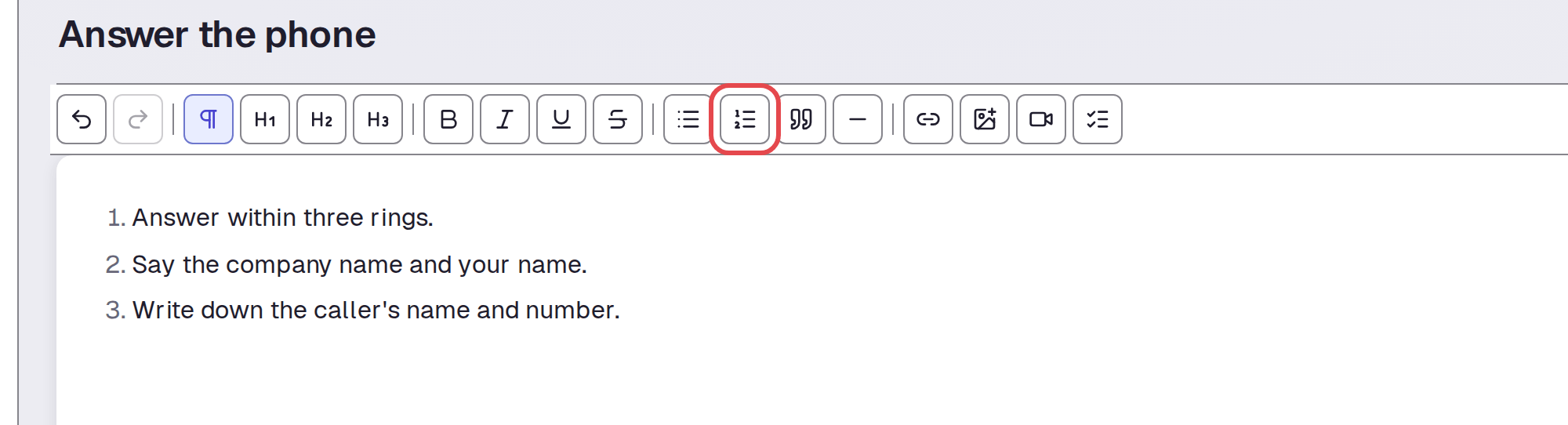
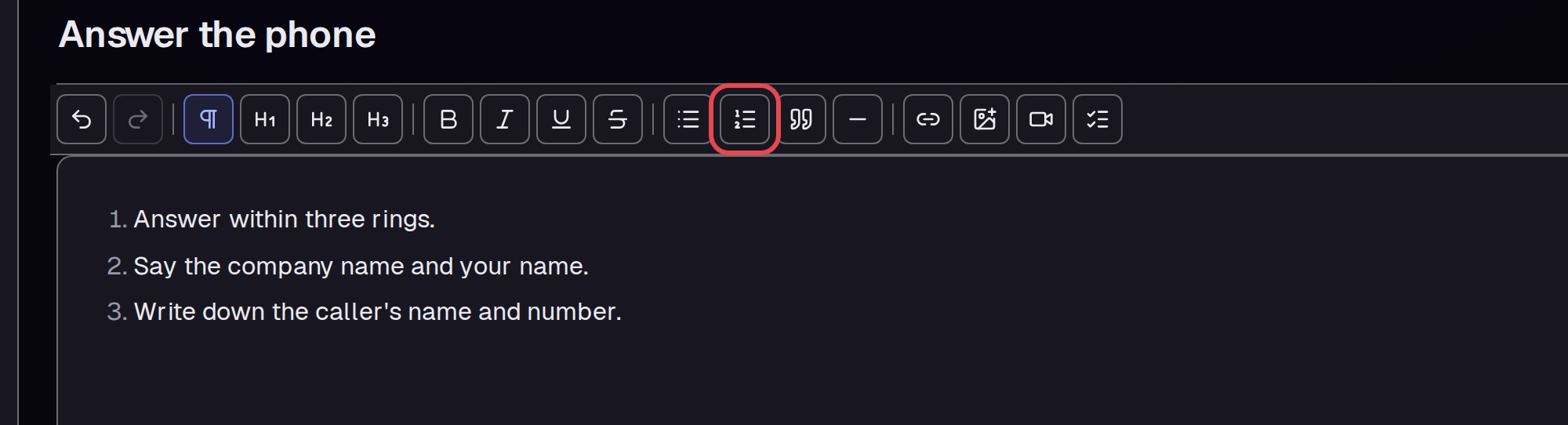
Click at the end of the text and add a new step. Select all the steps. Click the Numbered list button in the toolbar to number them.
Step 5 — Check that it is saved
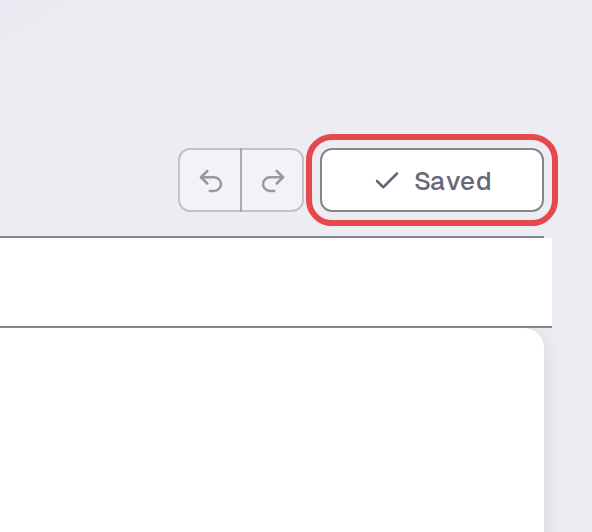
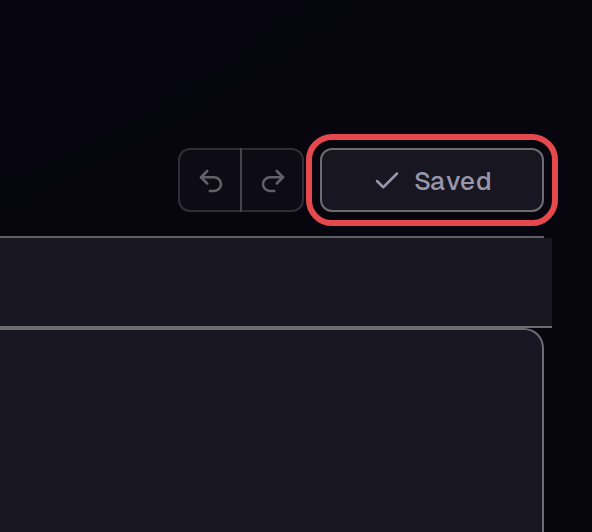
Wait until the button at the top right shows Saved. The numbered steps stayed after a page reload.
Step 6 — See all SOPs of a post
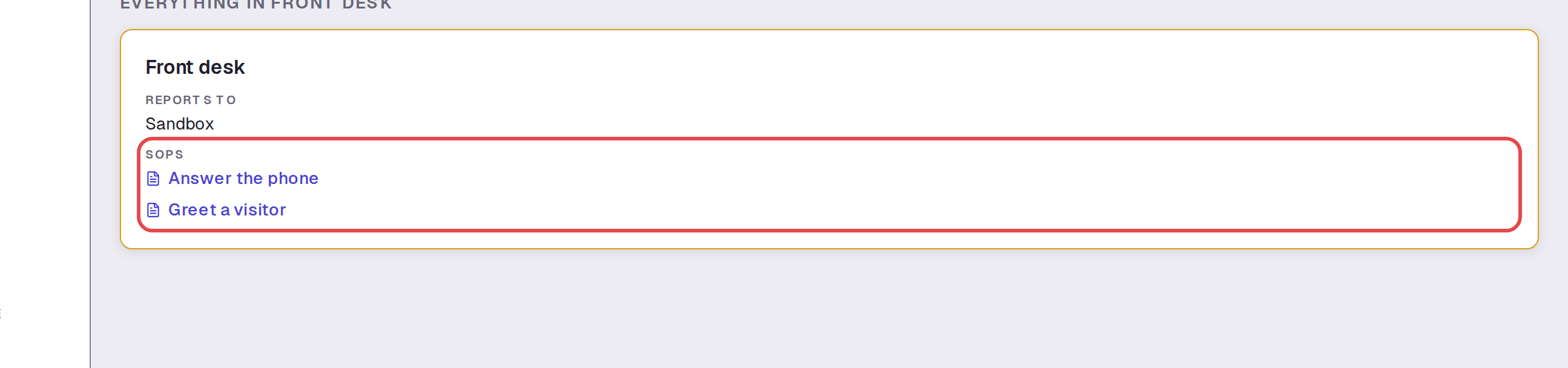
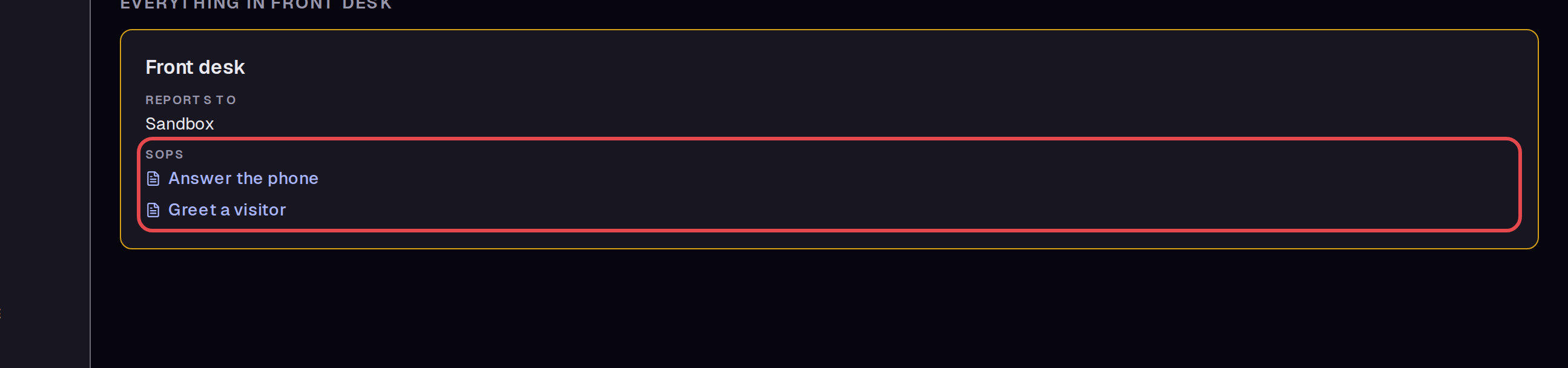
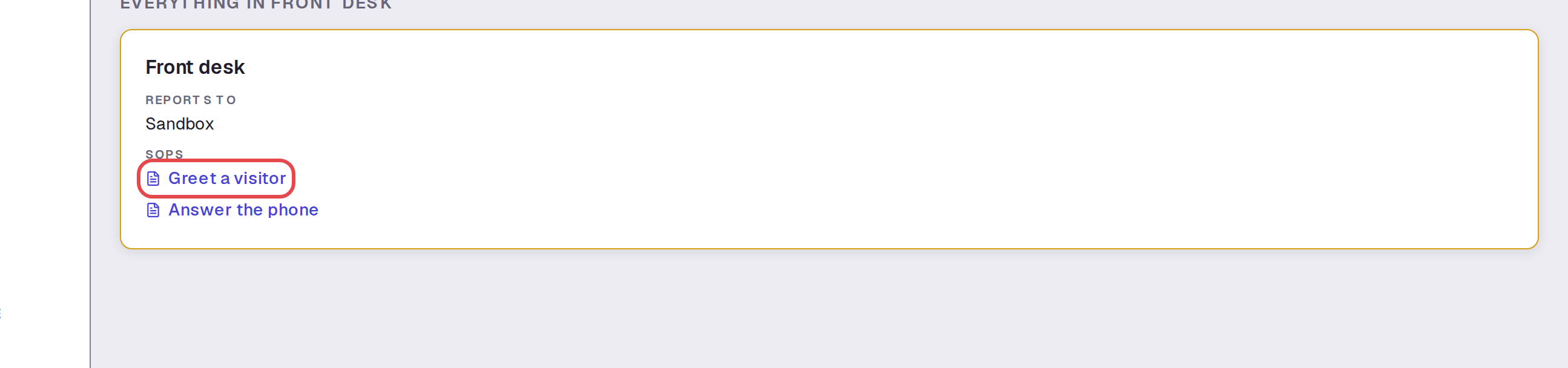
Type the post name, “Front desk”, in the left menu search. Click the result under POSTS. The post page lists all its SOPs under SOPS. Click an SOP name to open it.
Step 7 — Change the SOP order
Click Boards. Open the arrow menu on the post and click Edit. Open the SOPs tab. Click the up arrow (Move up) beside an SOP. SOP changes save at once.
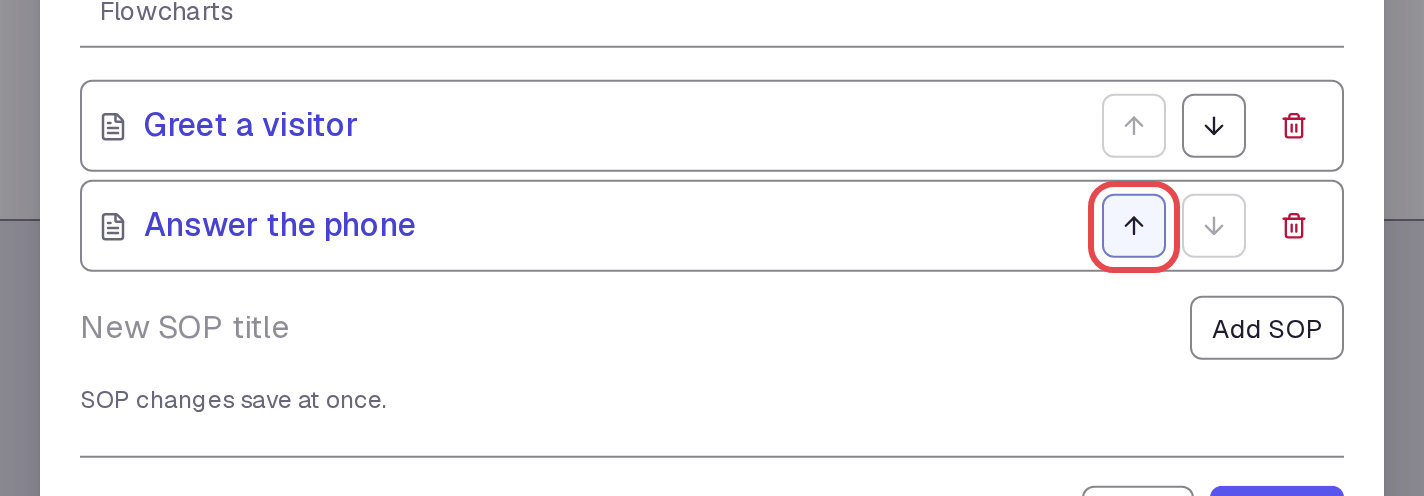
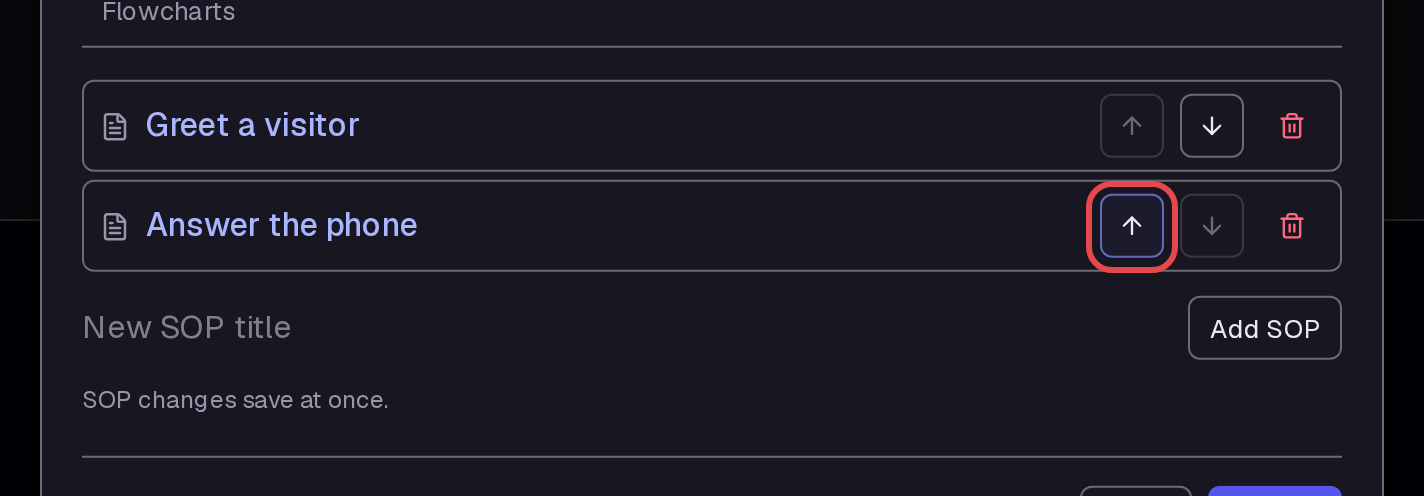
Step 8 — Check the new order
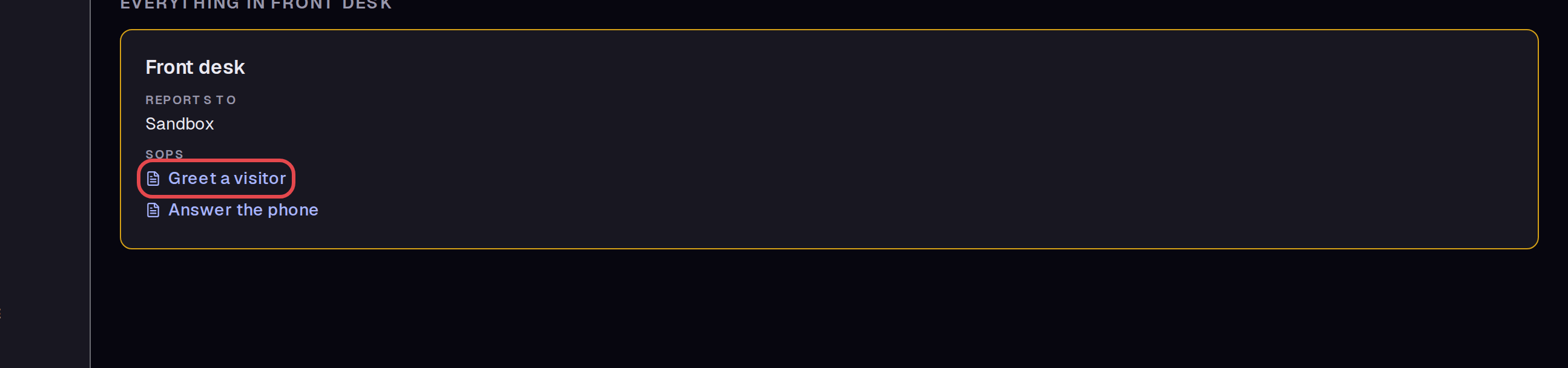
Click Close. Open the post page again from the left menu search. The SOPs now show in the new order: “Greet a visitor” is first.
Step 9 — Create a course for the SOP
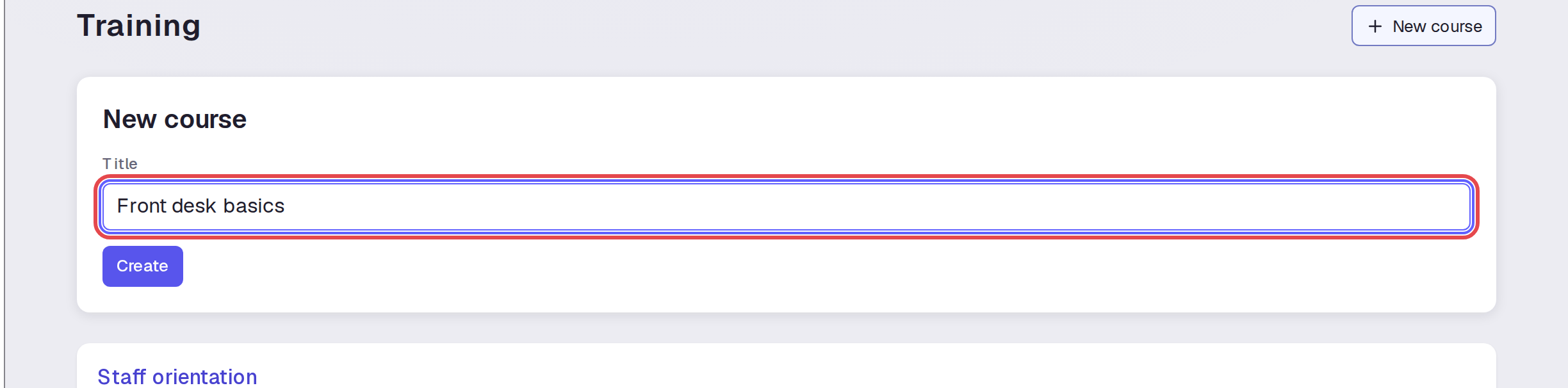
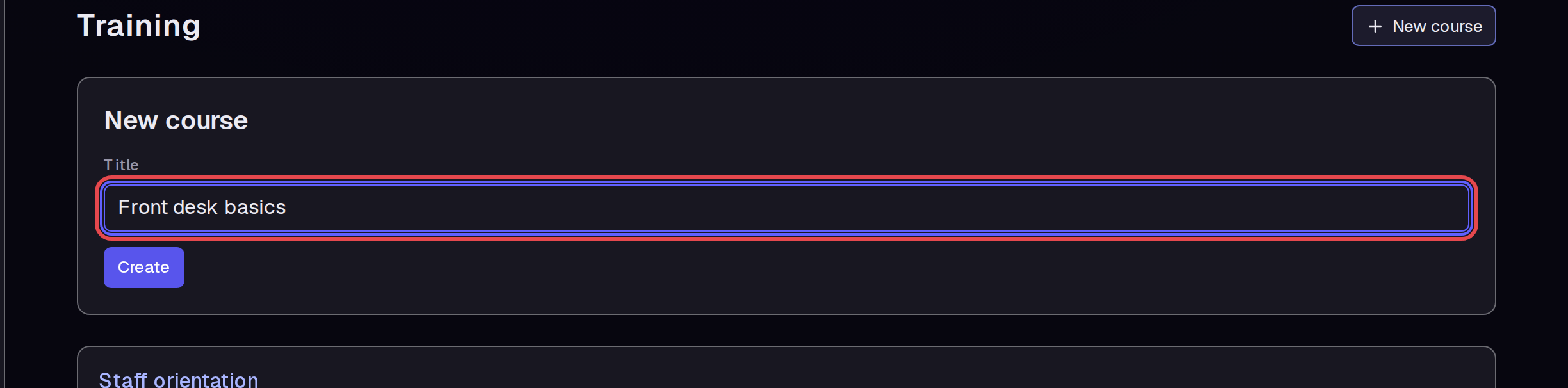
To reuse the SOP for training, click Training. Click New course. Type “Front desk basics” in Title and click Create. The course opens automatically.
Step 10 — Add the SOP to the course
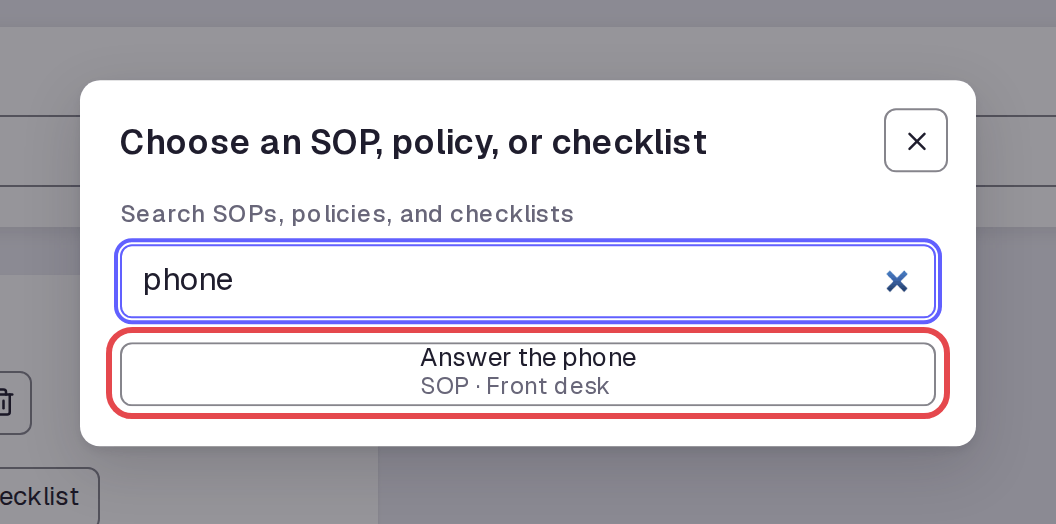
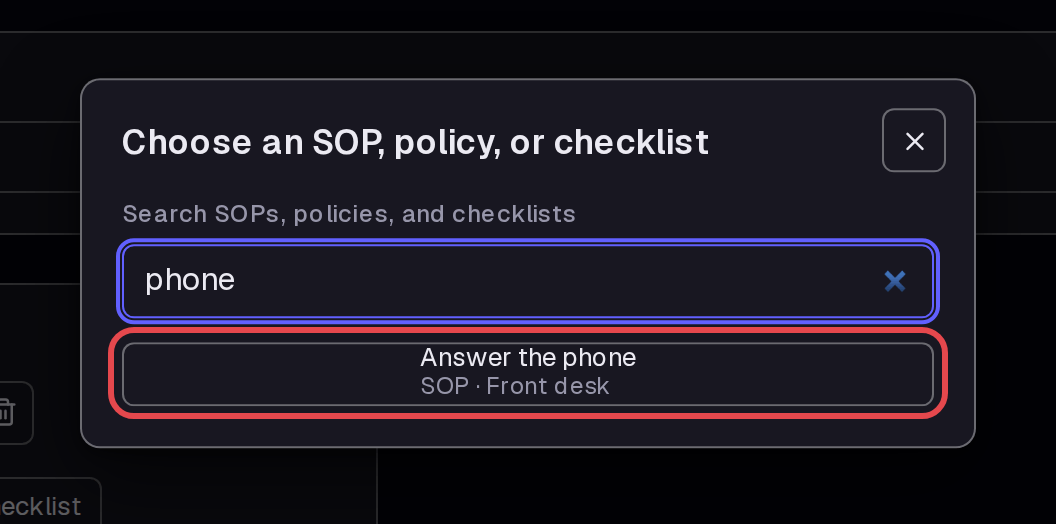
Type “Phone work” in Section title and click Add section. In the section, click Add SOP, policy, or checklist. Type “phone”. Check that Answer the phone shows SOP · Front desk, then click it.
Step 11 — Read the SOP in the course
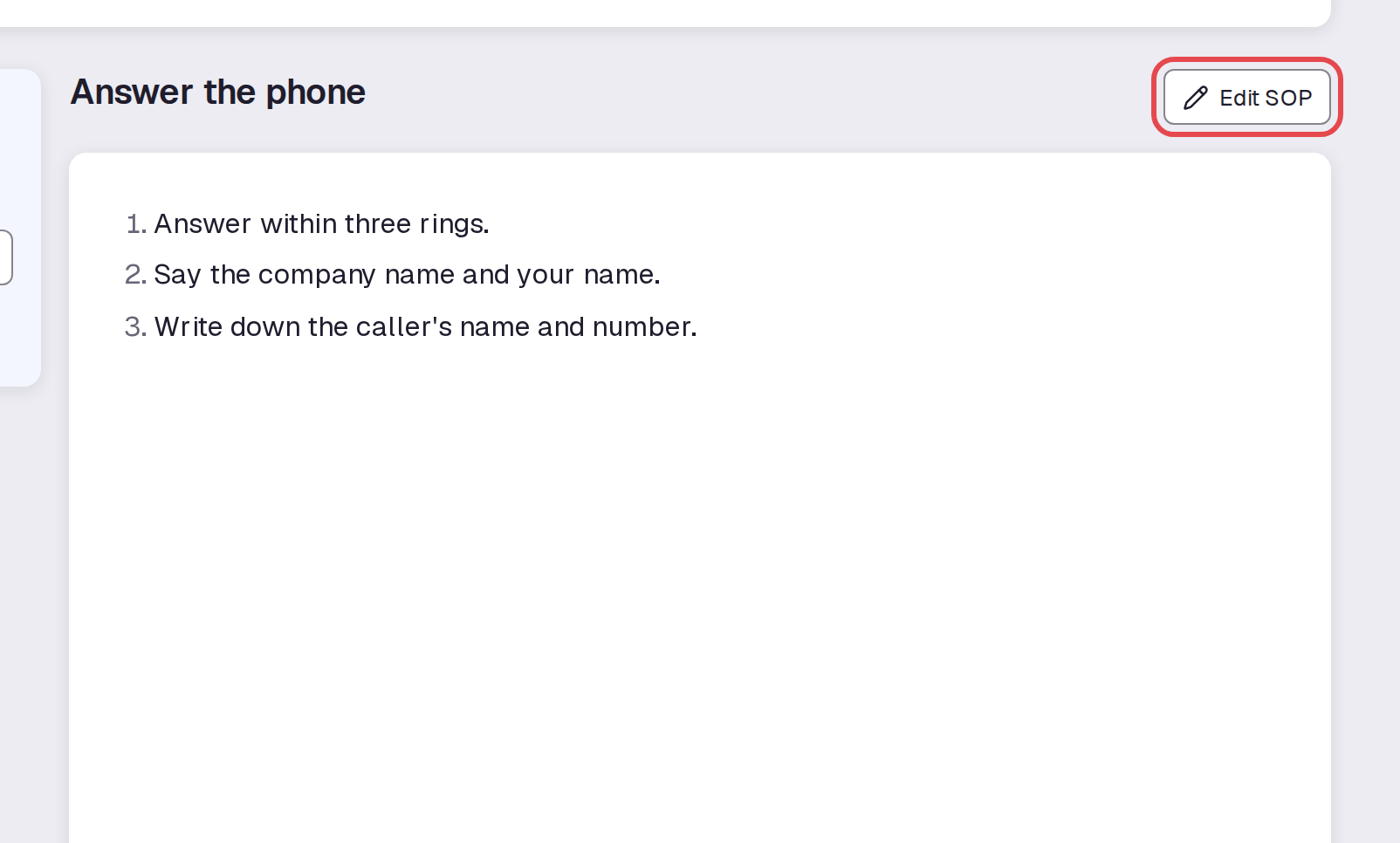
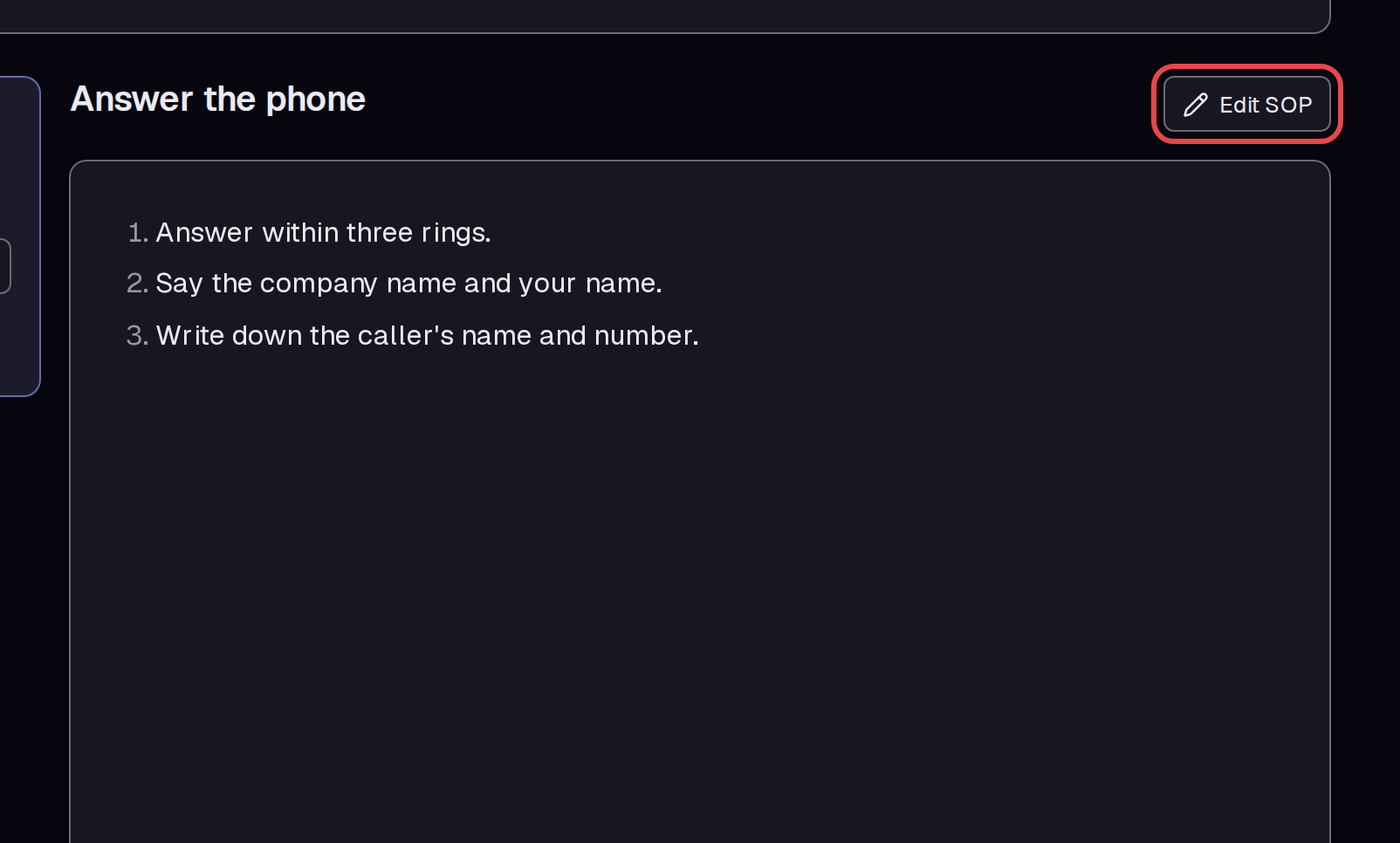
Click 1.1 Answer the phone in the course. The SOP steps show on the right. Click Edit SOP to go to the SOP editor if a step must change.
Tips
- The left menu search finds SOPs, posts, policies, checklists, and courses.
- The course shows the current SOP. After you edit the SOP, the course showed the new numbered steps.
- In the course picker, an SOP shows its post name, for example “SOP · Front desk”.
- To go from an SOP to its post page, click Front desk in the SOP page path. If you open an SOP from Post Edit with unsaved post changes, a warning lets you stay or discard the changes.
What next
- Write a new post SOP: write SOPs and documents.
- Follow up on the course: check training progress.
- Keep company rules in one place: manage policies.
- Add more posts: build your org board.