How to add and manage calendar events
about 6 minutes
Use the calendar to plan meetings and team activities. You can keep the time, place, and description together so a manager can check the plan in one place.
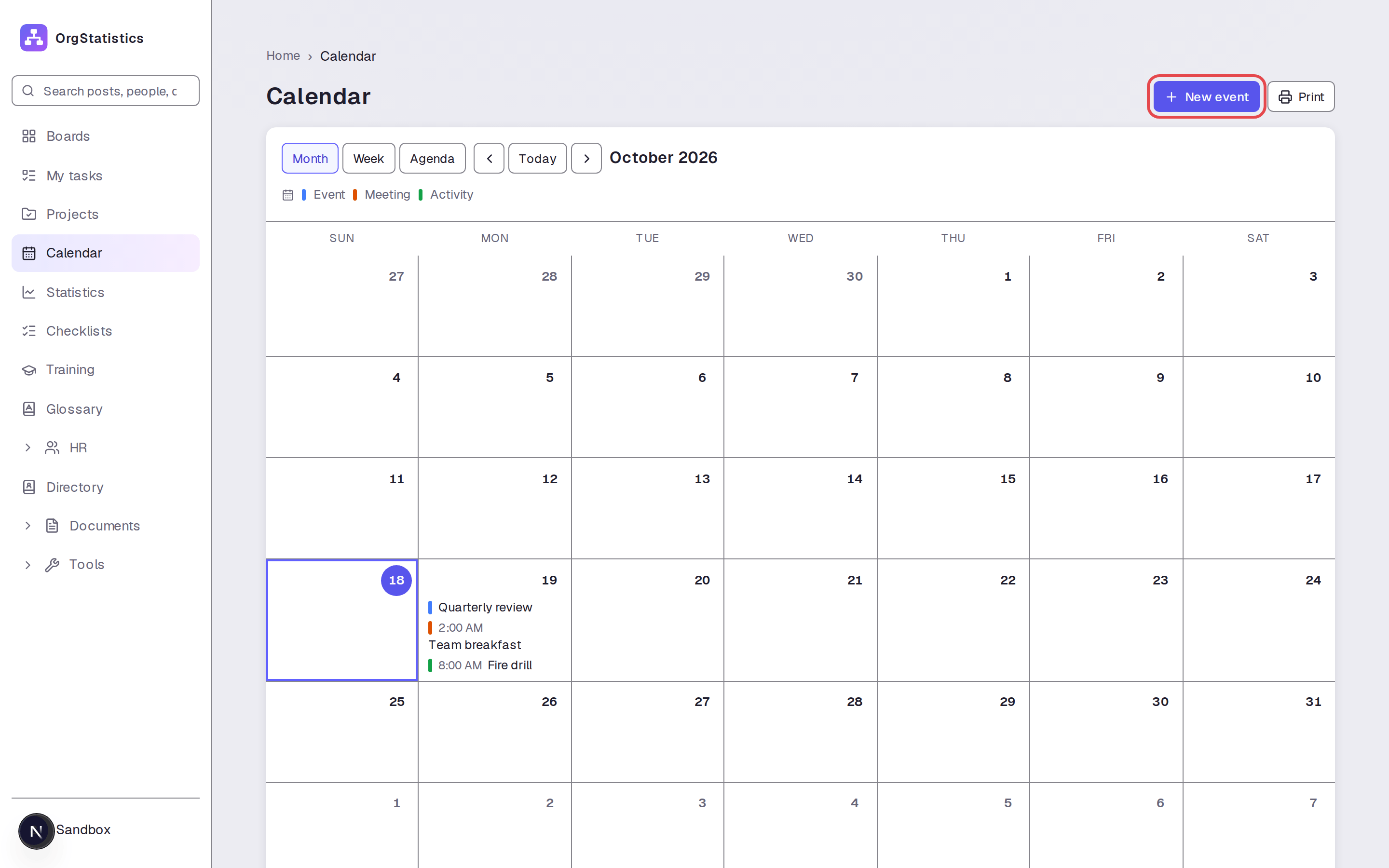
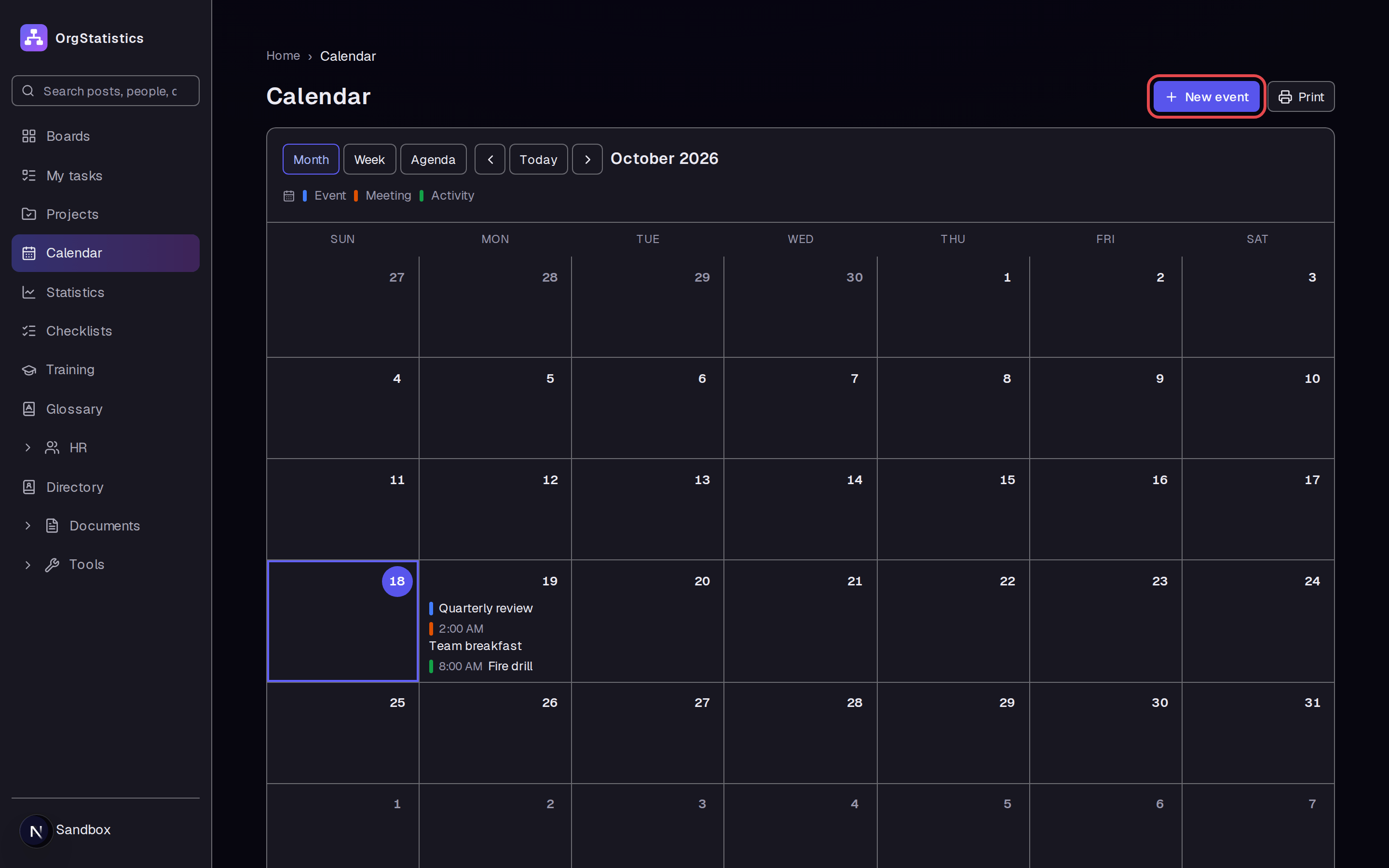
Step 1 — Start a new event
Open Calendar in the sidebar. Click New event.
Step 2 — Name the event
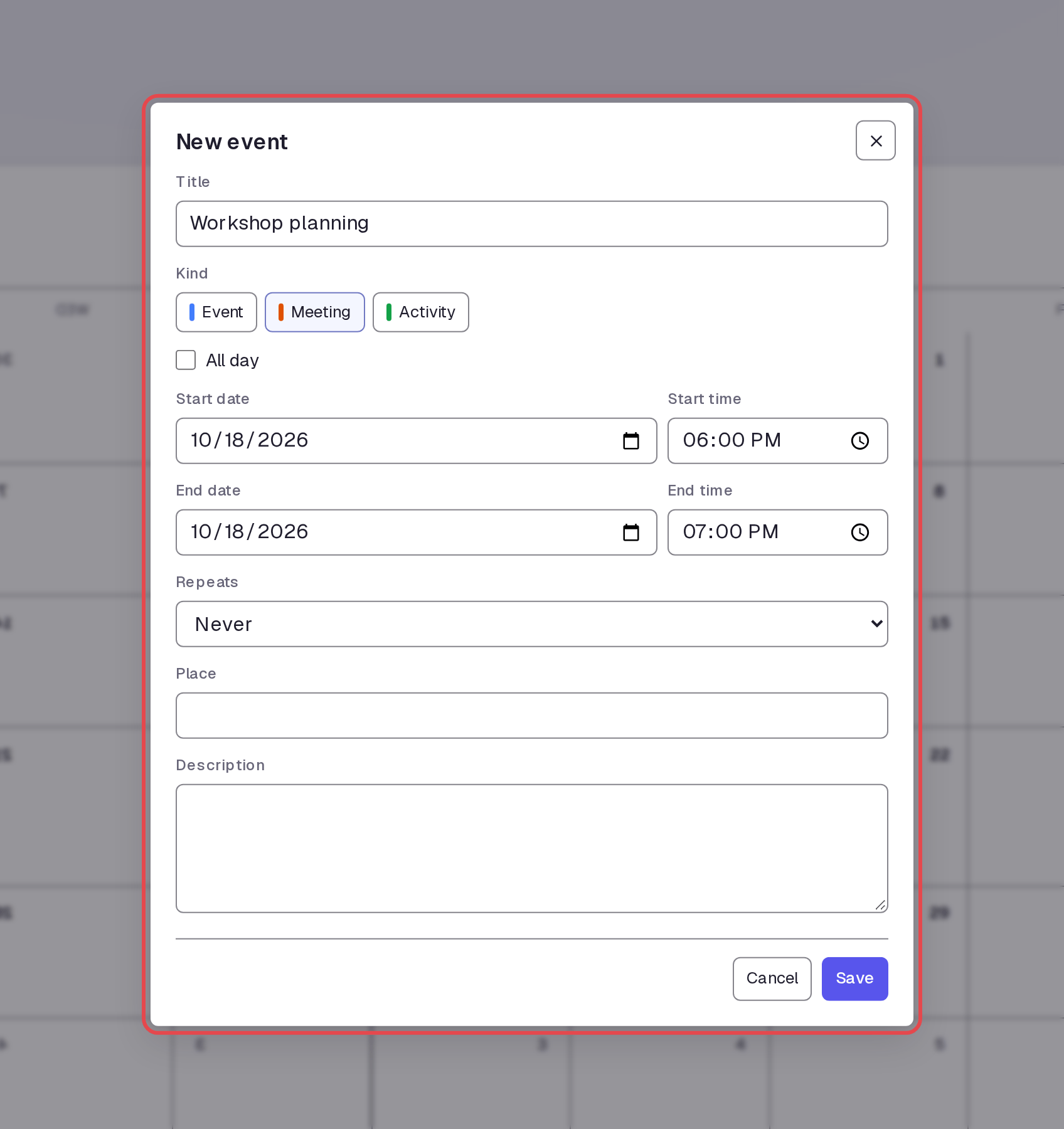
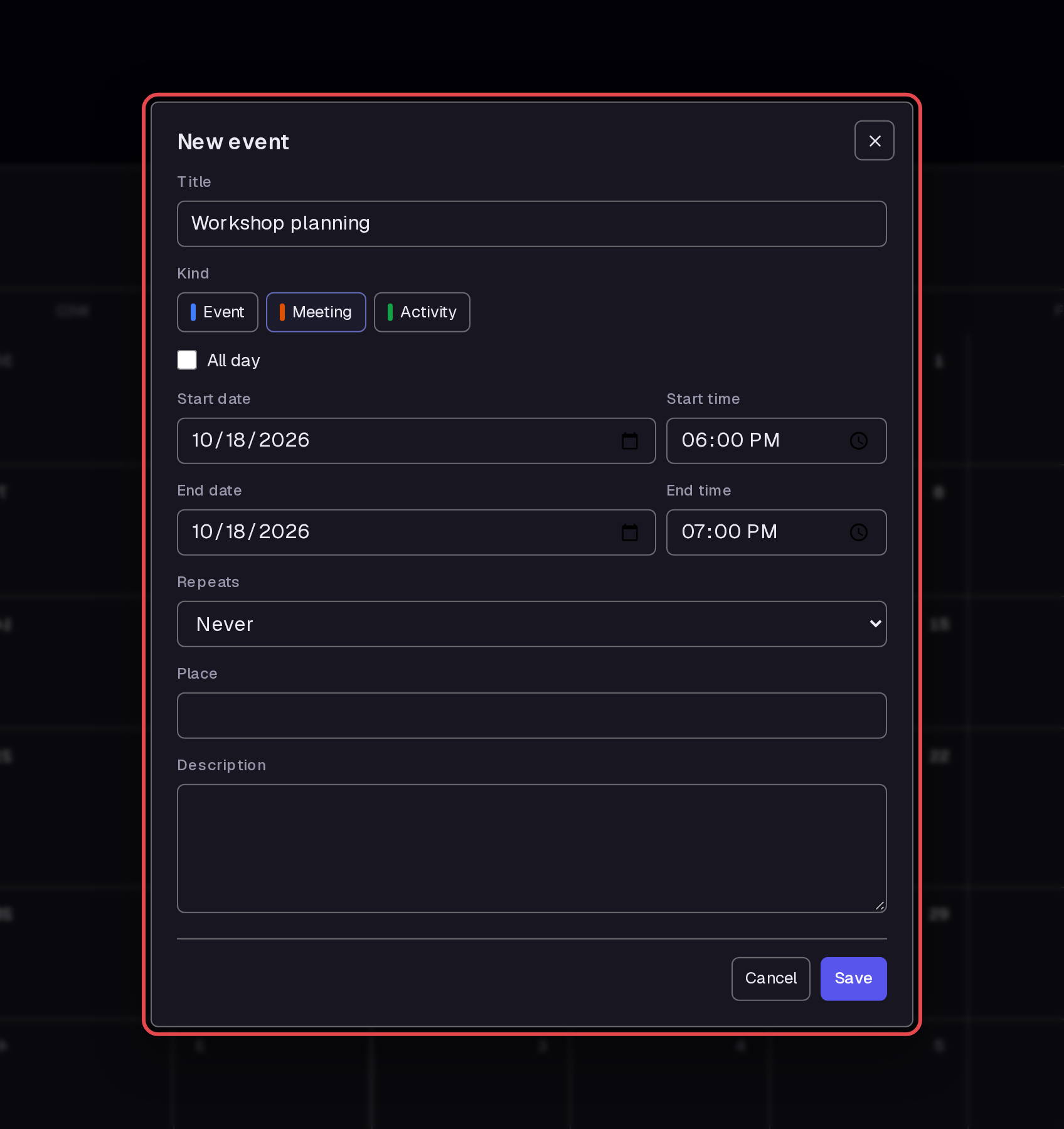
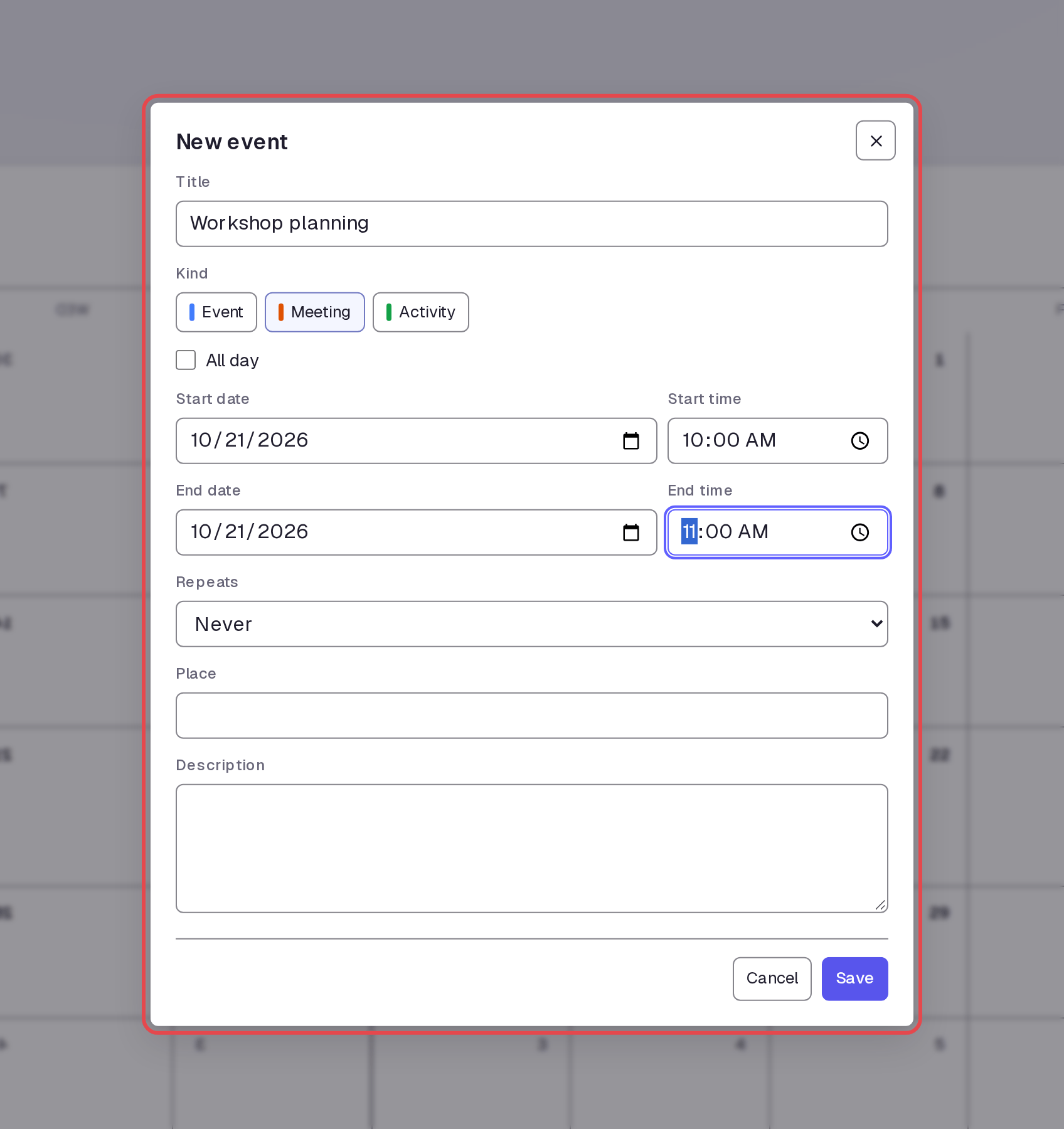
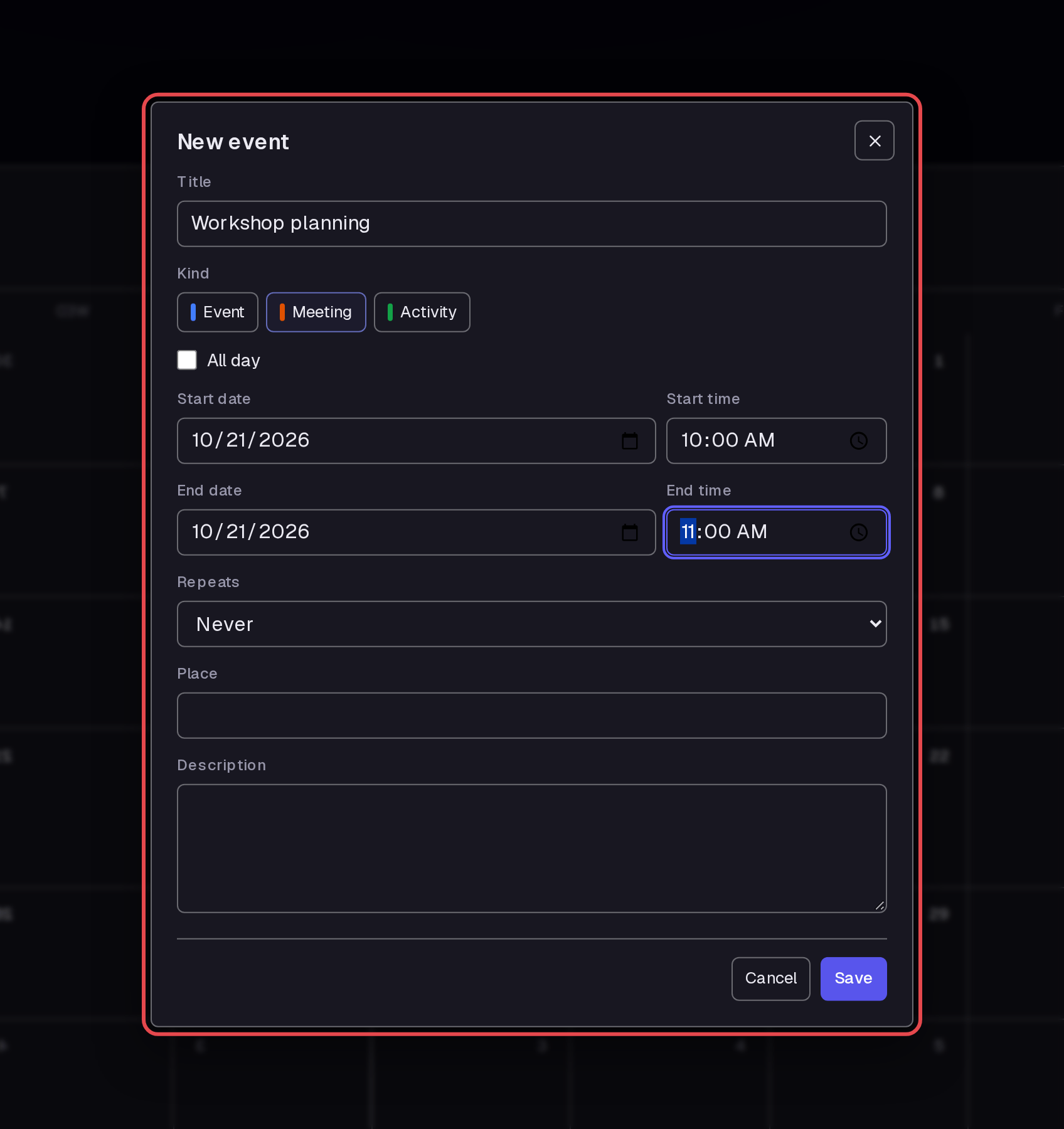
Enter a name in Title. Under Kind, choose Meeting for a team meeting. We used “Workshop planning.”
Step 3 — Set the date and time
Enter Start date, Start time, End date, and End time. We used October 21, 2026, from 10:00 AM to 11:00 AM. Leave All day clear for this timed meeting.
Step 4 — Add the event details
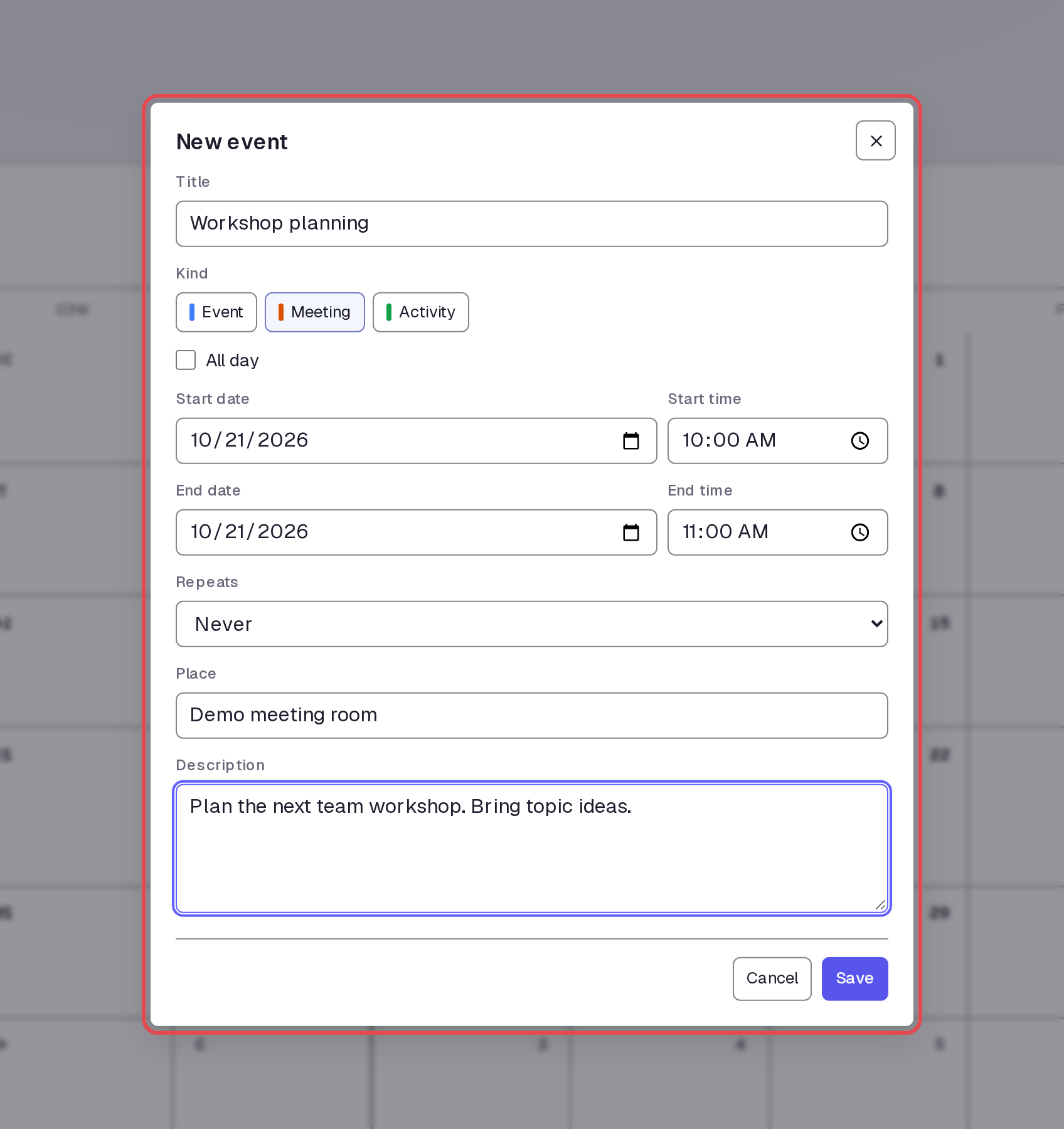
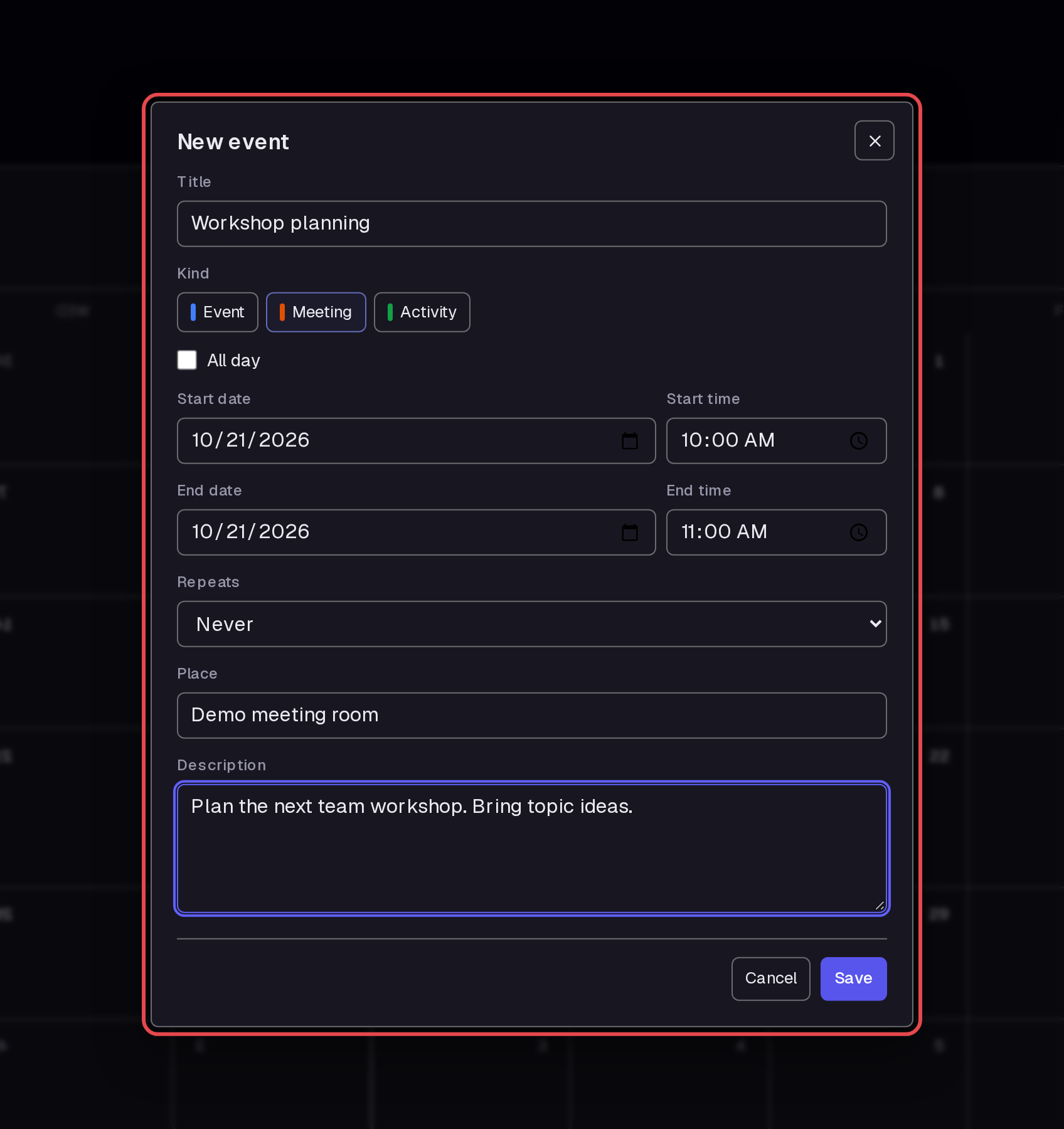
Enter the room in Place. Enter a short plan in Description. We left Repeats set to Never.
Step 5 — Save the event
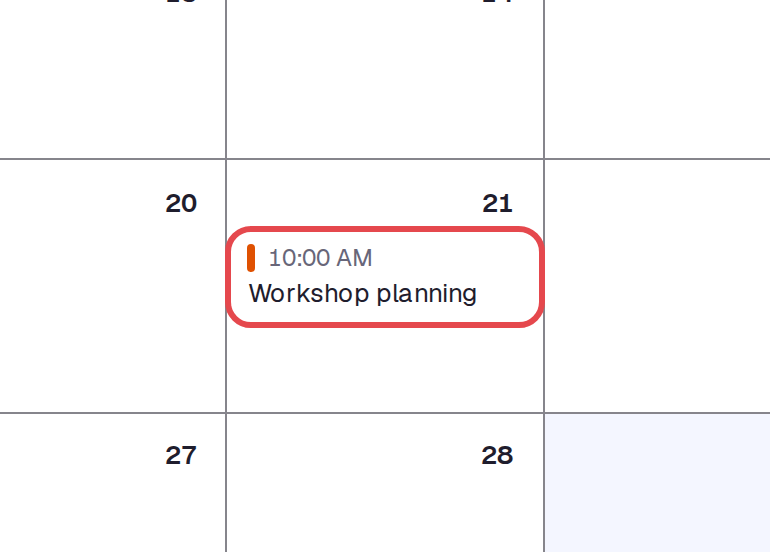
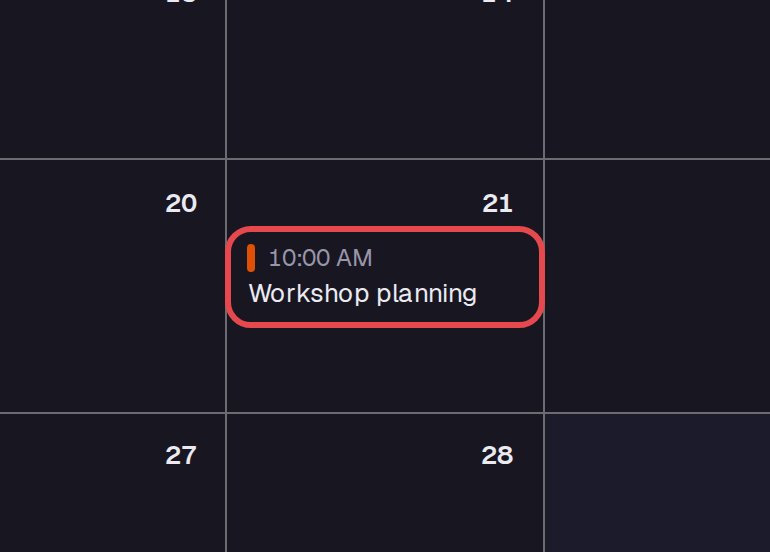
Click Save. Check that the event appears on the correct day in the calendar.
Step 6 — Open the event page
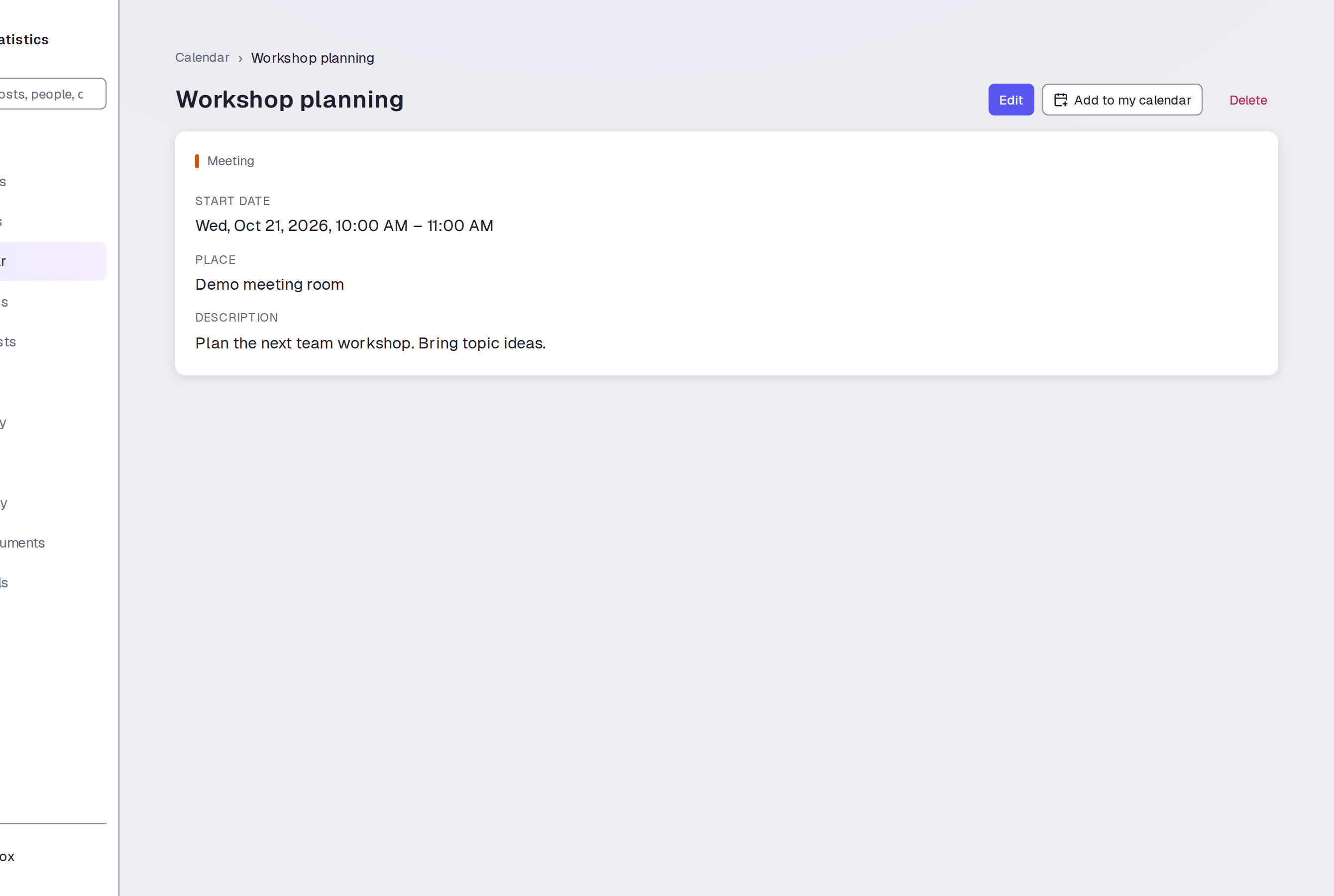
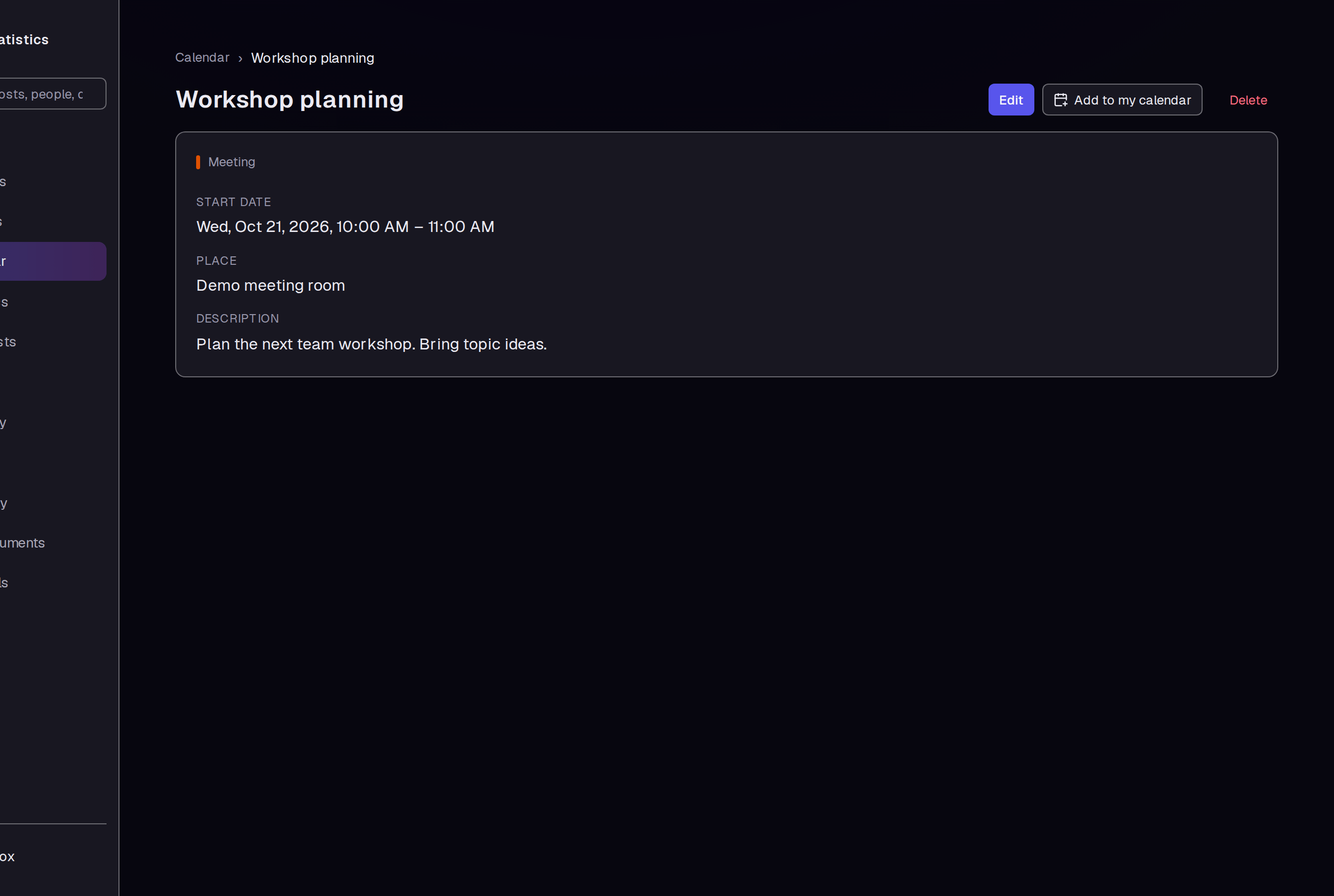
Click the event name in the calendar. Check its date, time range, place, and description on the event page.
Step 7 — Change the event
Click Edit. Change Place to the new room. We changed it to “Demo training room.”
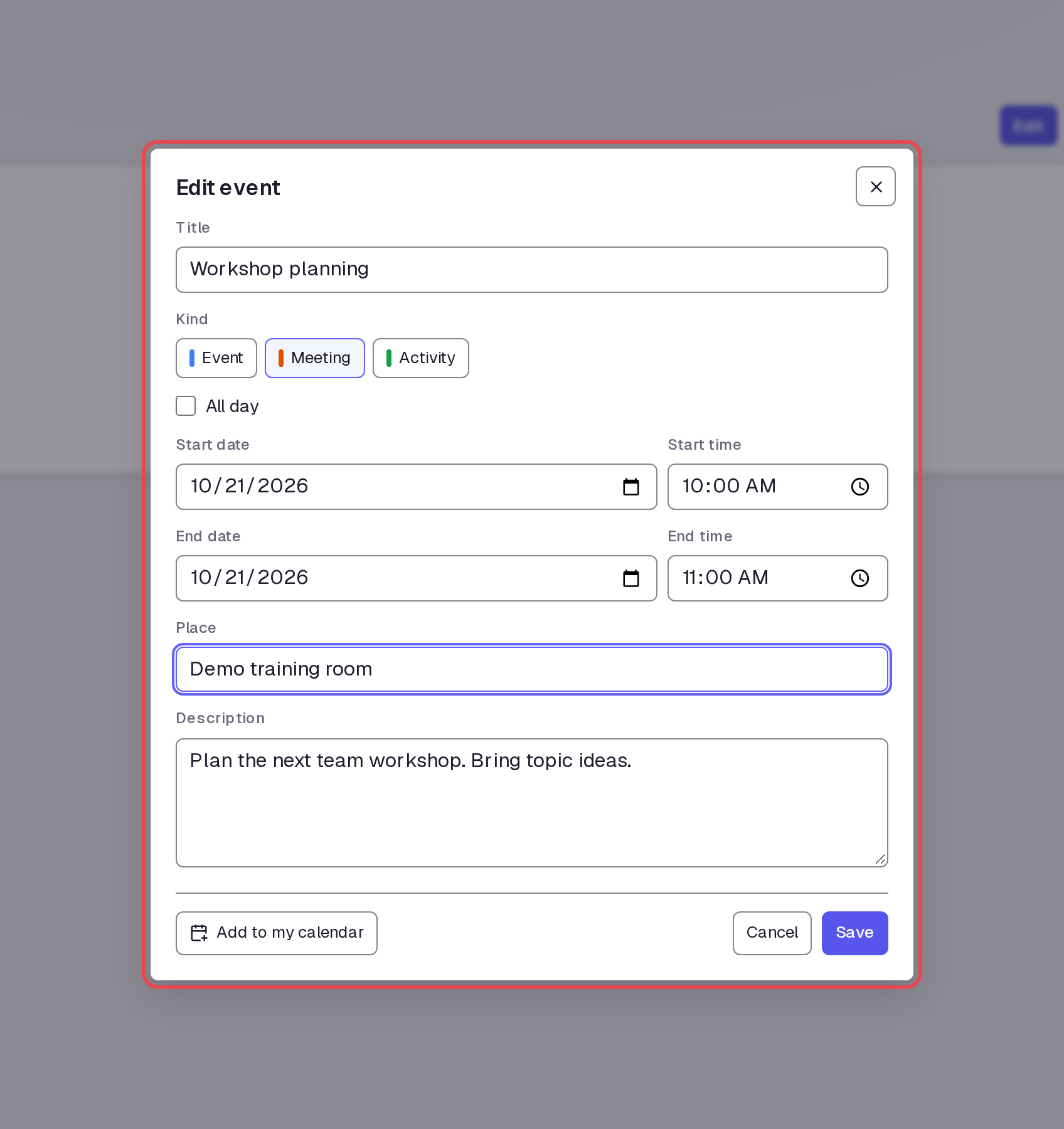
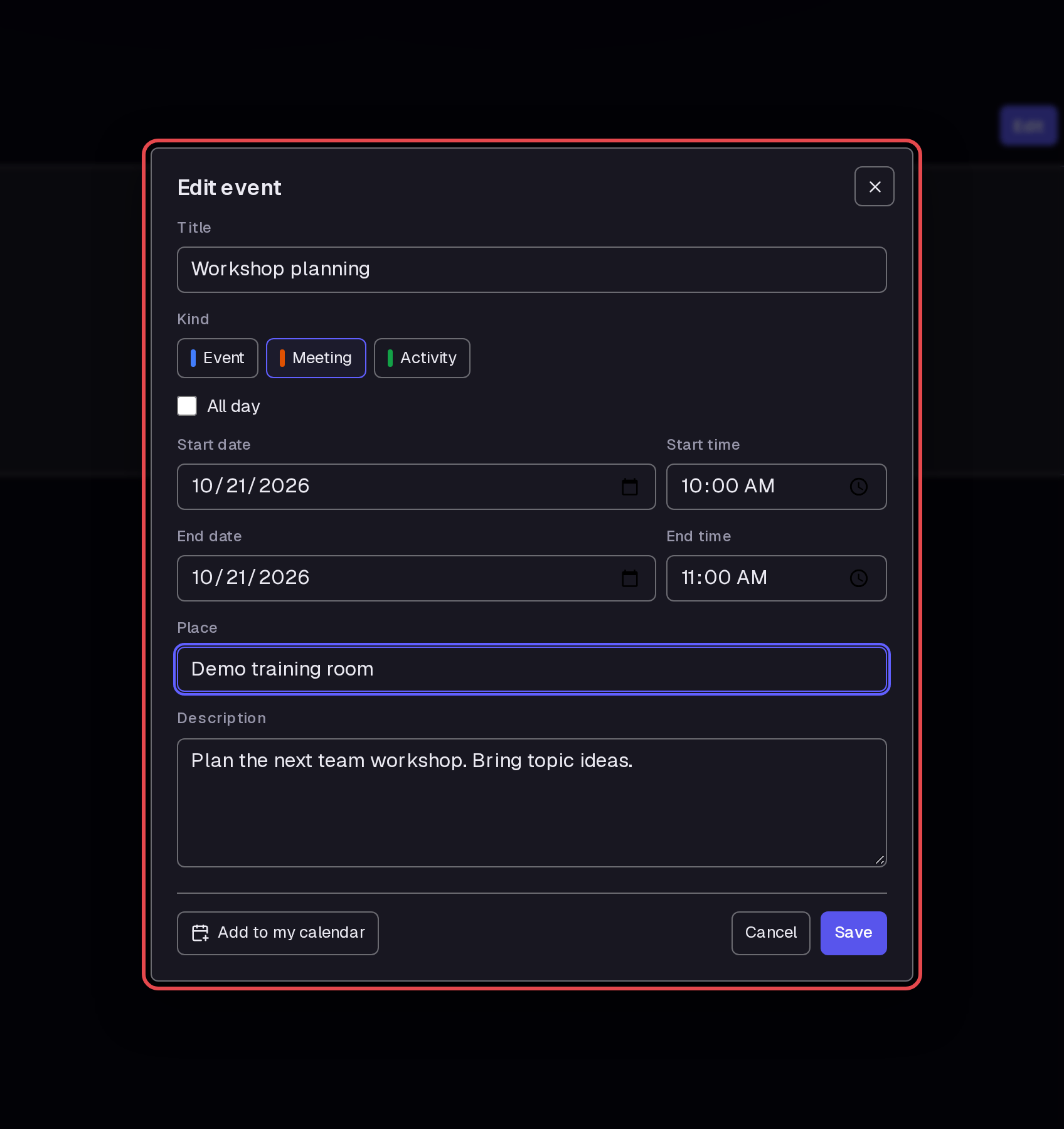
Step 8 — Save the change
Click Save. Check that the event page shows the new place.
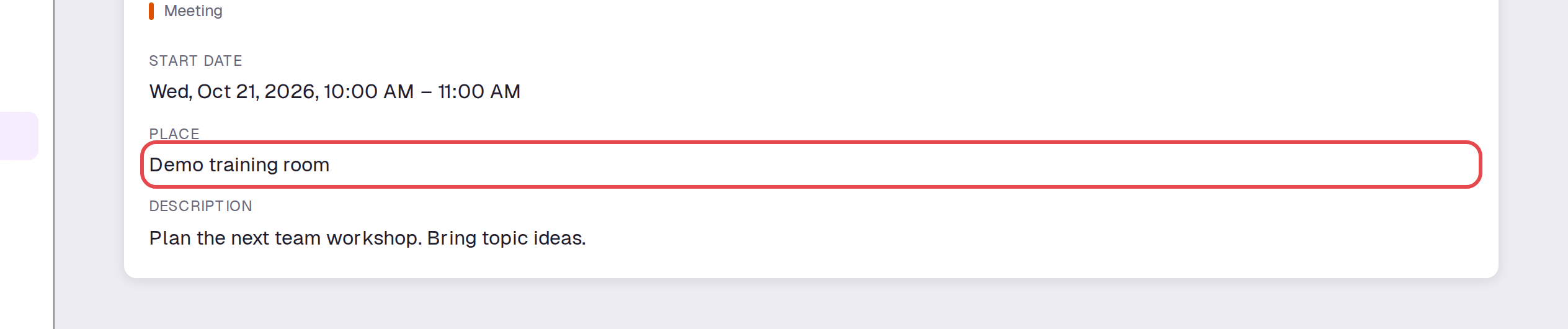
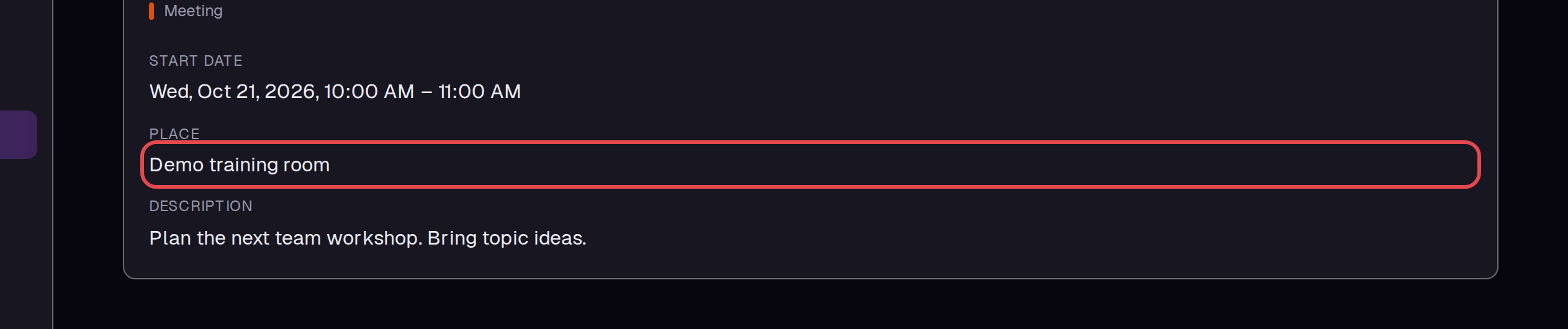
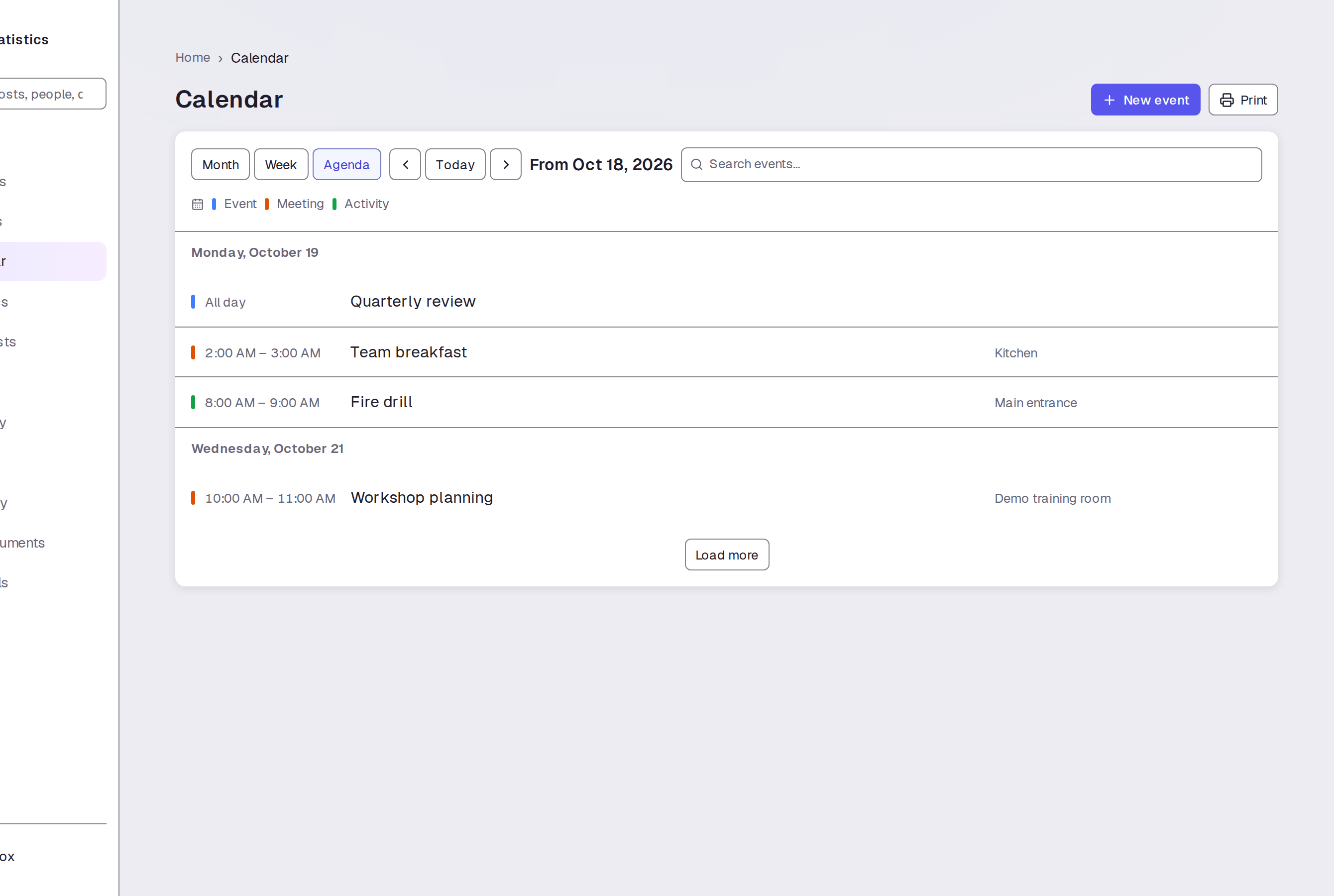
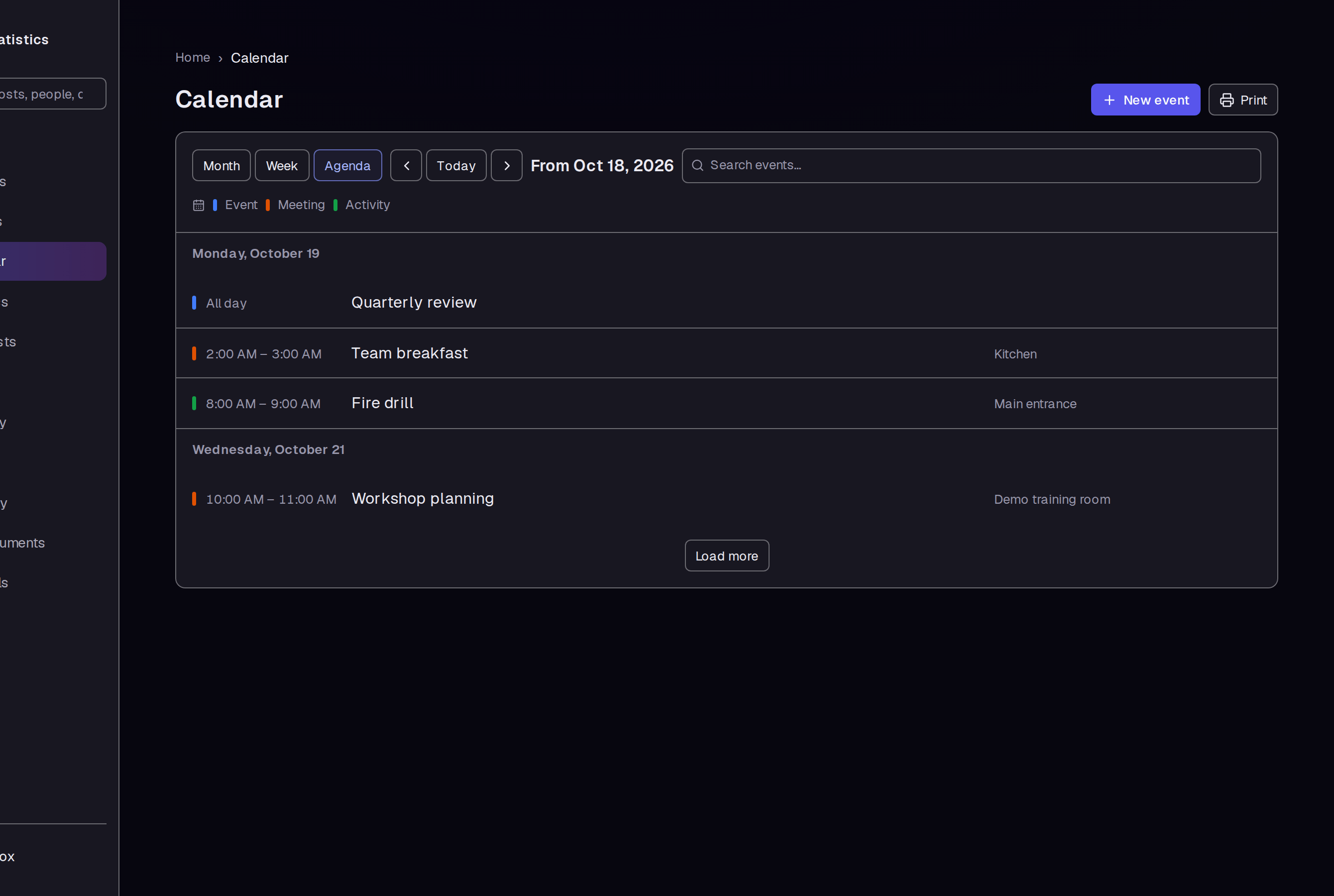
Step 9 — Check the agenda
Click Calendar above the event title. Click Agenda to see events in a list. The saved meeting shows its time range and place.
Step 10 — Remove an event you no longer need
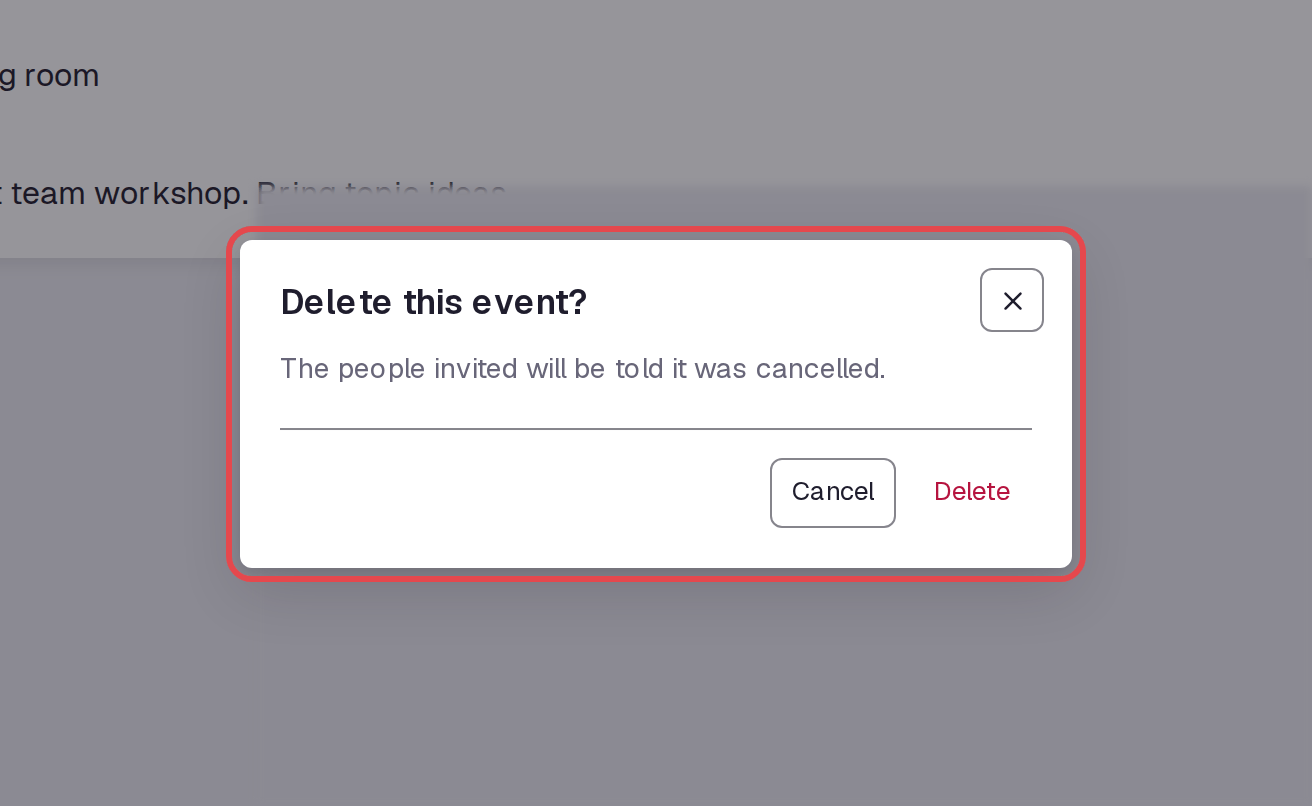
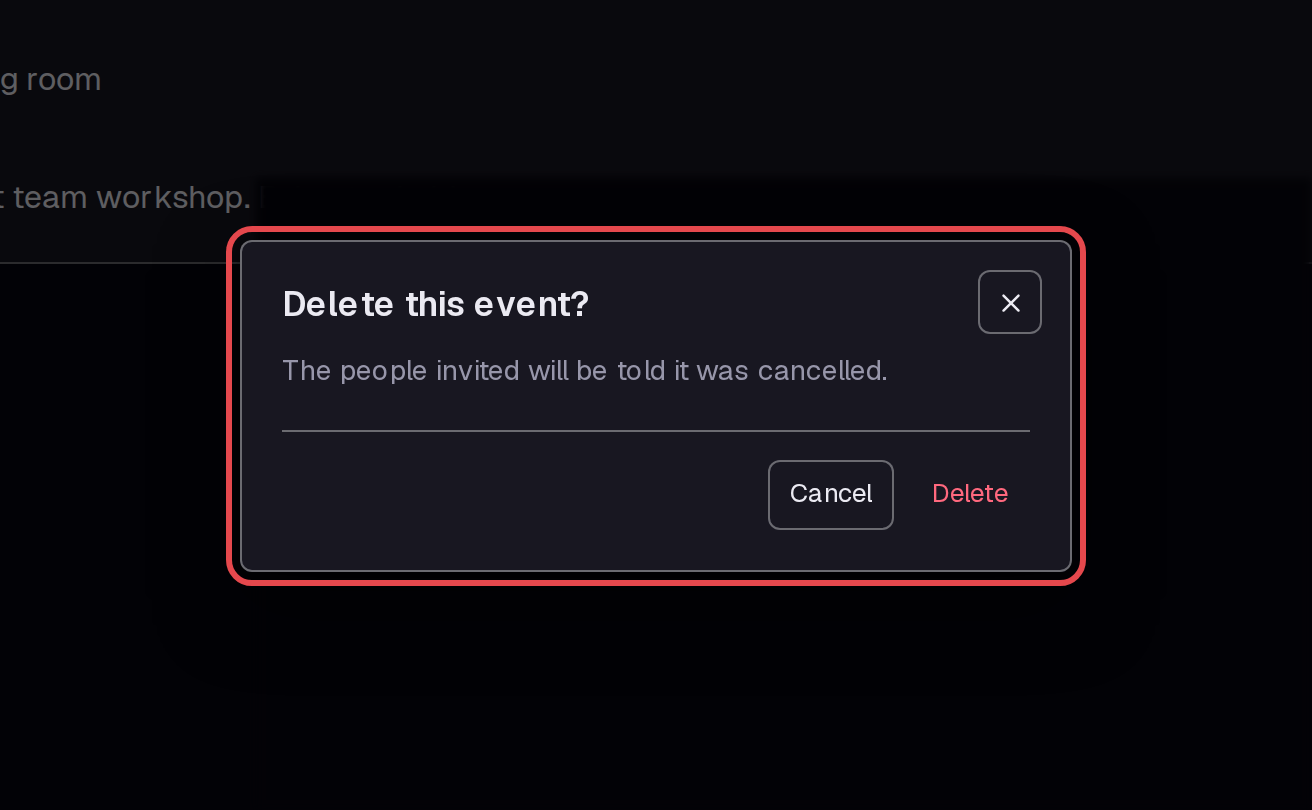
Open the event again. Click Delete to open the confirmation. Click Delete in that box to remove the event, or Cancel to keep it.
Tips
- Use Agenda when you want to read event times and places in a list.
- Check the event page after you save a change. It shows the full time range.
- Click Print on the calendar to open a print view of the month you see.