How to add people and details to a post
about 10 minutes
A post can hold a person's name, duties, statistics, and SOPs. Use these details to explain who does the work and what the post must achieve. The Directory gives you a separate view of people and their work.
Before you start
Complete How to build your org board in the same browser. This guide uses its Support desk post and fictional holder name Taylor Example.
Step 1 — Open the post information
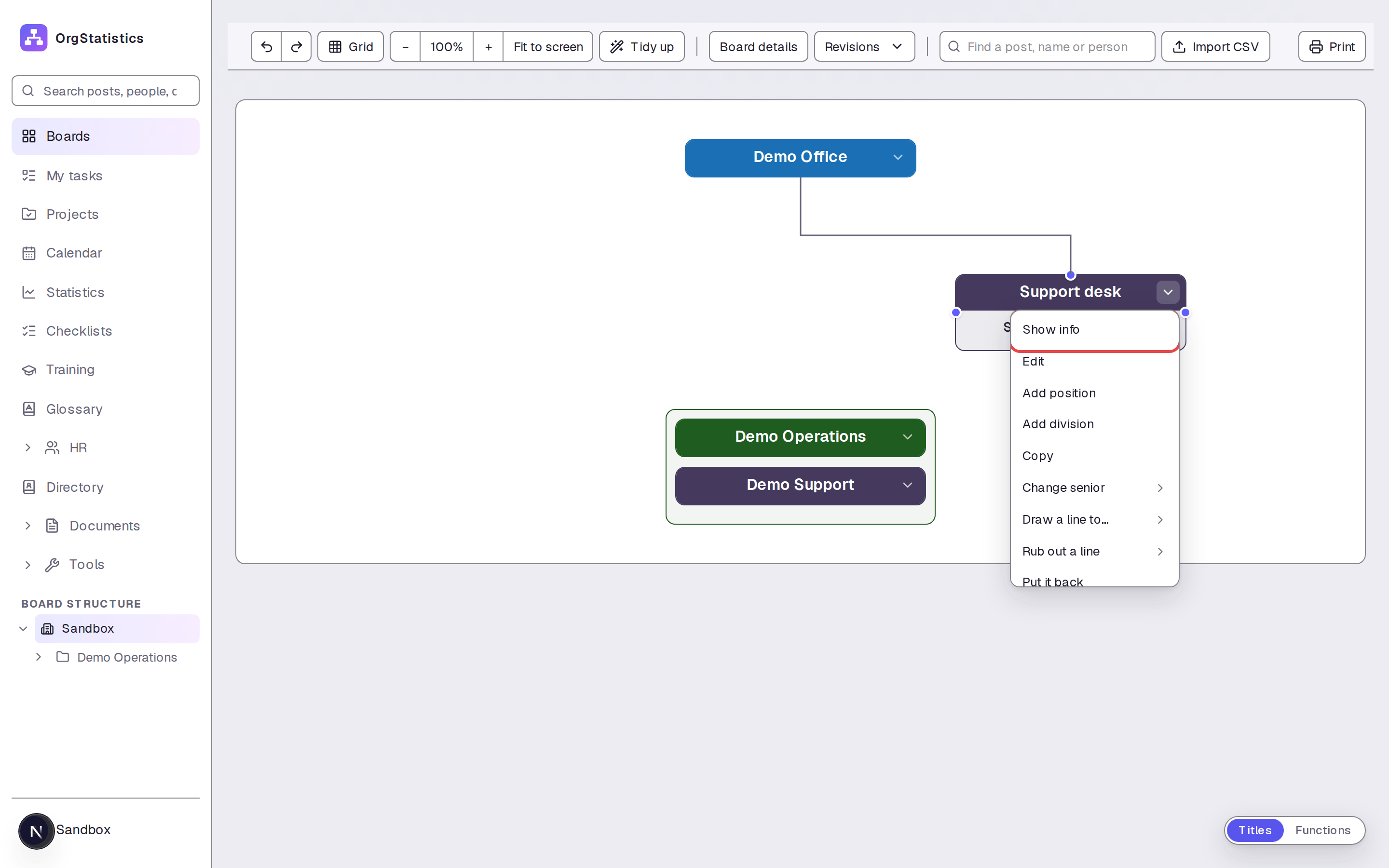
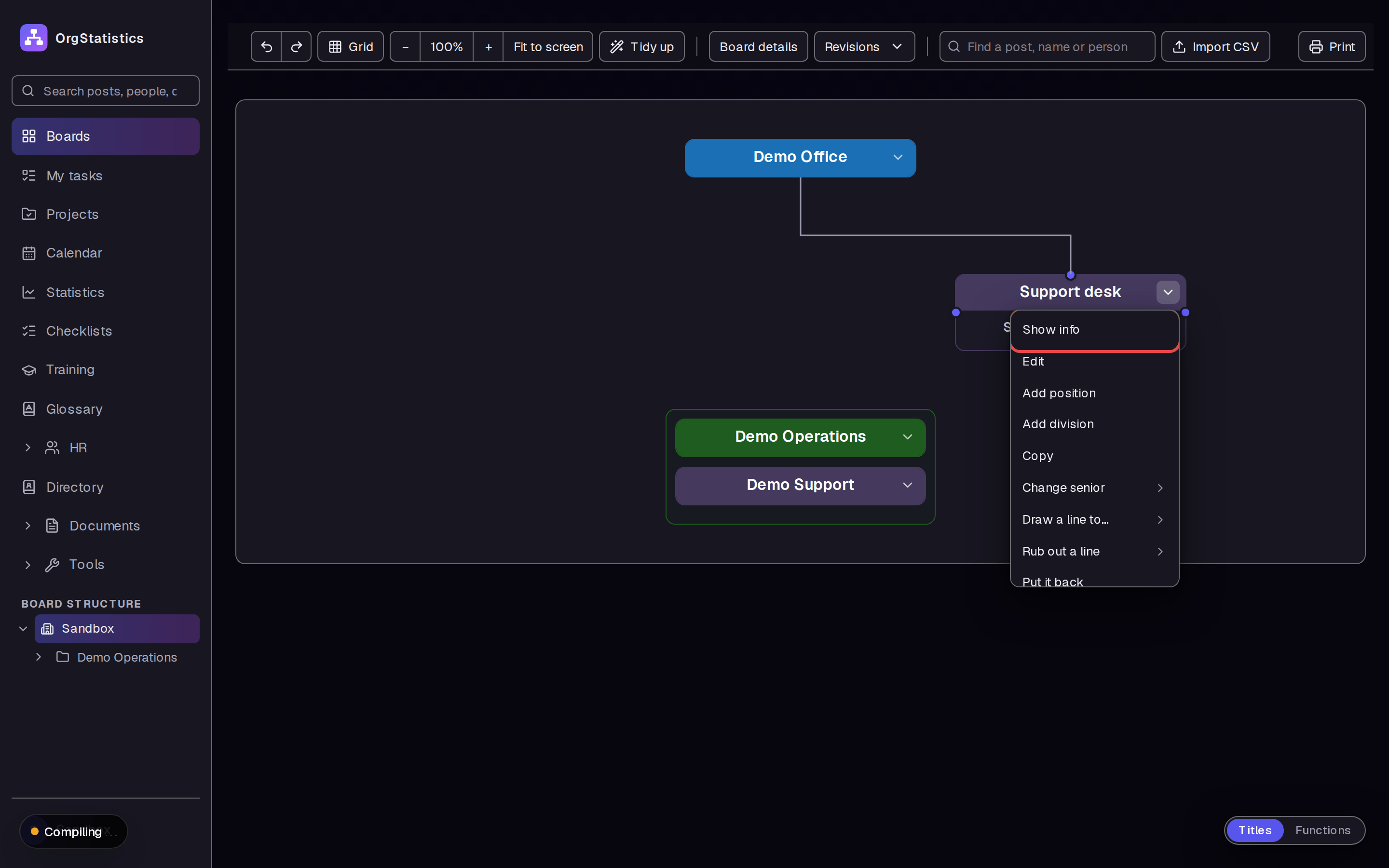
Open the arrow menu on Support desk. Click Show info. The window has tabs for the holder, duties, statistics, SOPs, and other post details.
Step 2 — Put a name on the post
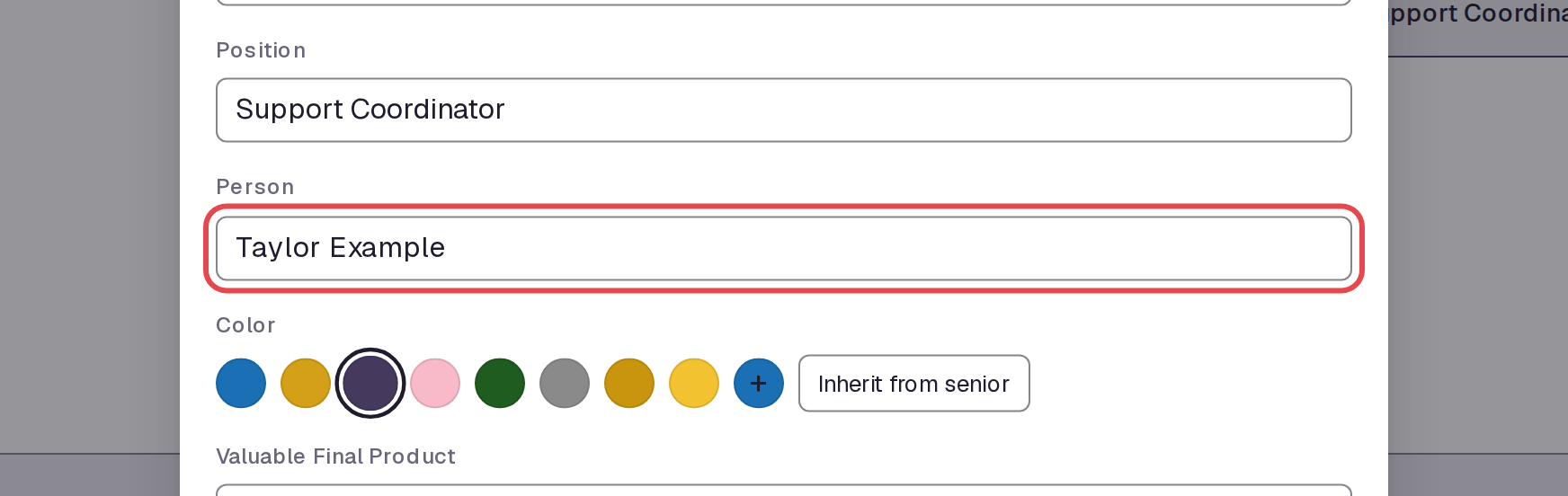
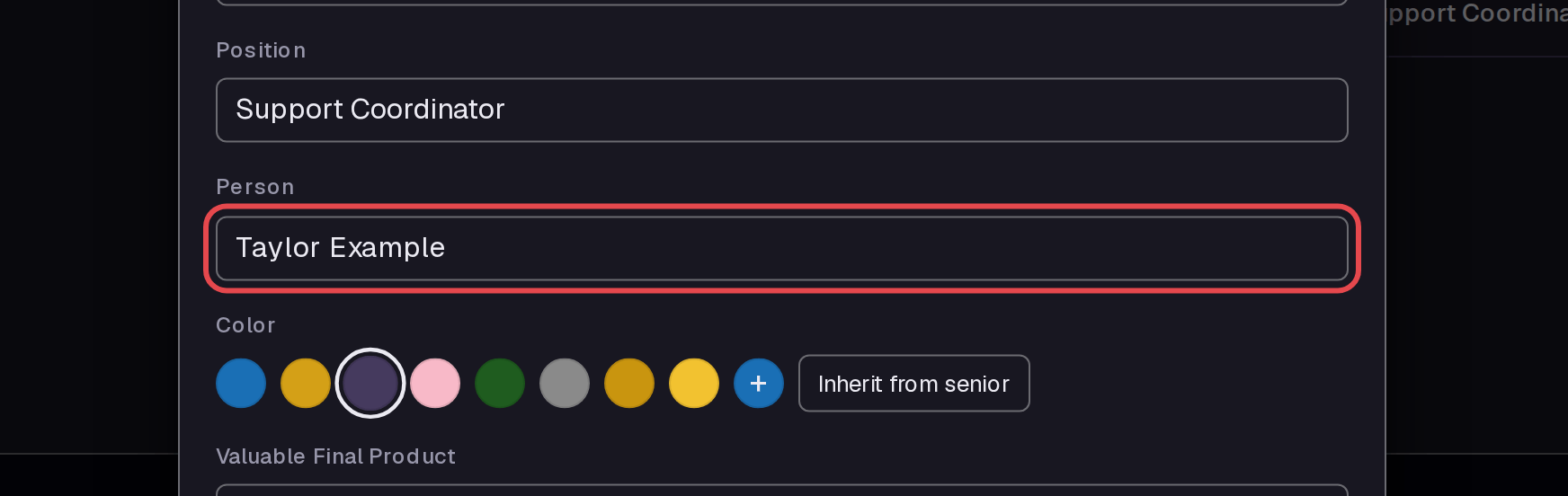
Enter Taylor Example in Person on the Info tab. Click Update.
Step 3 — Check the holder name
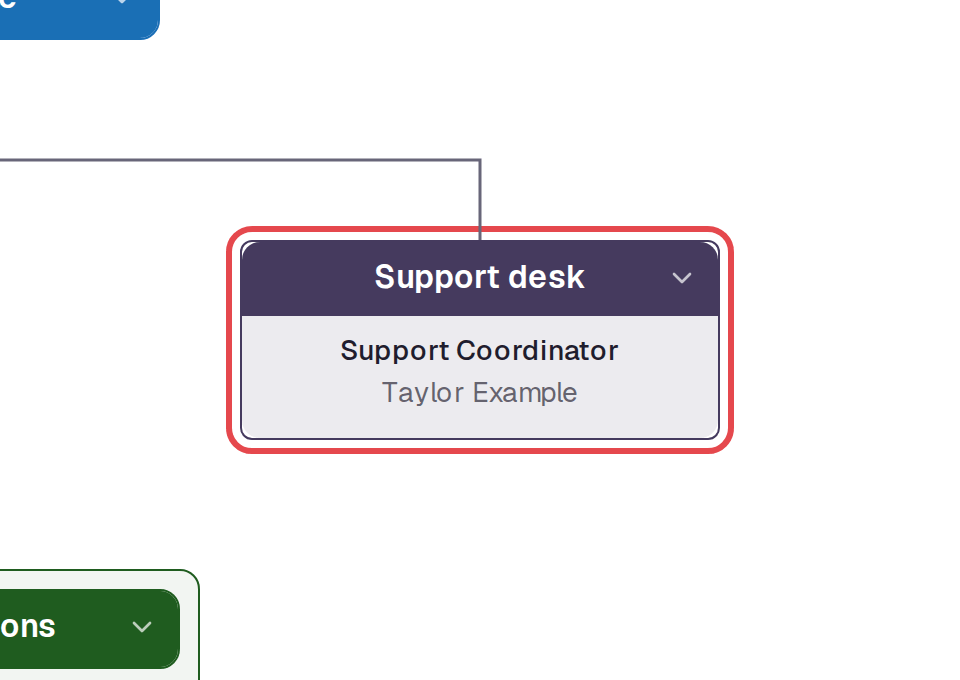
The box now shows Taylor Example below Support Coordinator. Open the box's arrow menu again. Choose Show info.
Step 4 — Add duties
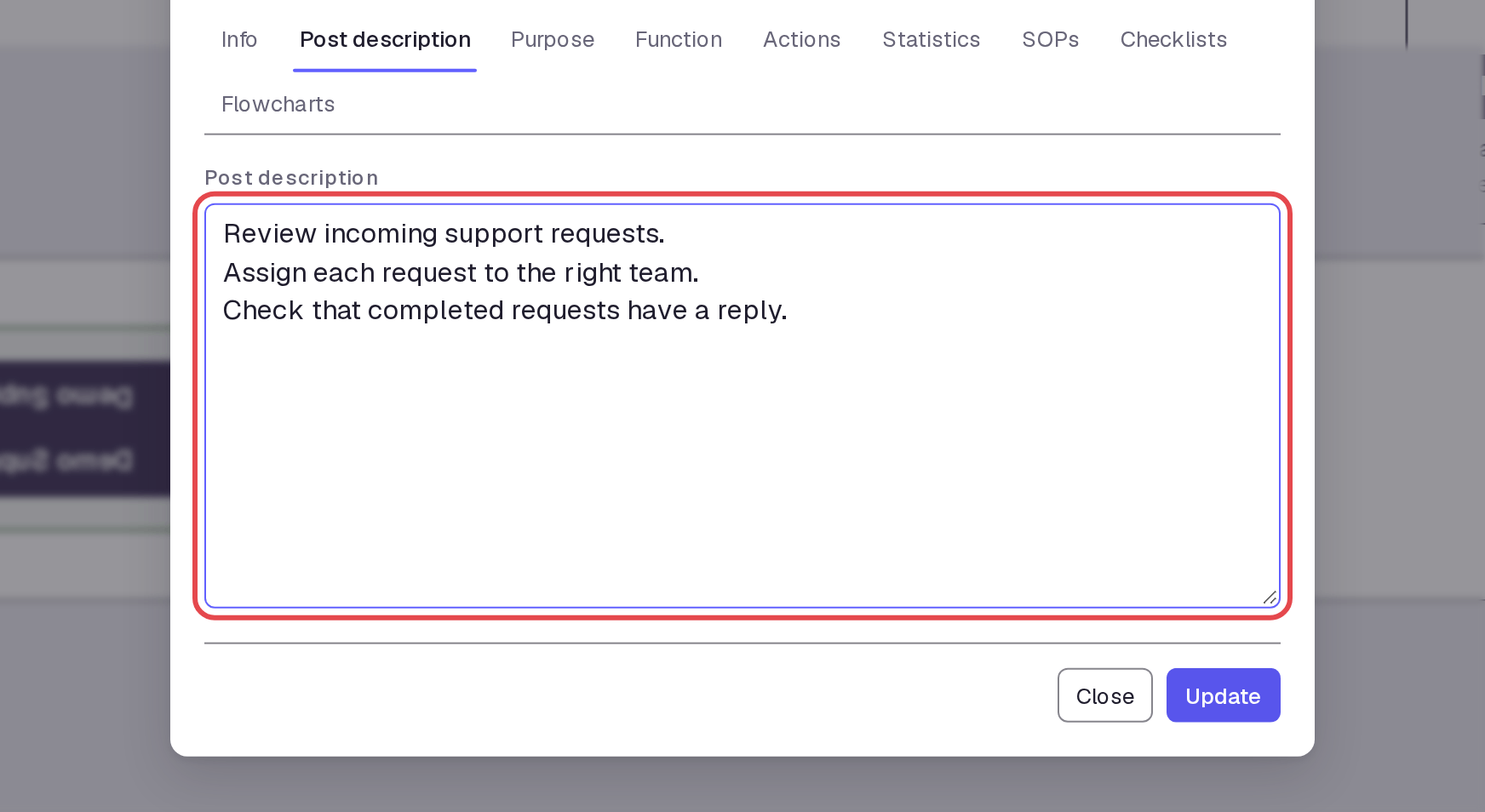
Select Post description. Enter the duties shown in the text box below. Keep the window open for the next steps.
Step 5 — Add a statistic
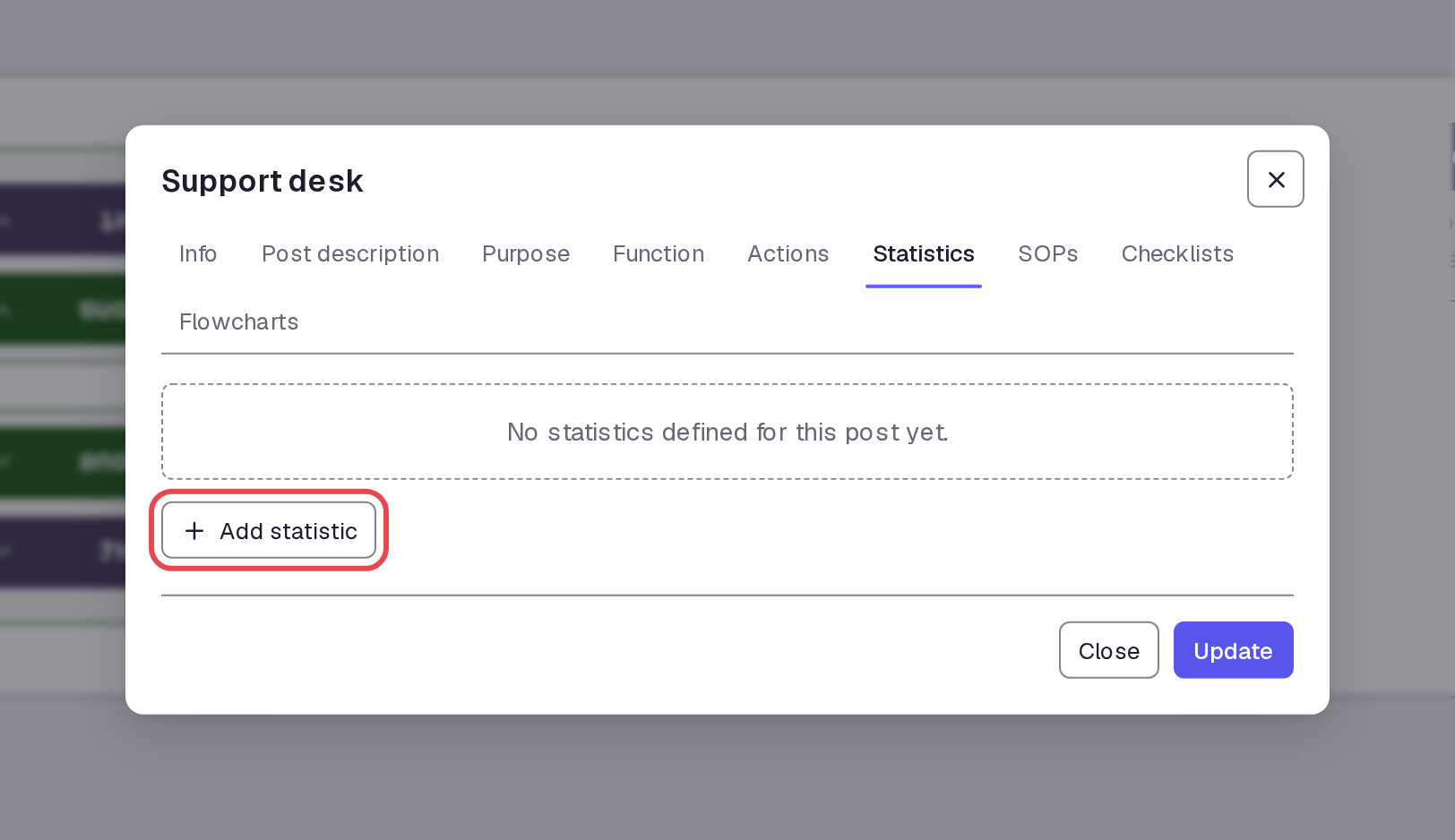
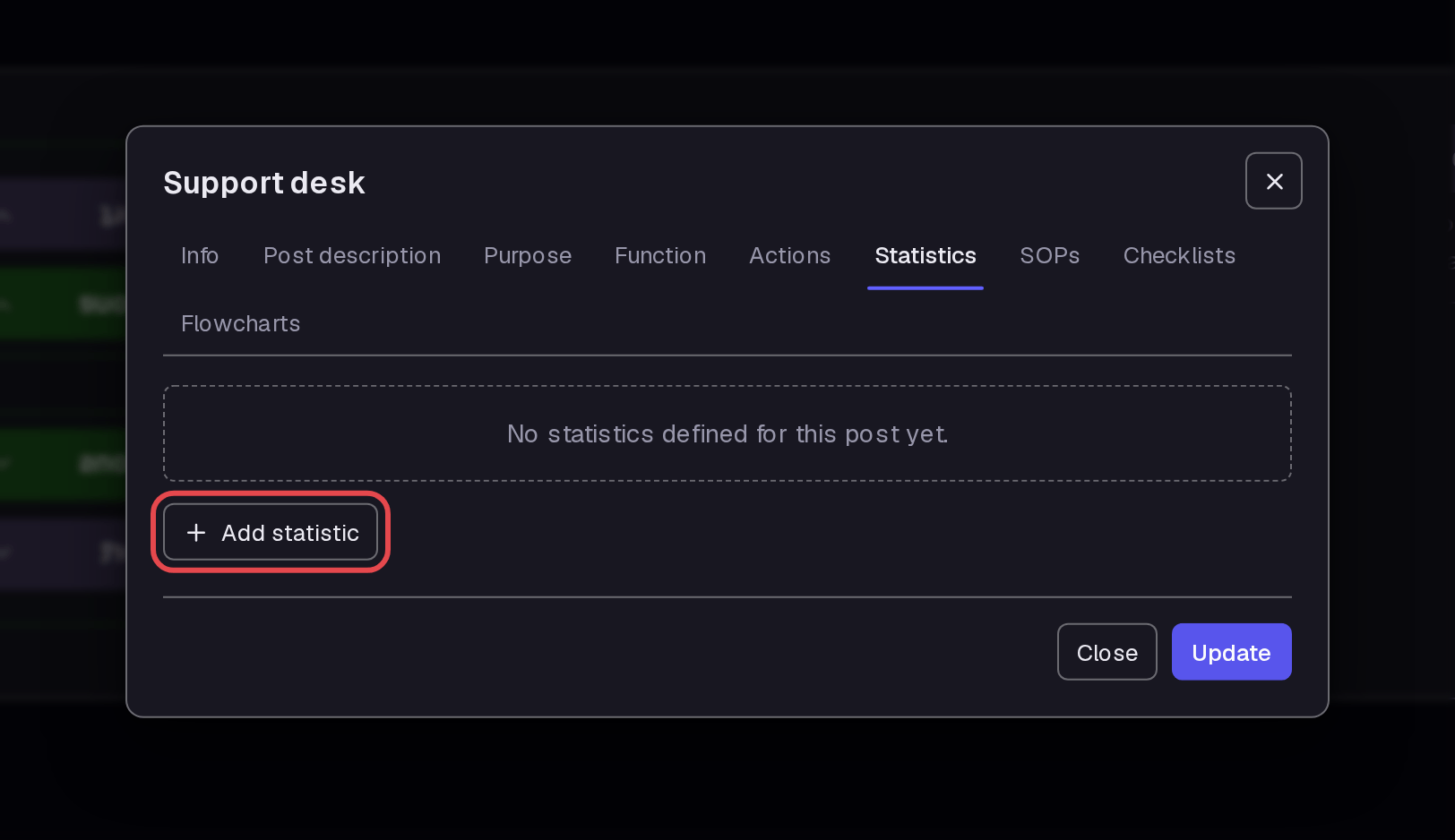
Select Statistics. Click Add statistic.
Step 6 — Choose the statistic and graph
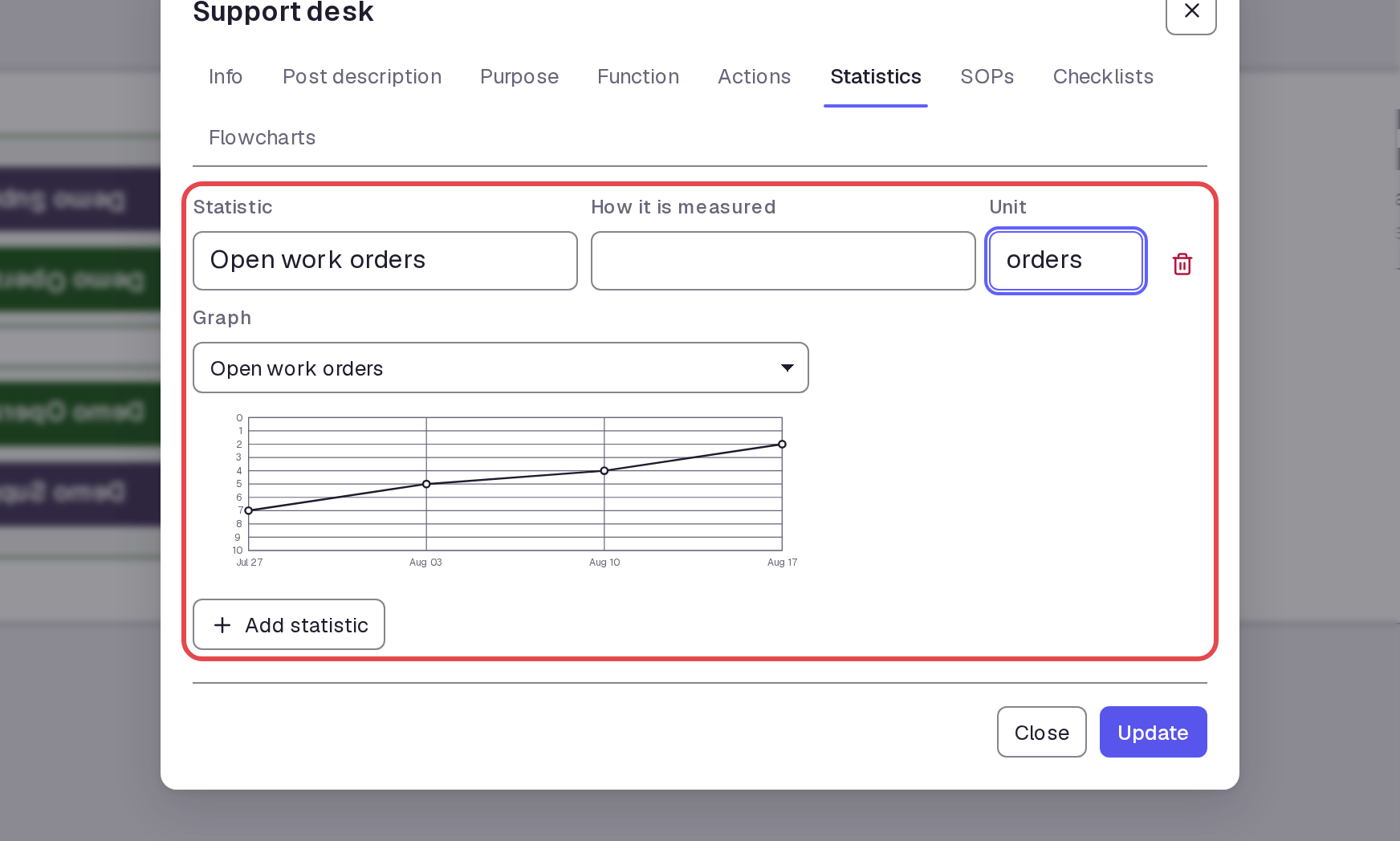
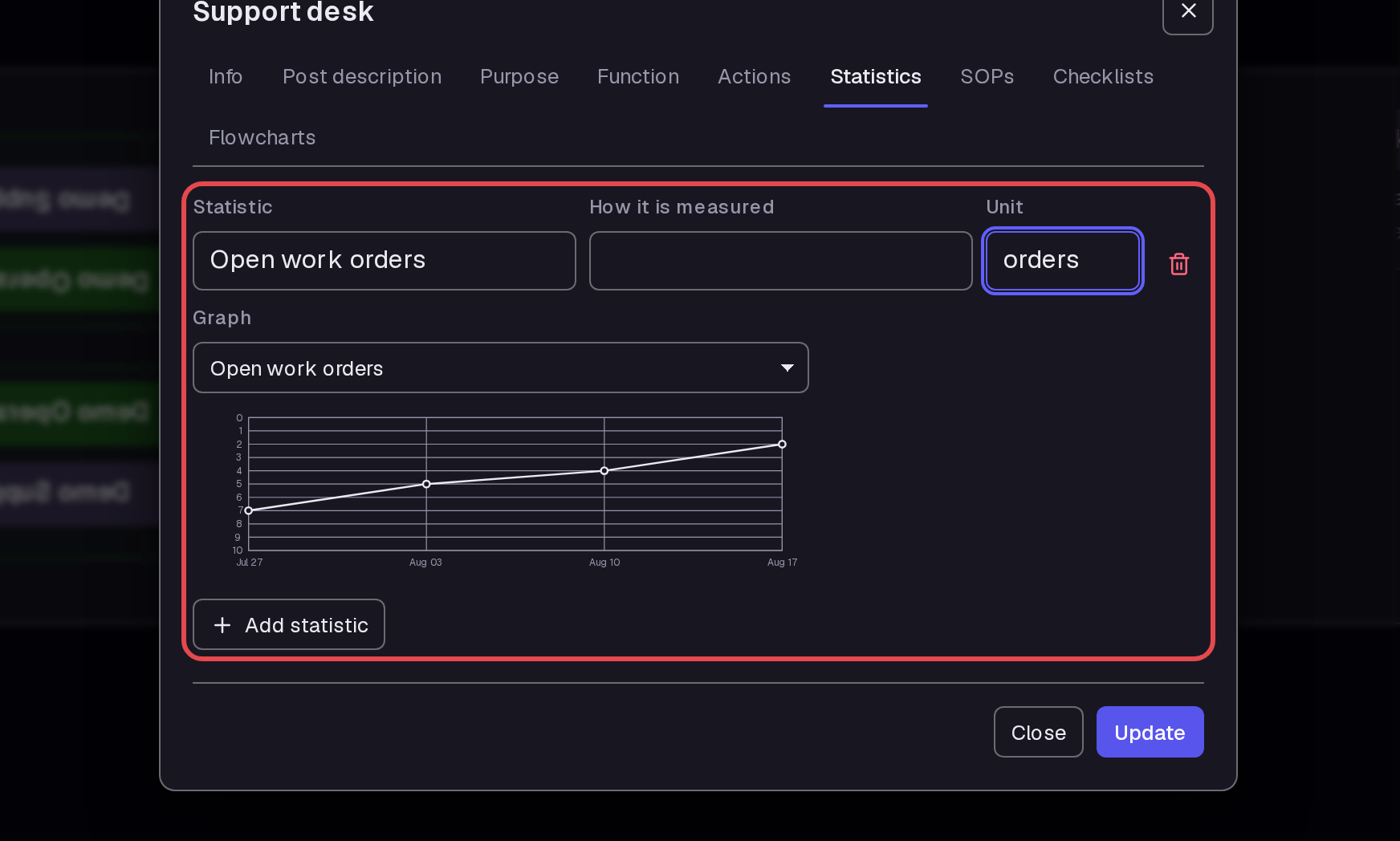
Enter Open work orders in Statistic. Enter orders in Unit. Select Open work orders in Graph.
Step 7 — Add an SOP entry
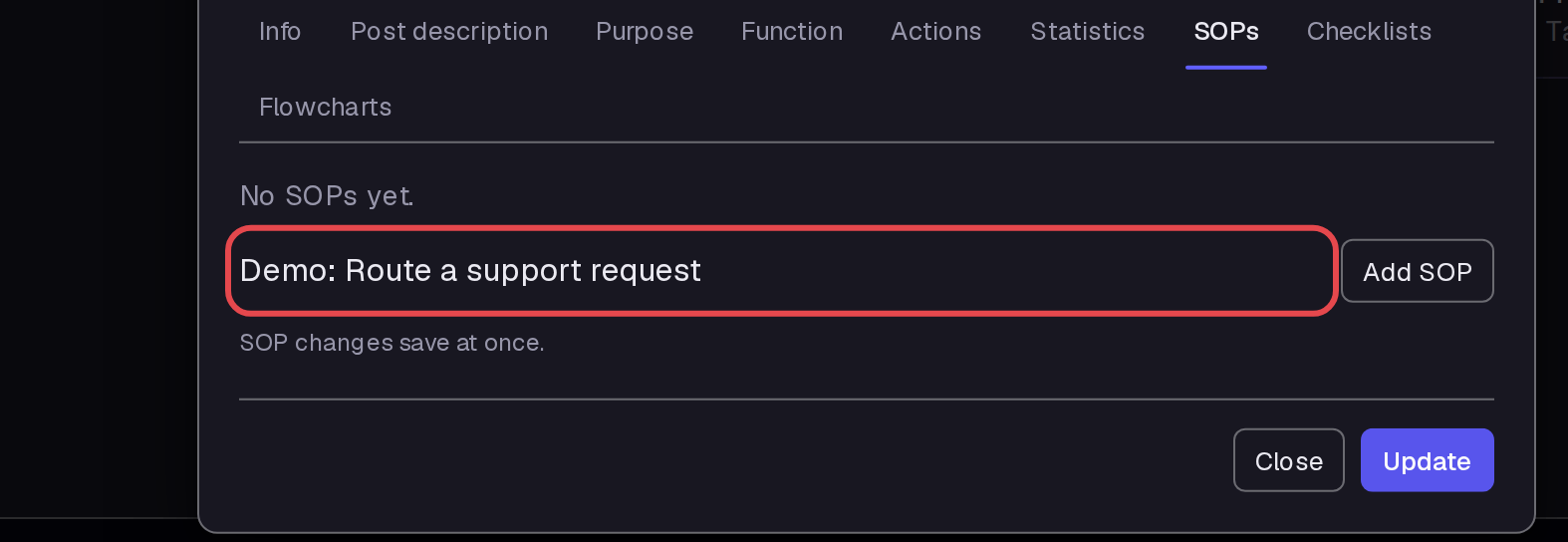
Select SOPs. Enter Demo: Route a support request in New SOP title. Click Add SOP.
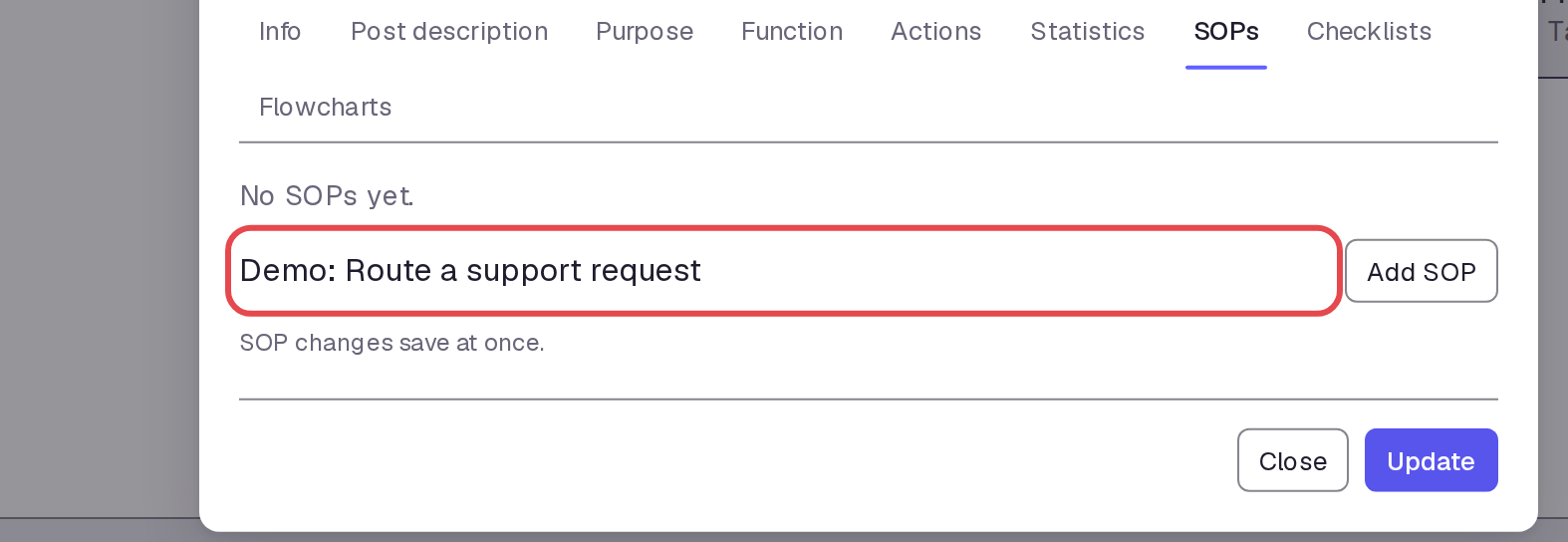
Step 8 — Save the other post details
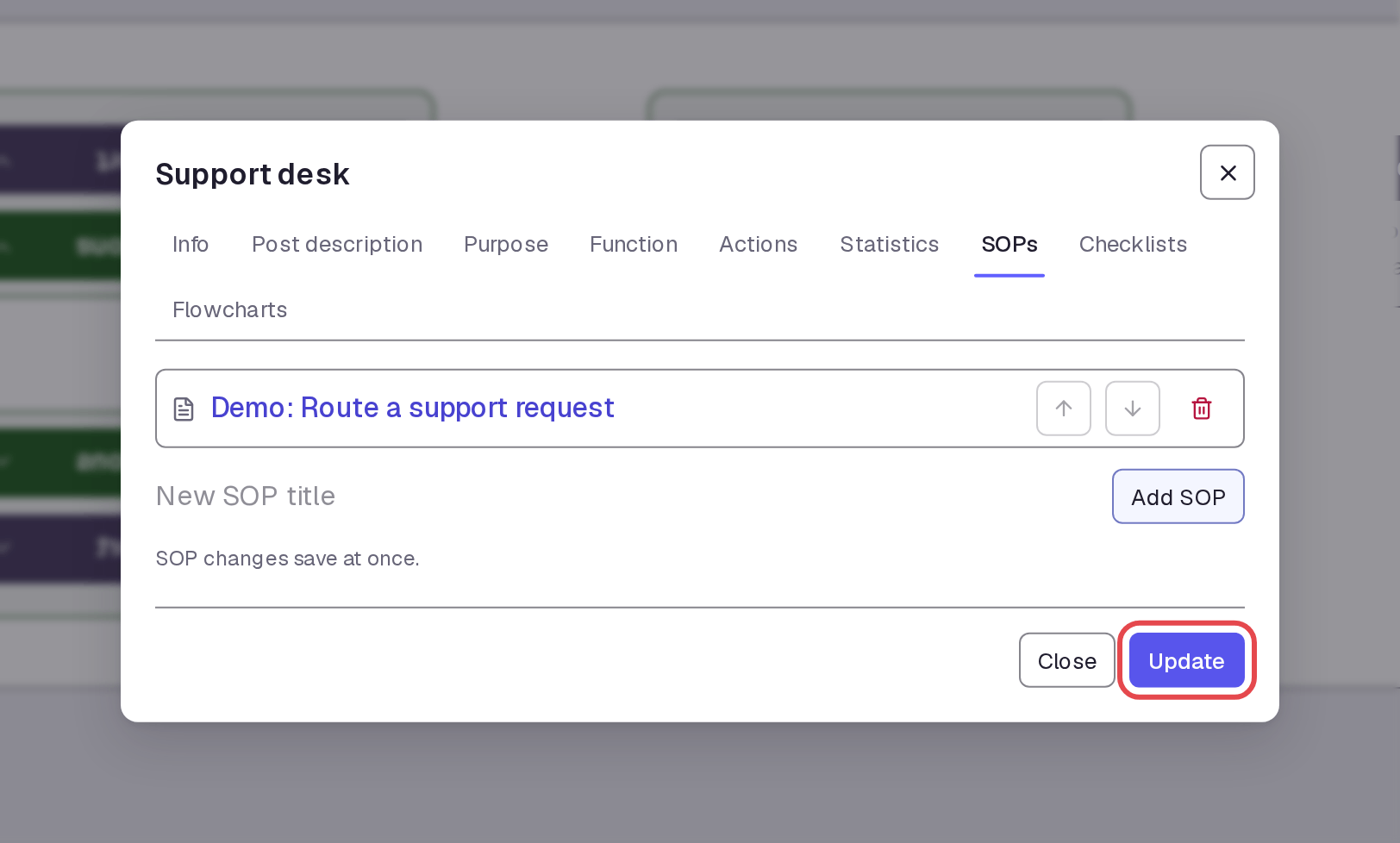
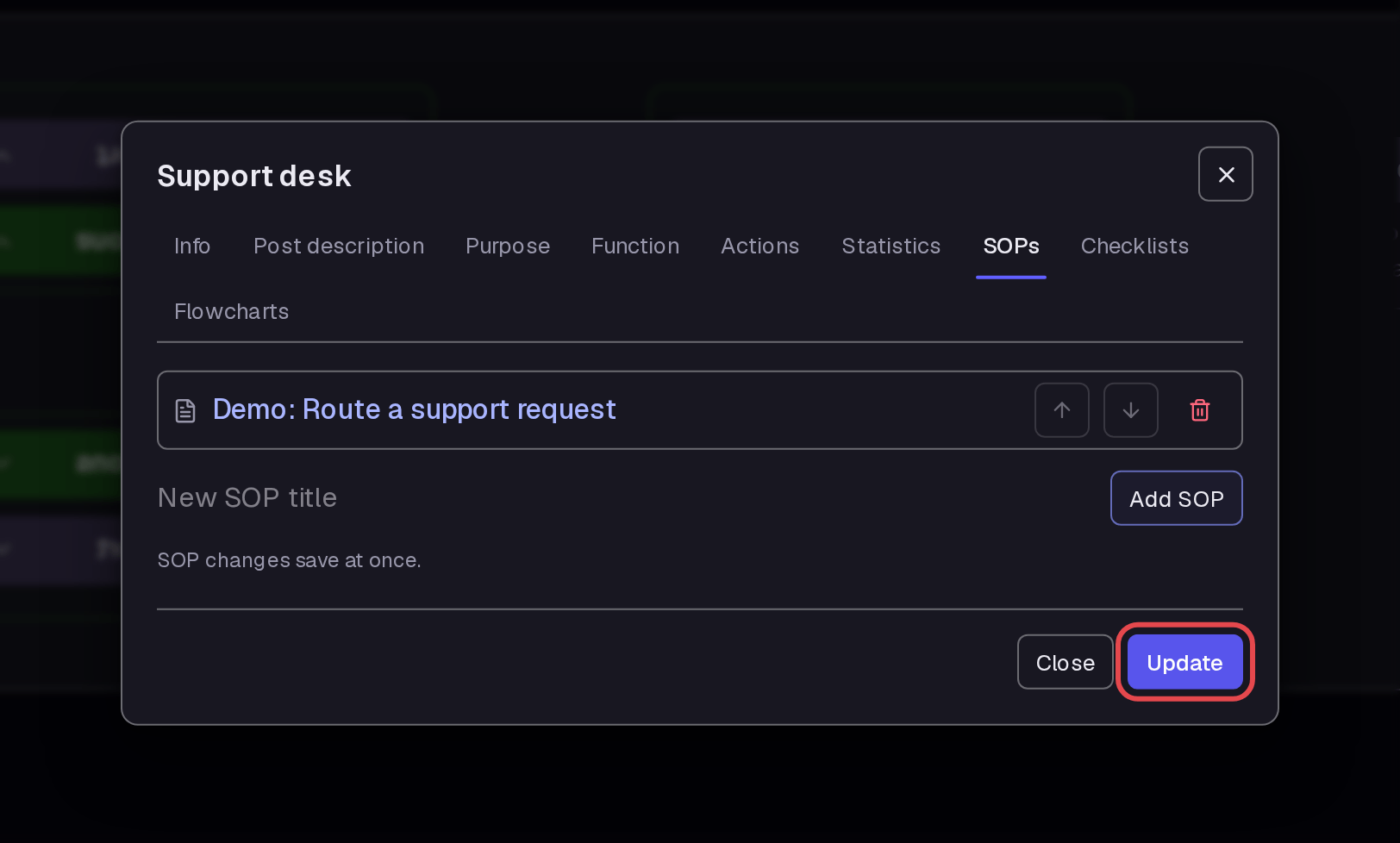
The new SOP appears as a link in the list. Click Update to save the duties and statistic. The SOP title is a new entry; this example does not add its procedure text.
Step 9 — Read the full post details
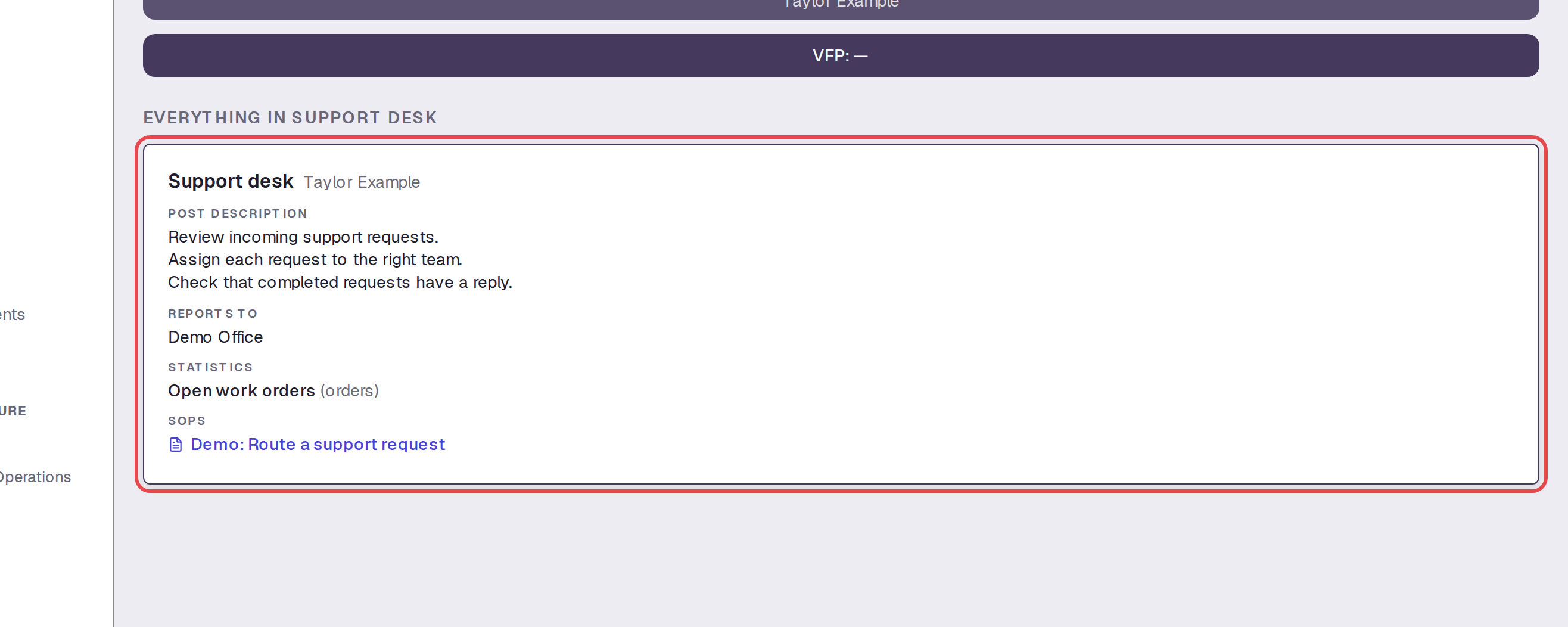
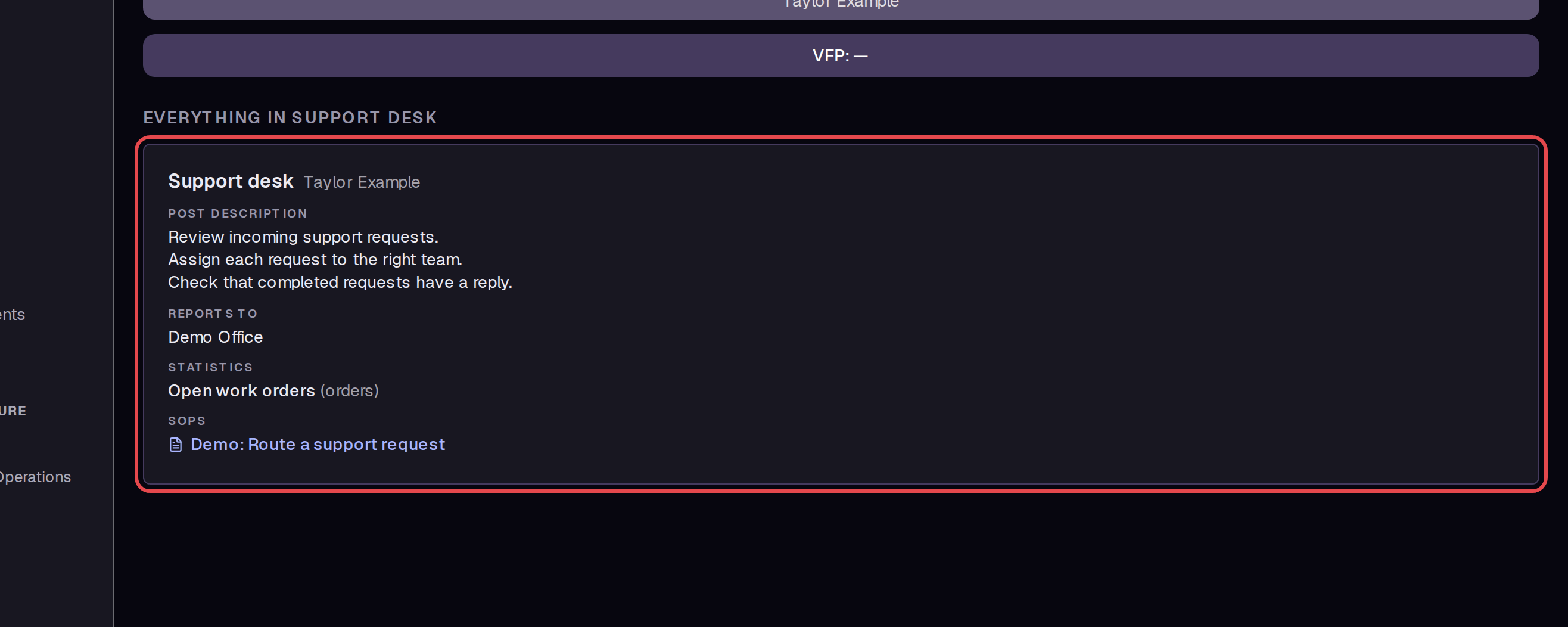
Double-click the role area below the Support desk title to open the full post page. The details card shows the holder, duties, reporting box, statistic, and SOP link.
Step 10 — Open the Directory
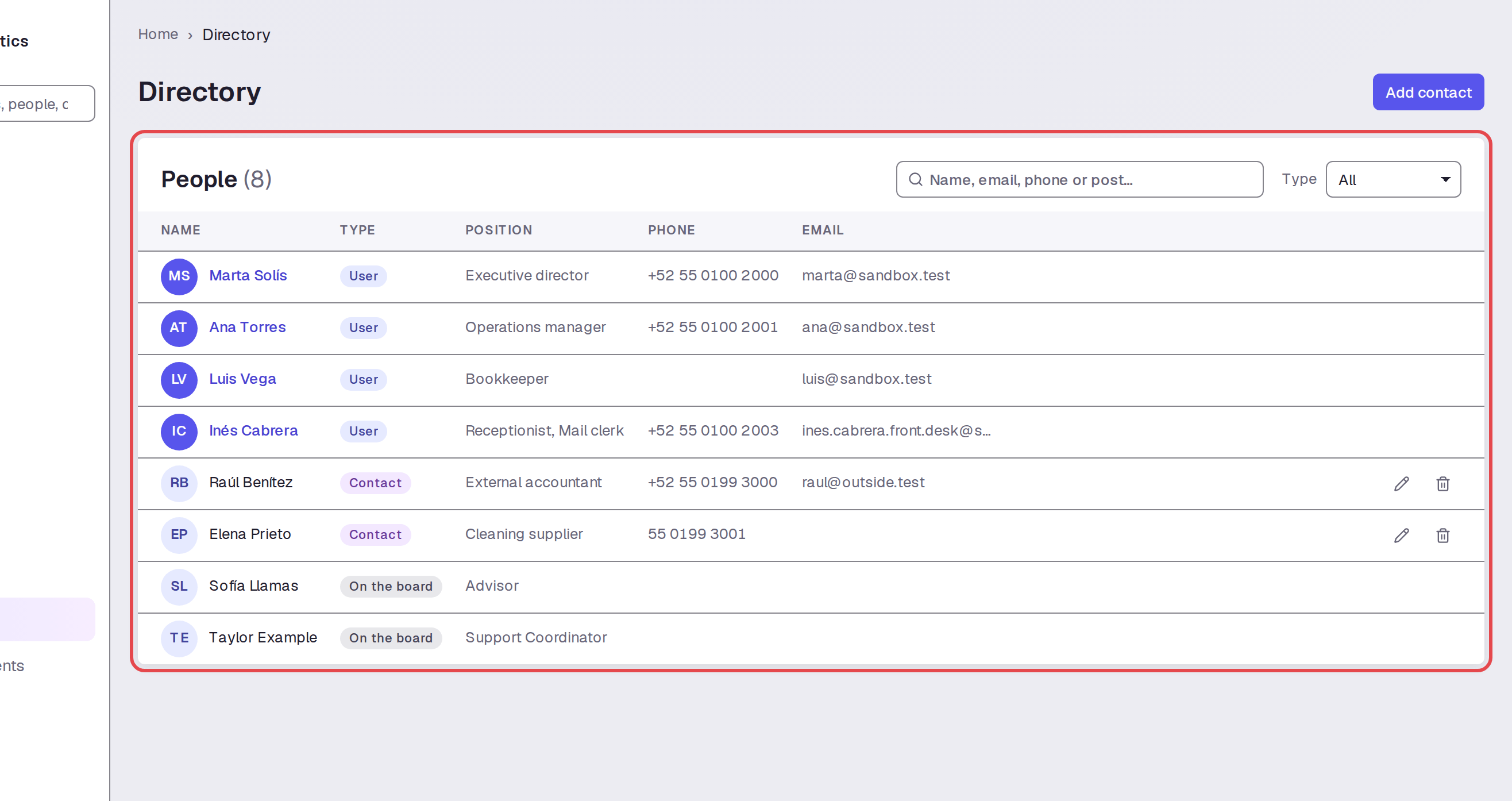
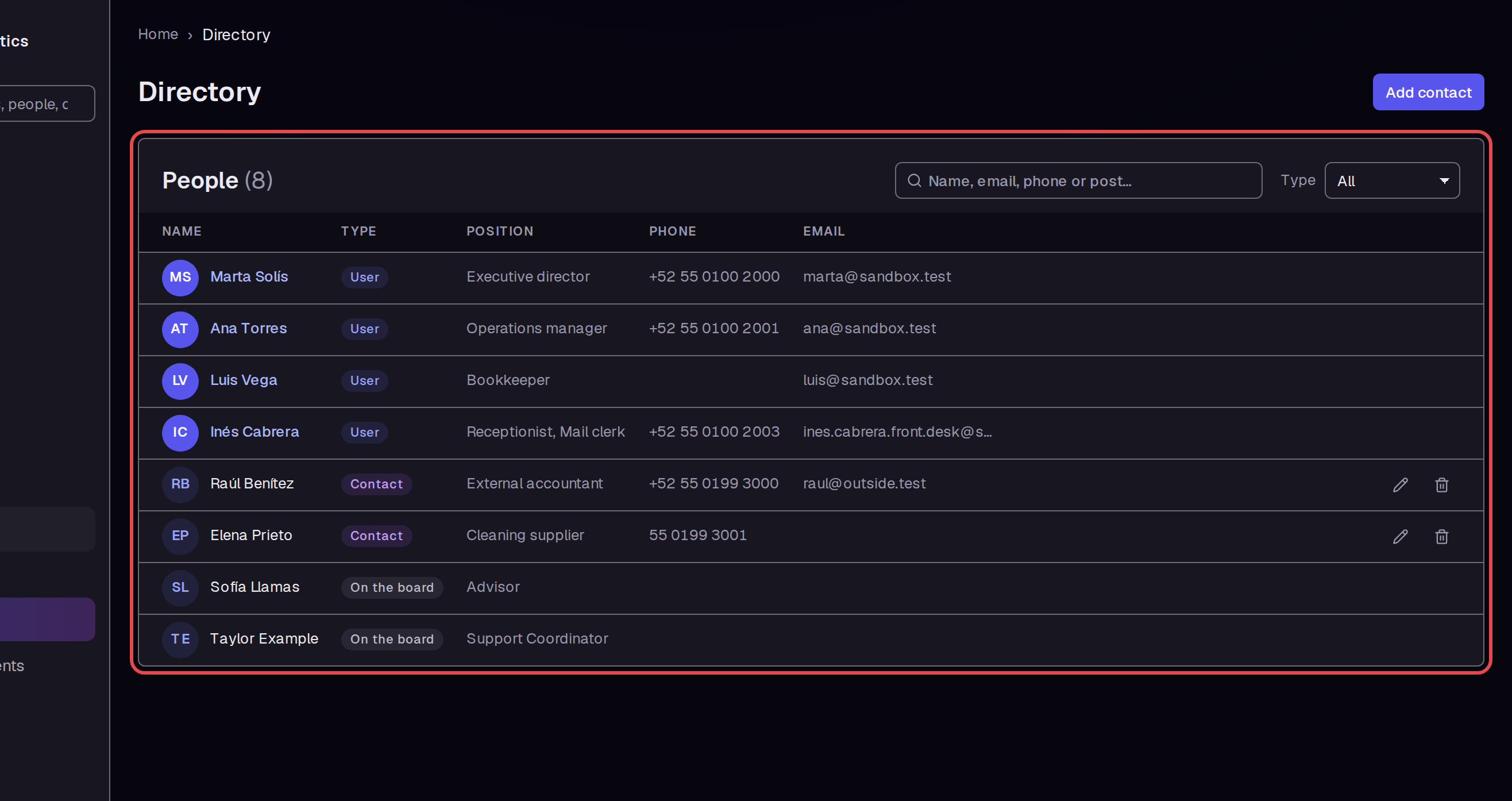
Open the Directory page. The table lists users, contacts, and people marked as being on the board.
Step 11 — Find a person
Enter Ana in the search box above the table. The list narrows to Ana Torres in this example.


Step 12 — Open the person's profile
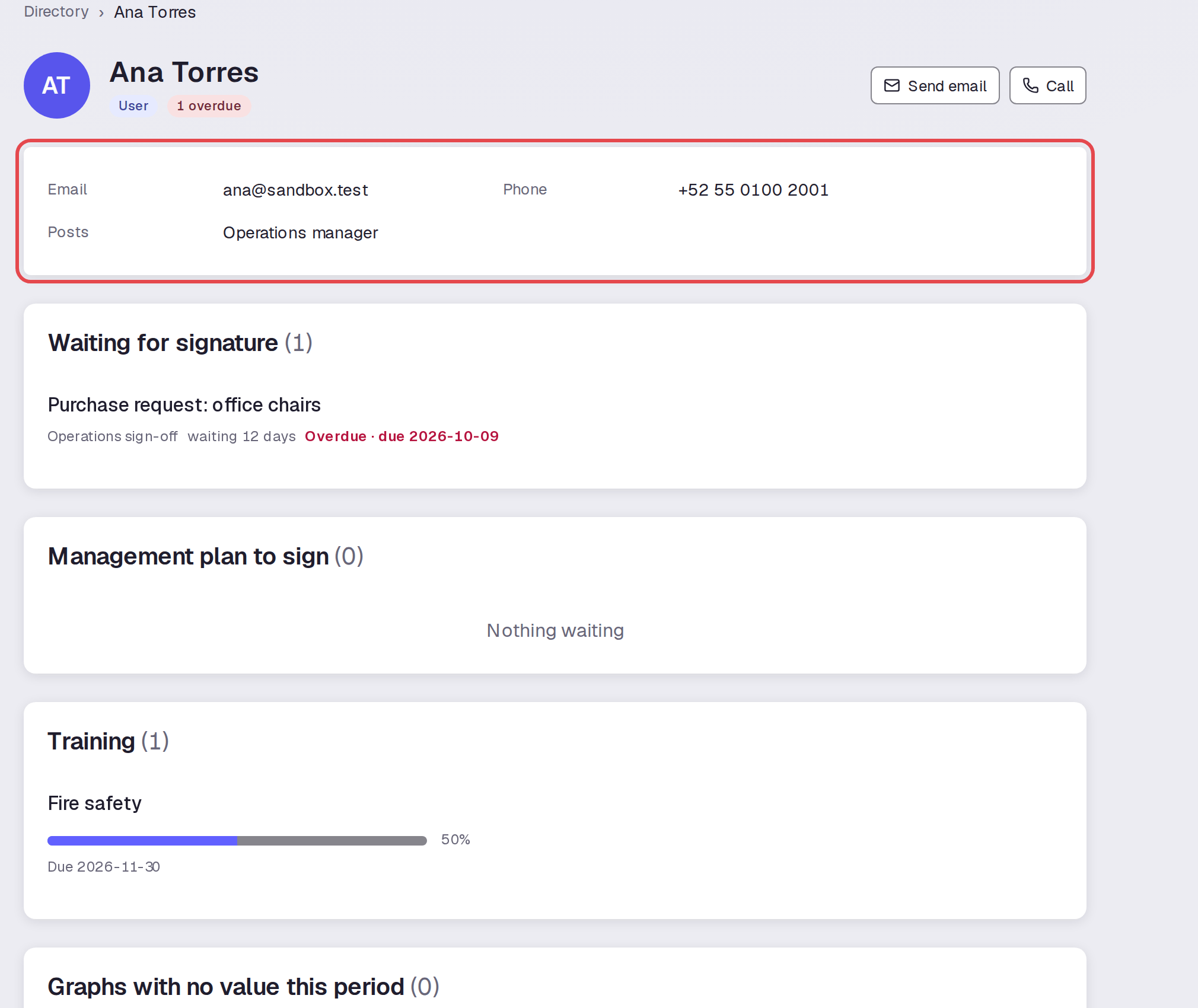
Click Ana Torres. Her profile shows contact details and her post, plus work waiting for a signature and training progress.
Tips
- SOPs says that SOP changes save at once. Use Update for changes to the other post fields.
- Entering a Person name added it to the Directory in this example. A search for
Taylor Examplereturned one match with the type On the board. - The Directory's Type filter includes On the board for people marked as being on the board.
- Some Directory names are links and some are plain text.
Ana Torreshas a profile link in this example.
What next
Return to How to build your org board to add more boxes or change the board layout.