How to follow up on training progress
about 10 minutes
After you build a training course, you must check that staff finish it. Each course shows its progress, and its history page lists who finished each item and when. Use these tools to set a deadline, follow up, and keep the course up to date.
Before you start
To build a new course, see training and glossary.
Step 1 — Open Training
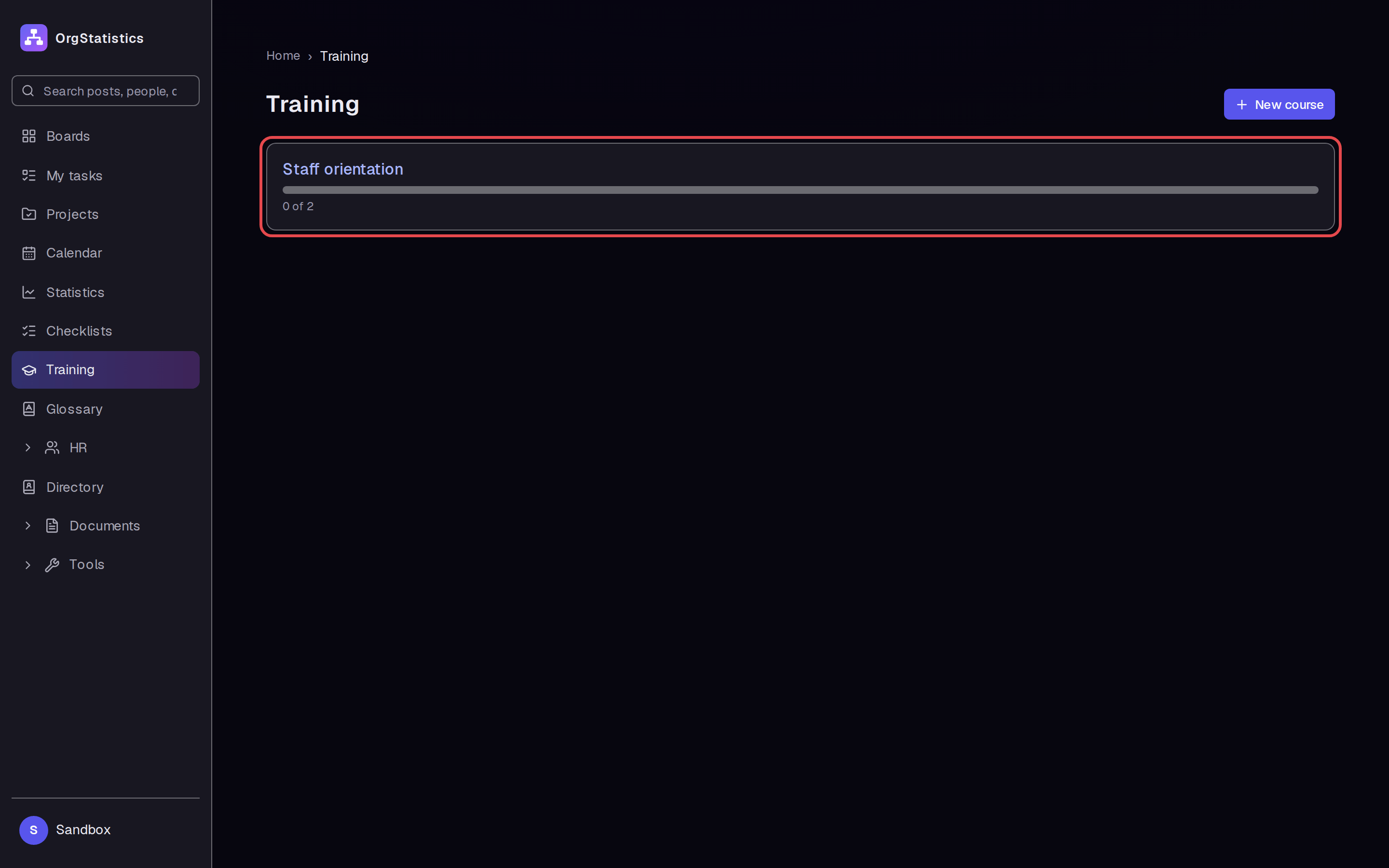
Click Training in the left menu. Each course shows a progress bar and a count, for example 0 of 2. This count is the number of finished items out of all items.
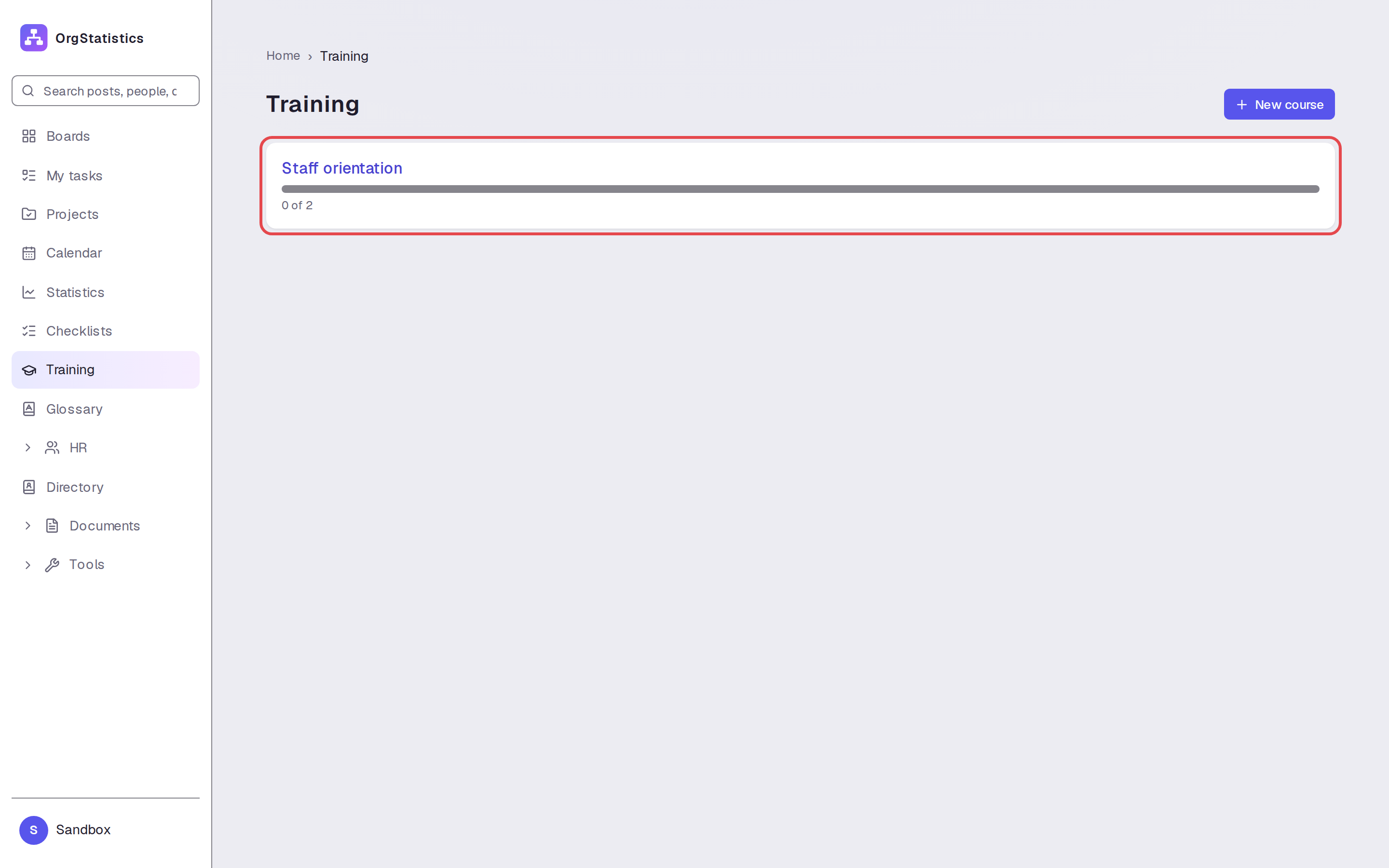
Step 2 — Open the course
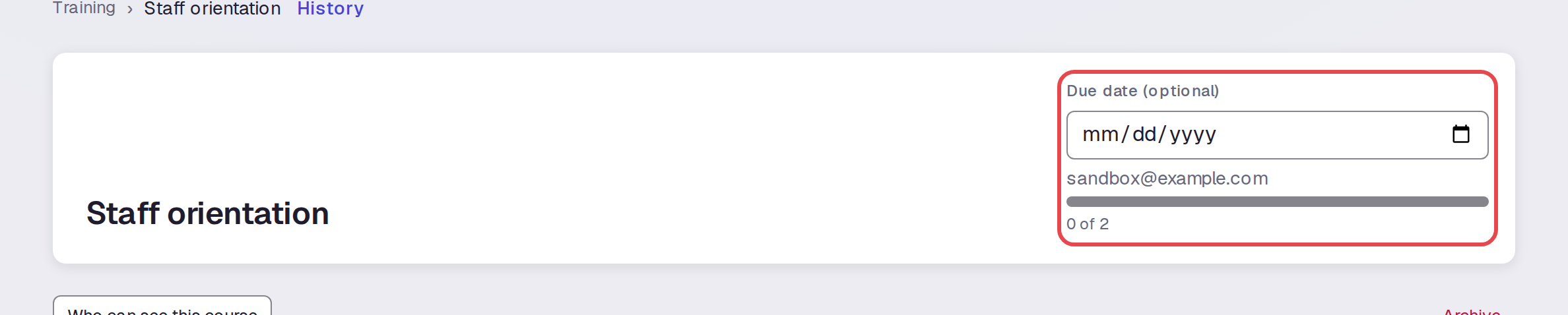
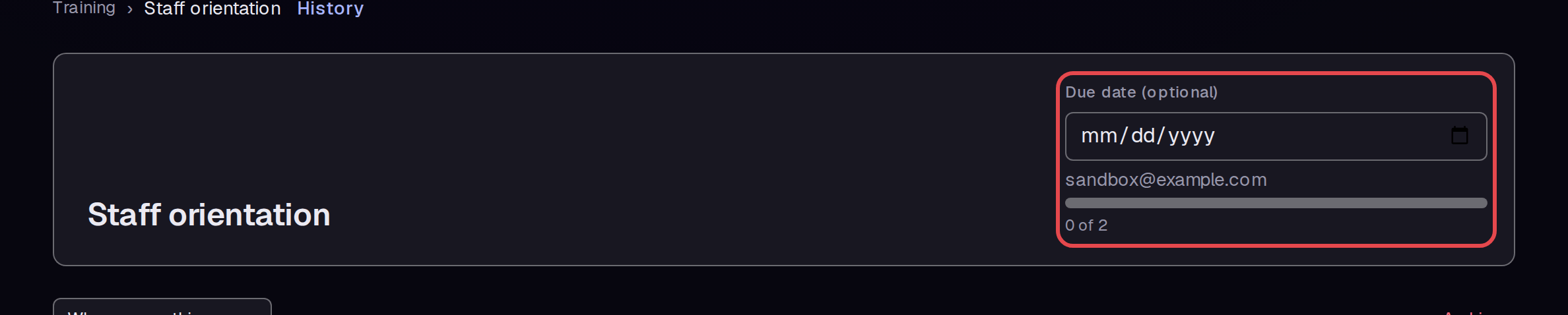
Click Staff orientation. The top of the course shows the name, the person, and the progress count.
Step 3 — Set a due date
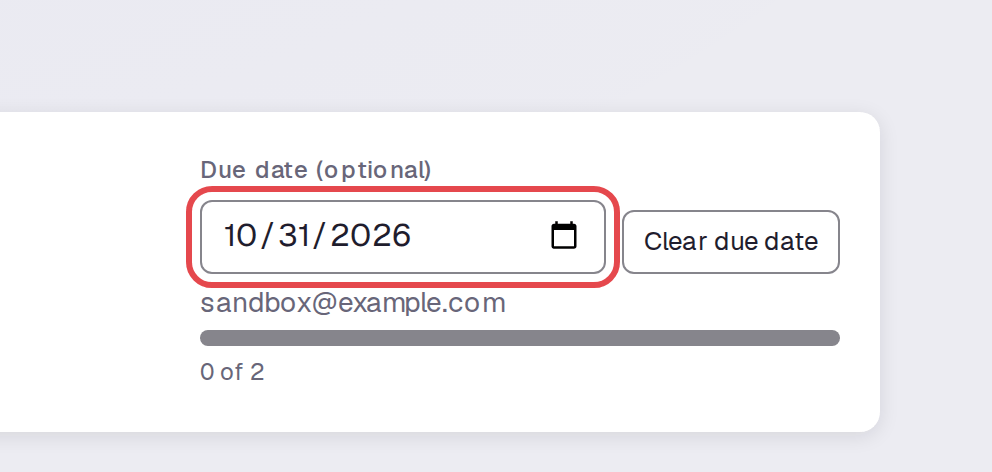
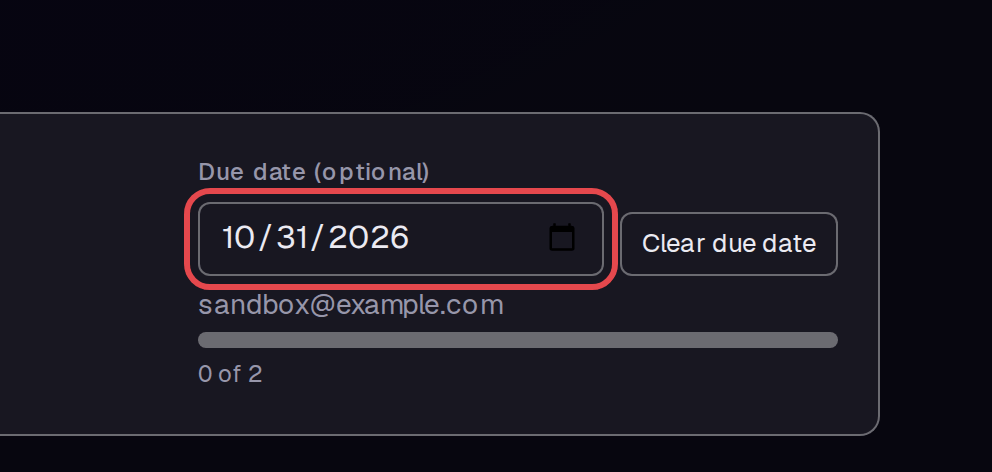
Click Due date (optional) and pick a date. This example uses October 31, 2026. A Clear due date button appears beside the date.
Step 4 — See who can open the course
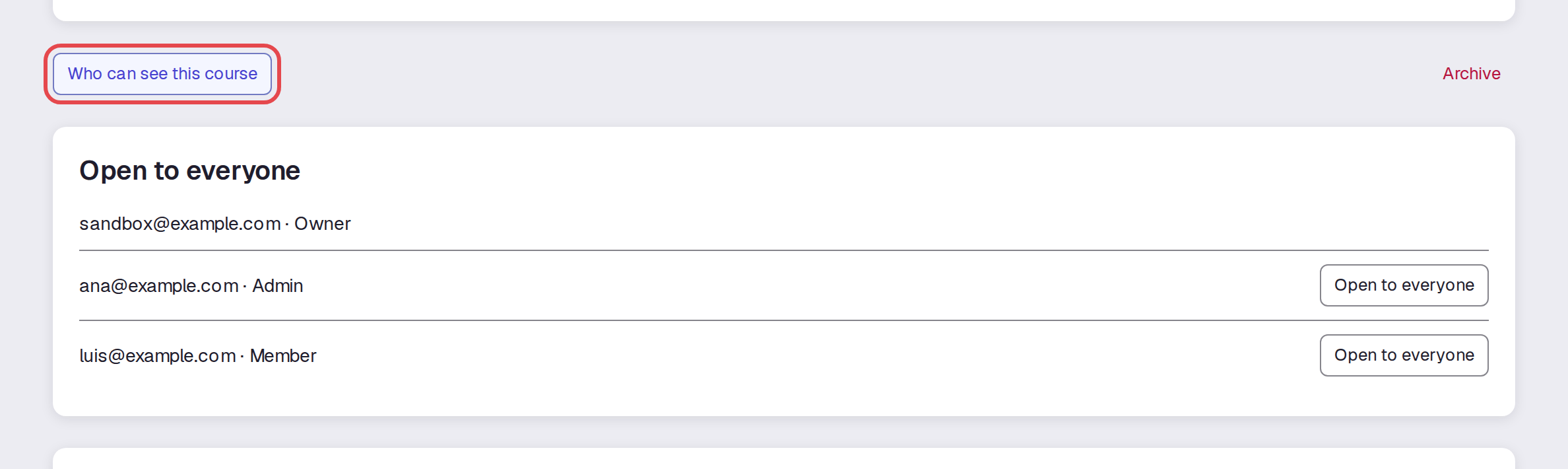
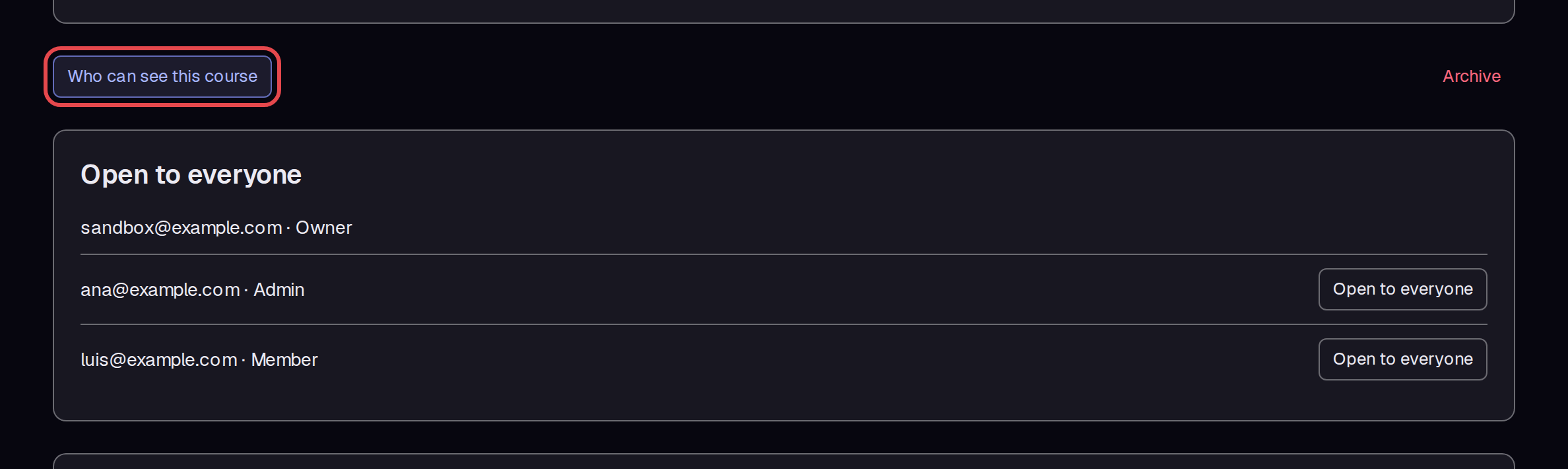
Click Who can see this course. A list shows each person and their role. Open to everyone means the course is open to that person.
Step 5 — Close the course for one person
Click Open to everyone beside a person. The button changes to Closed for this person. The change stayed after a page reload.


Step 6 — Mark an item as done
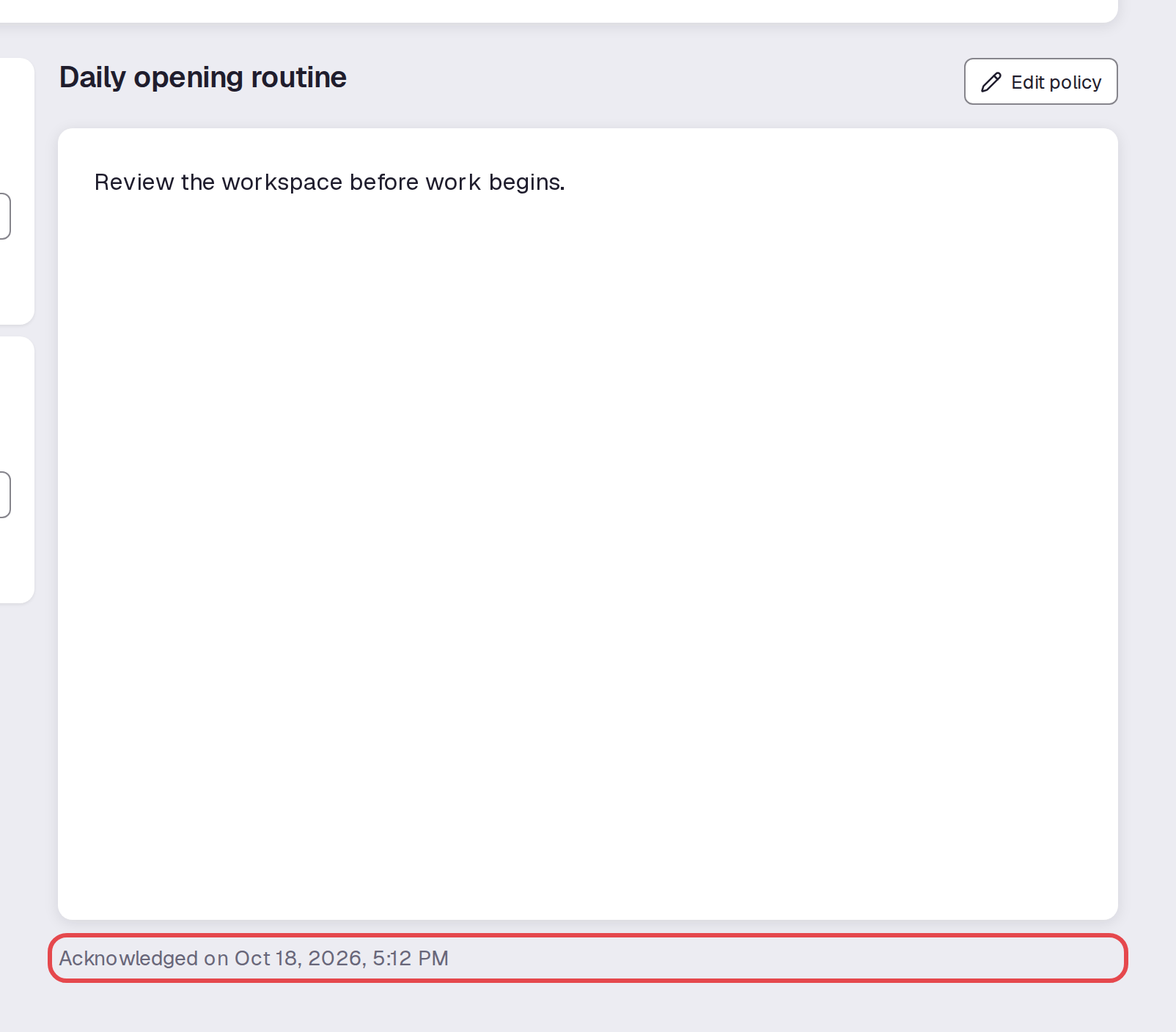
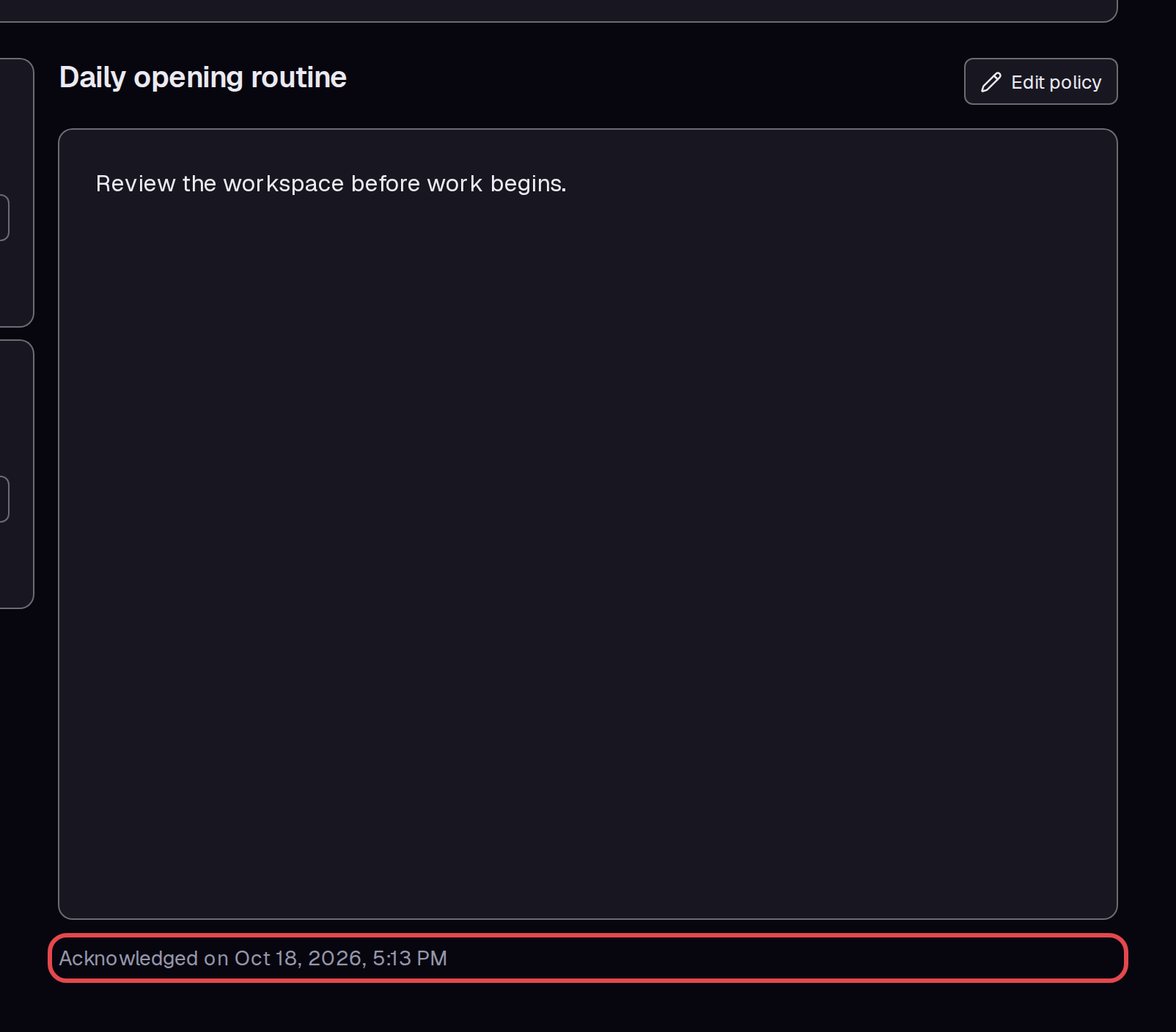
Staff do this step. Click an item in the course and read it. Click I have read and done everything on this page. The page shows Acknowledged on with the date and time.
Step 7 — Open the course history
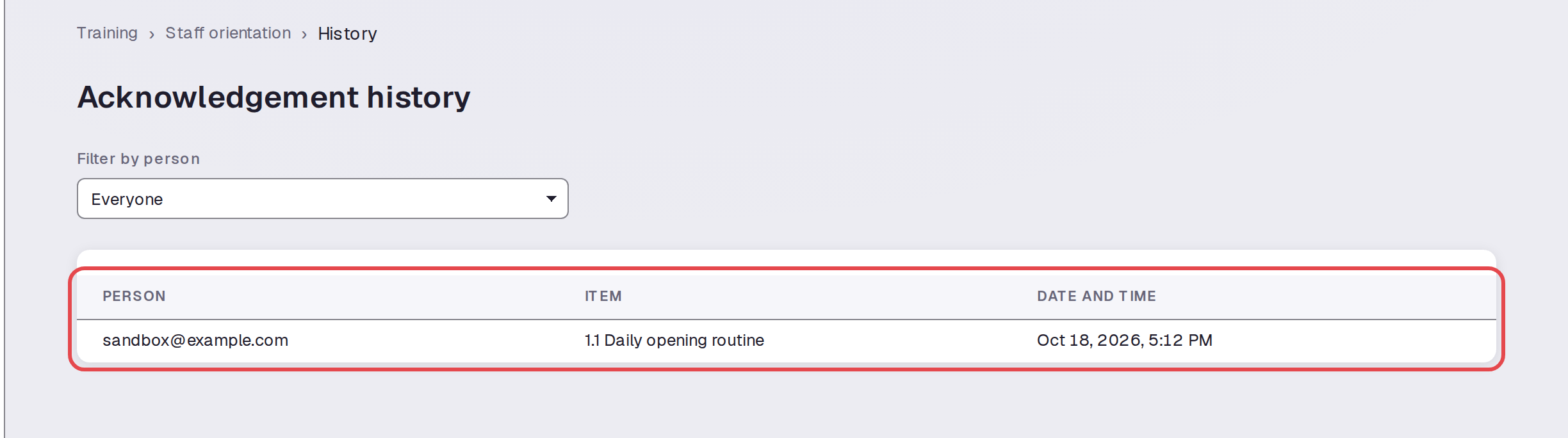
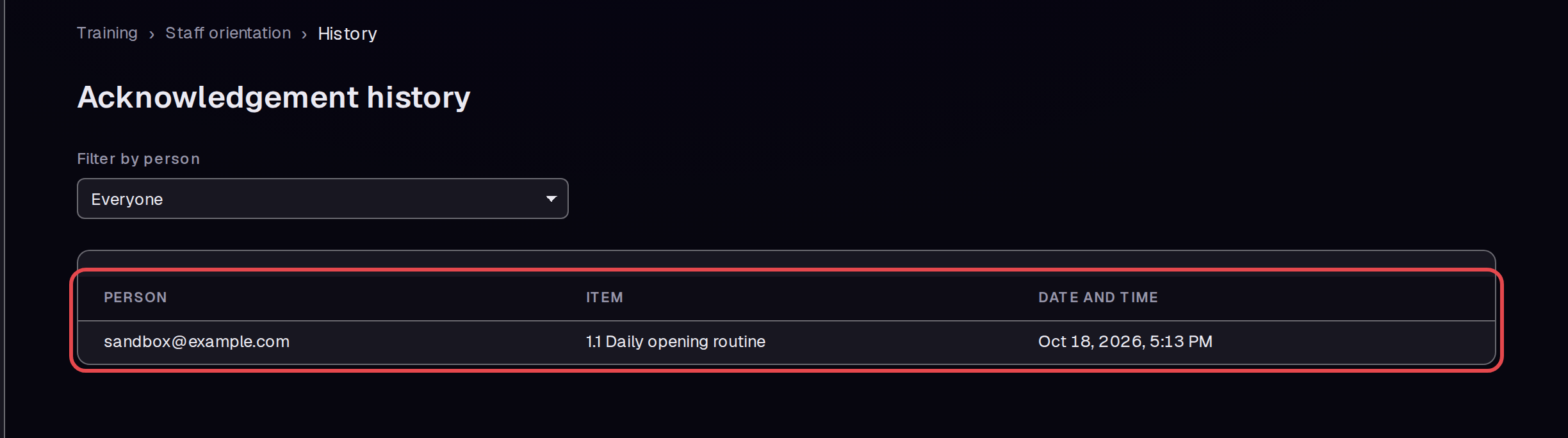
Click History in the page path at the top of the course. The Acknowledgement history table shows the person, the item, and the date and time.
Step 8 — Filter by person
Use Filter by person to show one person only. Select the person's email. In this example, only one person has finished an item.


Step 9 — Check the course list
Click Training in the left menu. The course now shows the due date and the new count, 1 of 2.


Step 10 — Rename a section
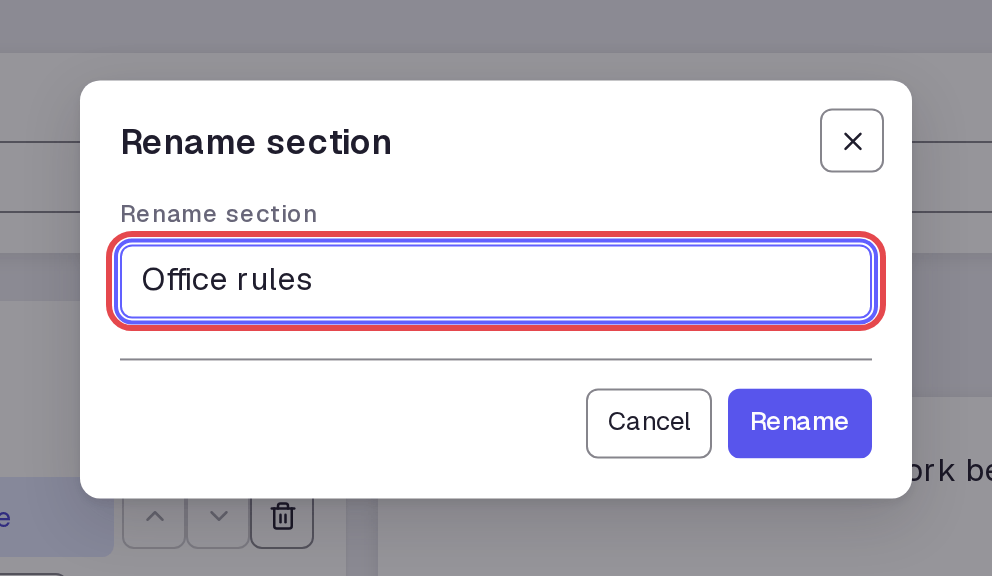
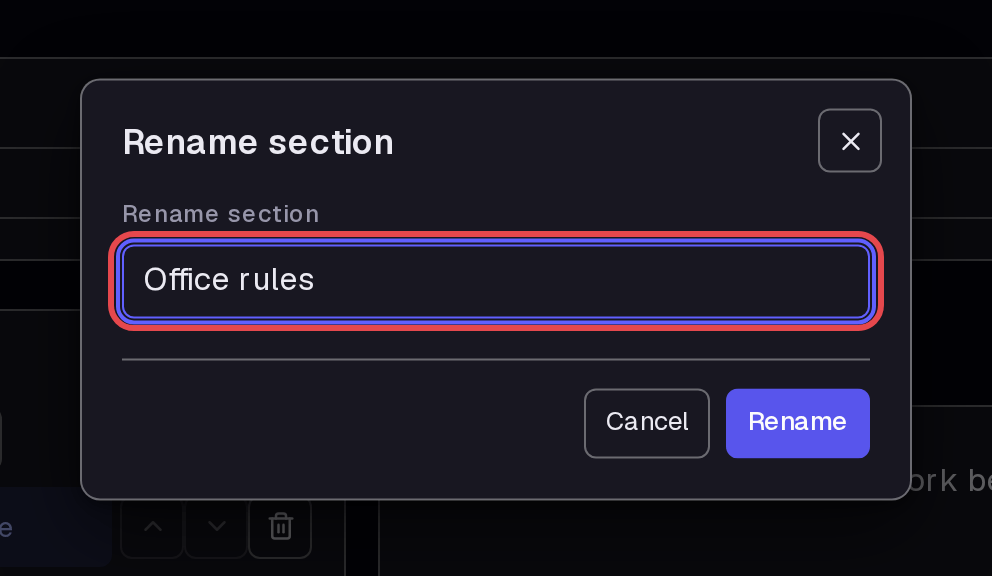
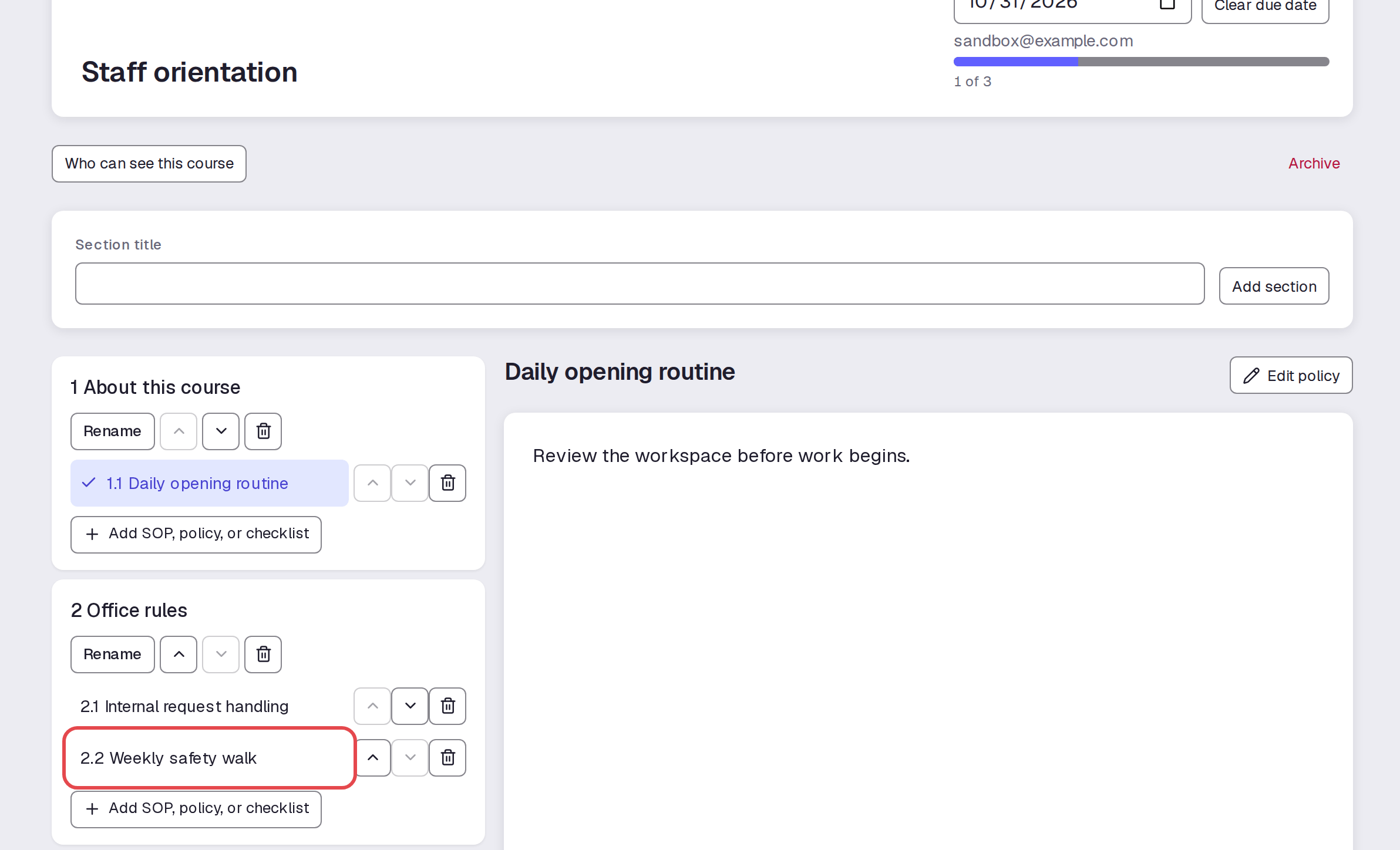
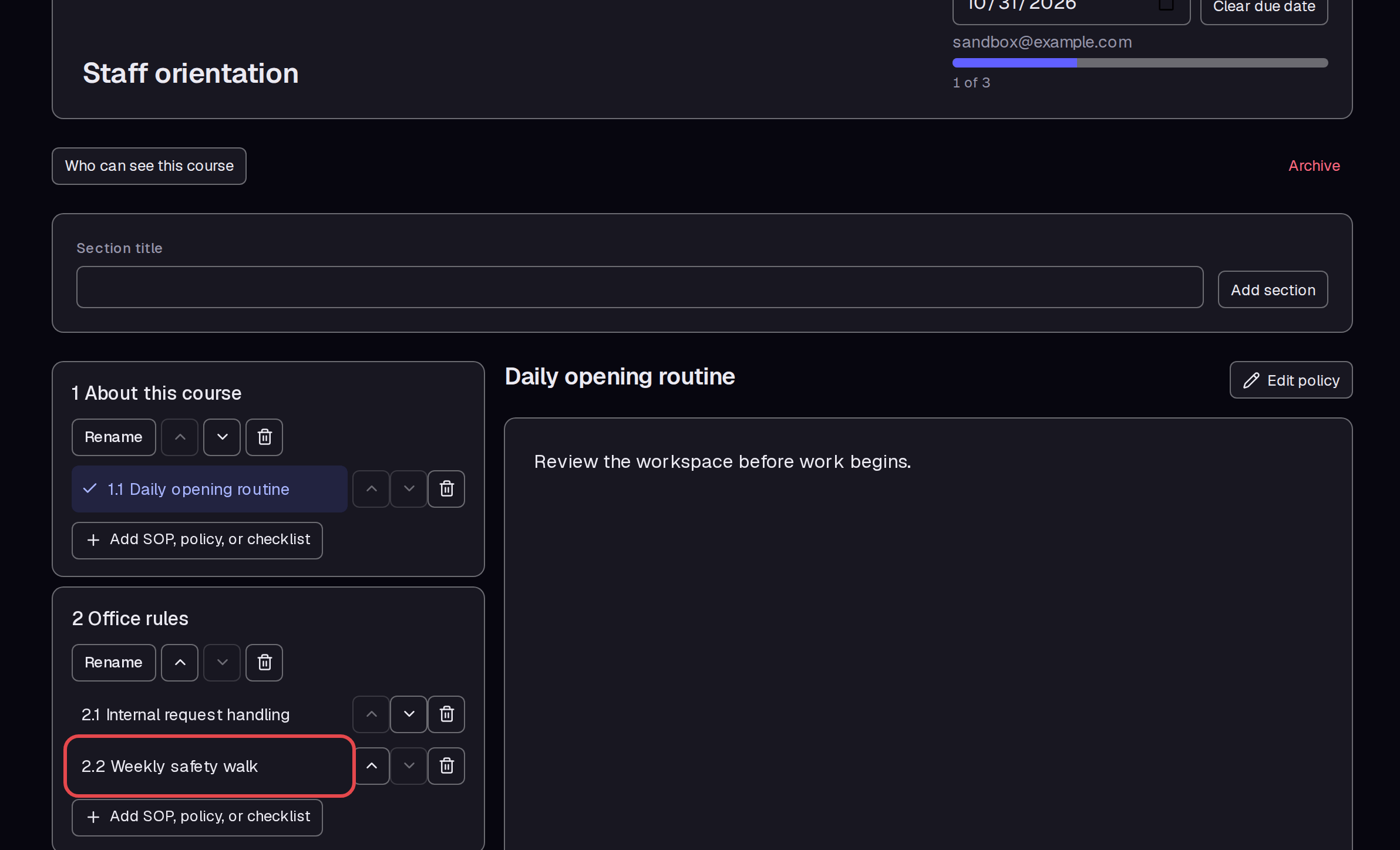
Open the course again. Click Rename in a section. Type the new name, here “Office rules”, and click Rename.
Step 11 — Add an item
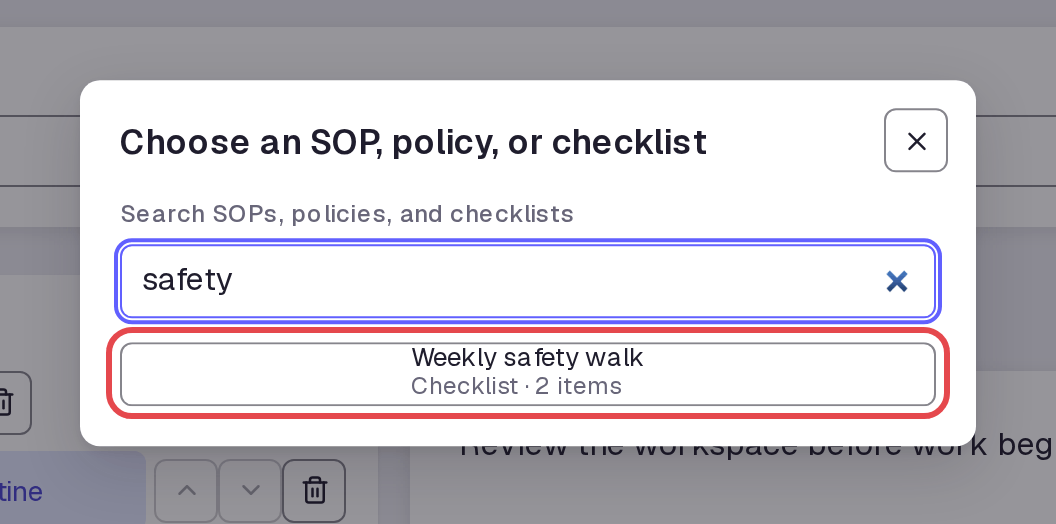
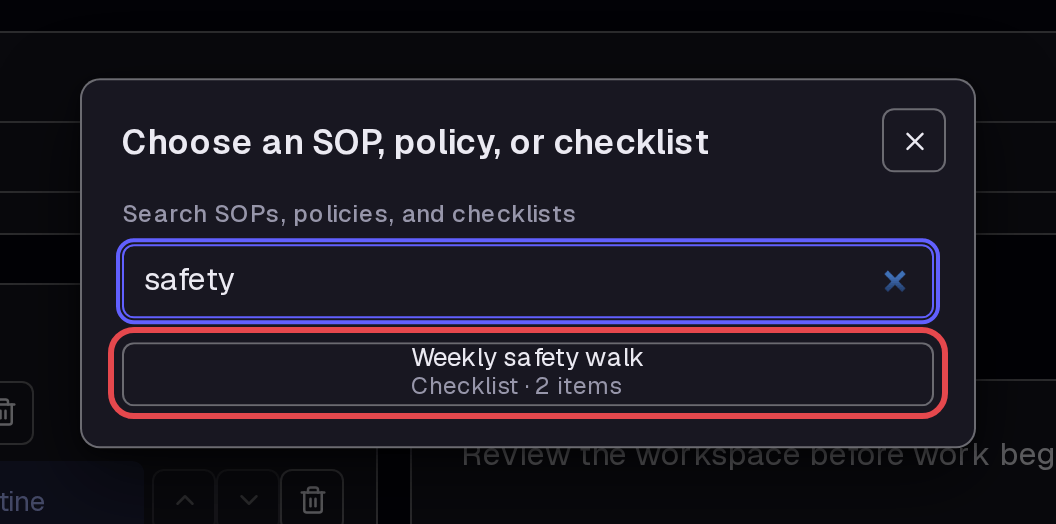
In the section, click Add SOP, policy, or checklist. Type a word, here “safety”. Click Weekly safety walk.
Step 12 — Check the updated course
The new item shows as 2.2 Weekly safety walk in Office rules. The progress count changes to 1 of 3, because the course now has one more item. The changes stayed after a page reload.
Tips
- When you add an item, the total in the progress count goes up. Tell staff when you add new items.
- The course list shows the due date, so you can see deadlines without opening each course.
- If a policy in the course is archived, the course shows “This item is no longer available”. Restore the policy to show it again. See manage policies.
- The due date stays after a page reload. Clear due date appears only after you set a date.
What next
- Build a new course: training and glossary.
- Add policies to a course: manage policies.
- Add SOPs to a course: find and reuse SOPs.
- Make checklists for courses: checklists and tasks.