How to add document fields and use a template
about 5 minutes
Custom fields give a form a clear place for a name, date, signature, or note. A manager can use a template to prepare the form, then add a field for a specific need.
Step 1 — Open Custom fields
Open Custom fields in the document creator. The page lists the fields that are already available.
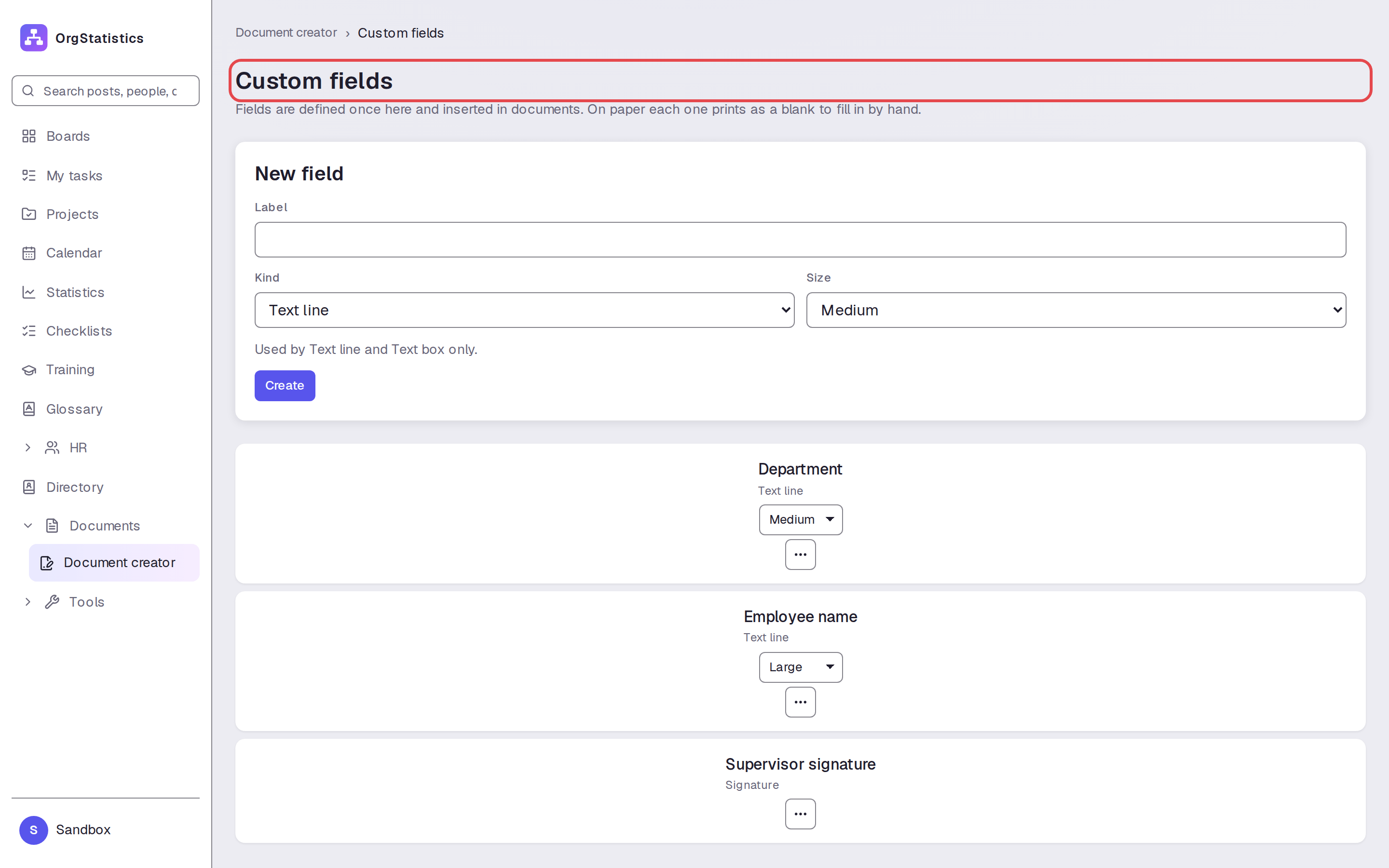
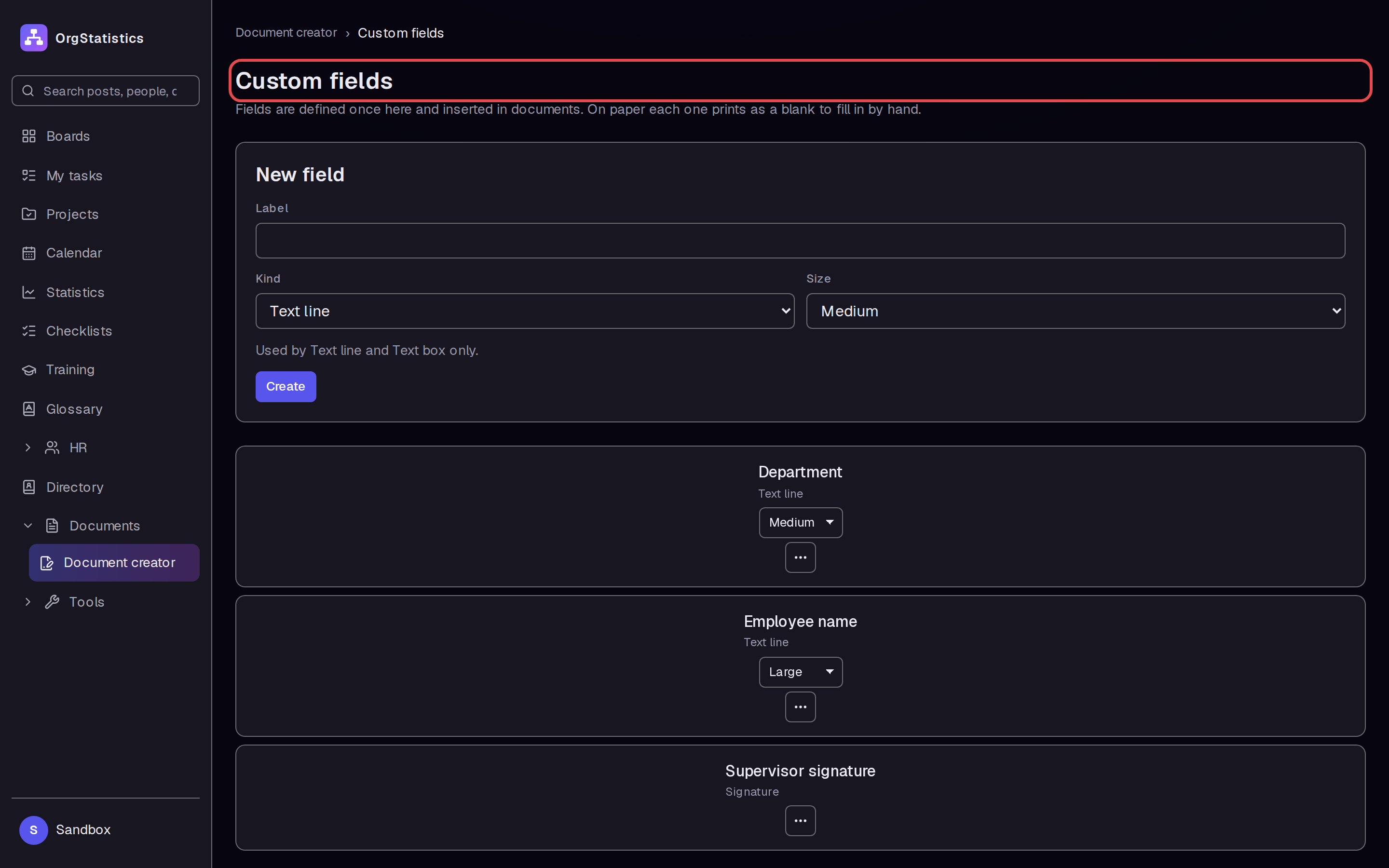
Step 2 — Define the field
Under New field, enter “Review notes” in Label. Set Kind to Text box. Set Size to Large.
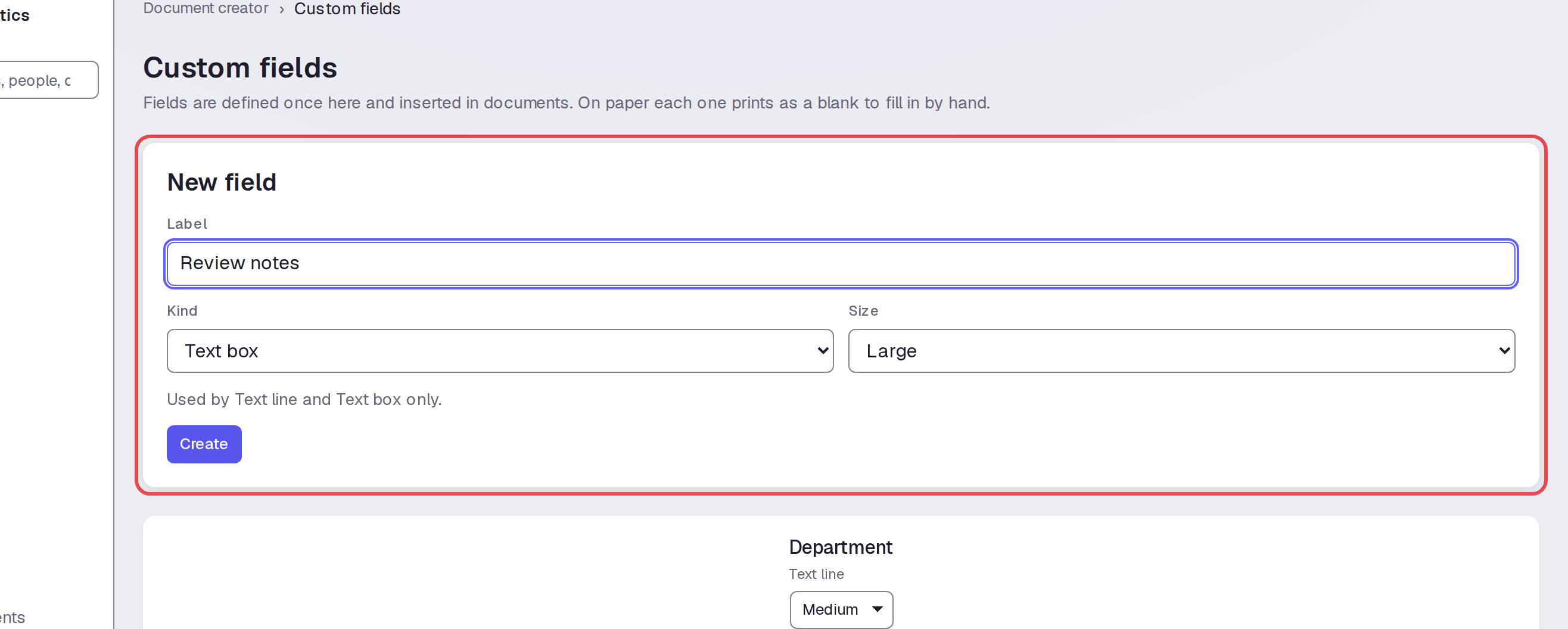
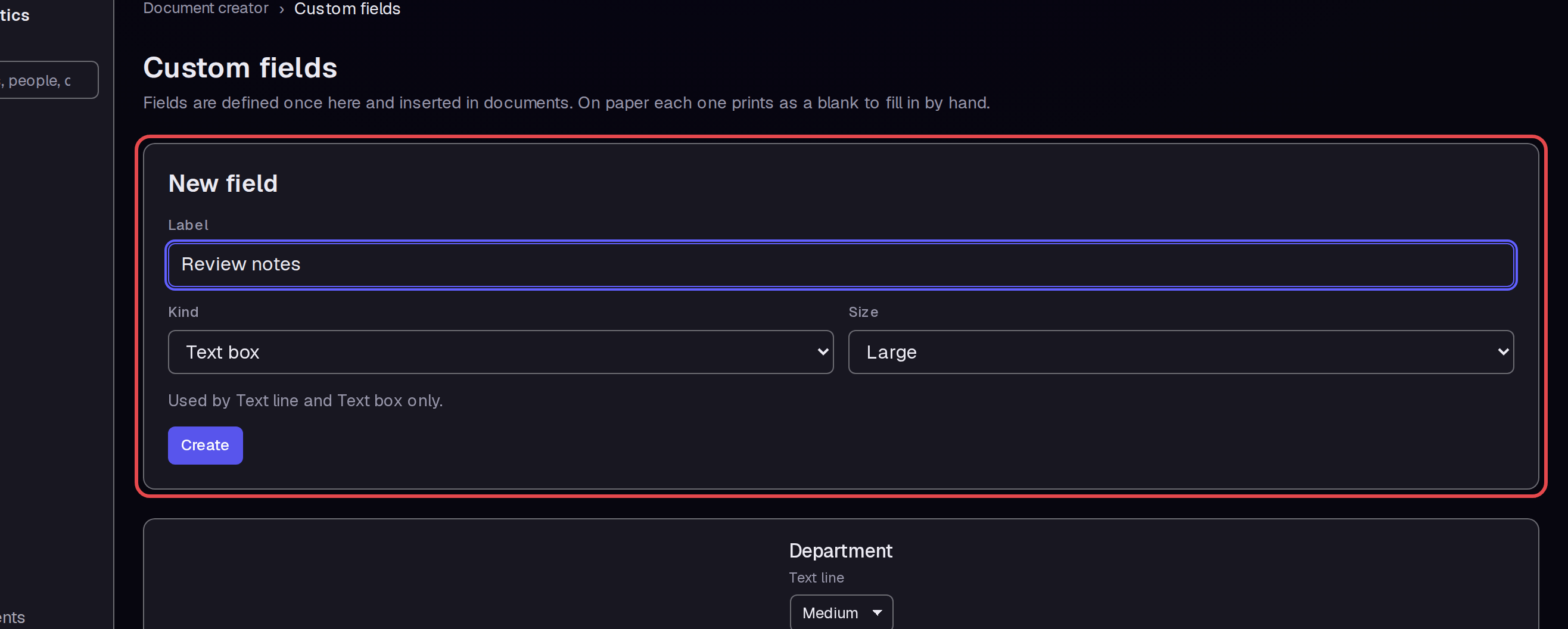
Step 3 — Create the field
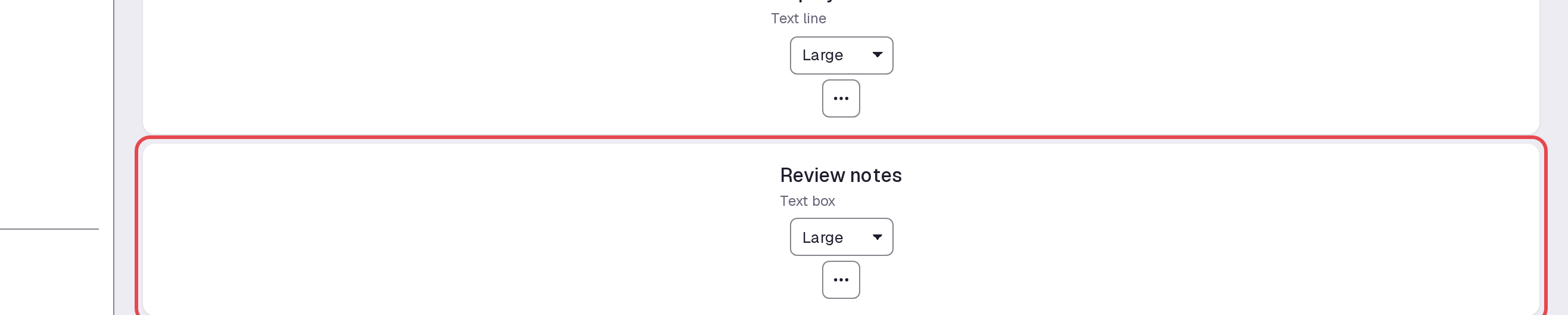
Click Create. Check that “Review notes” appears in the list as a Text box with Large selected.

Step 4 — Start a document from a template
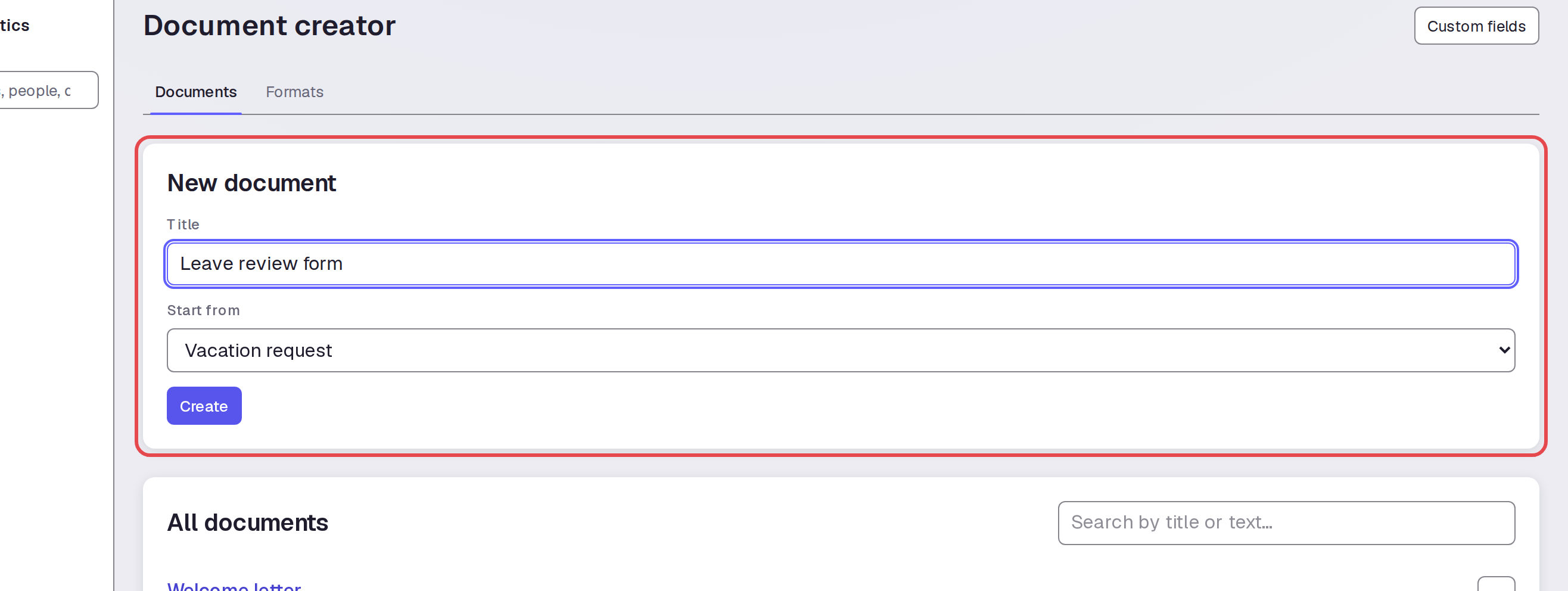
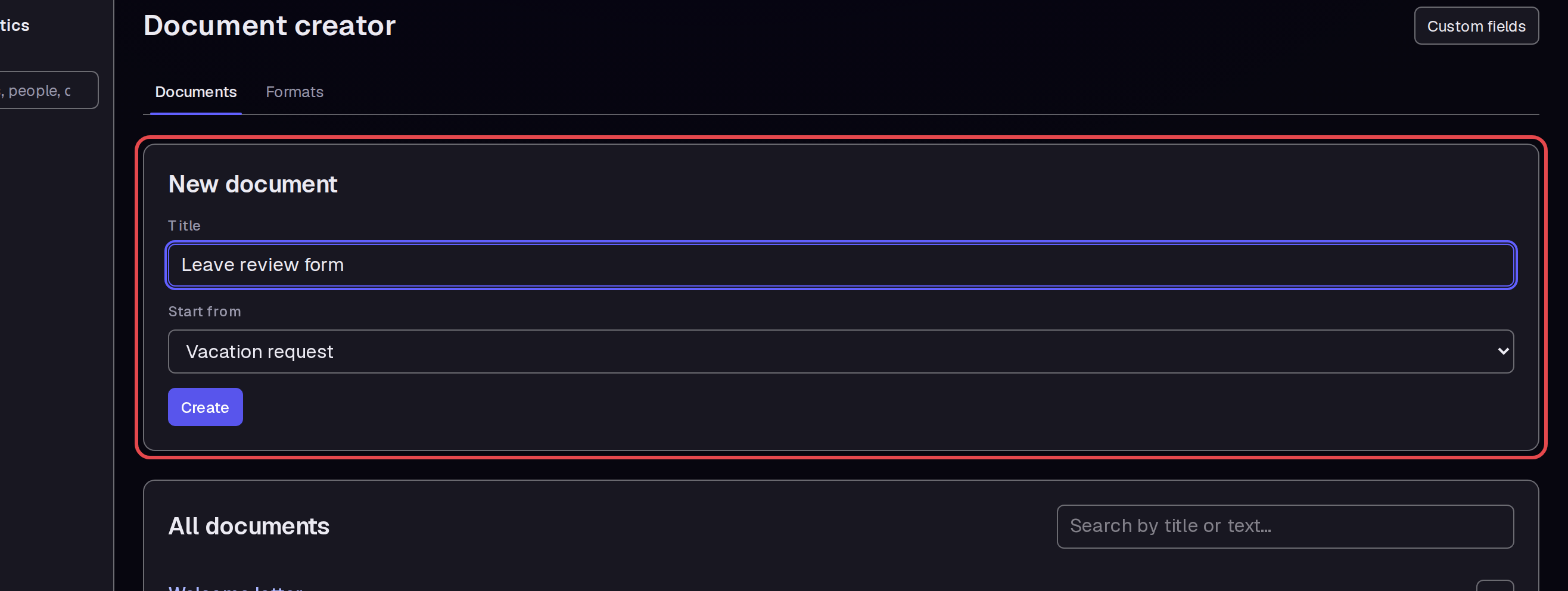
Open Document creator. Under New document, enter “Leave review form” in Title. In Start from, select Vacation request.
Step 5 — Check the template content
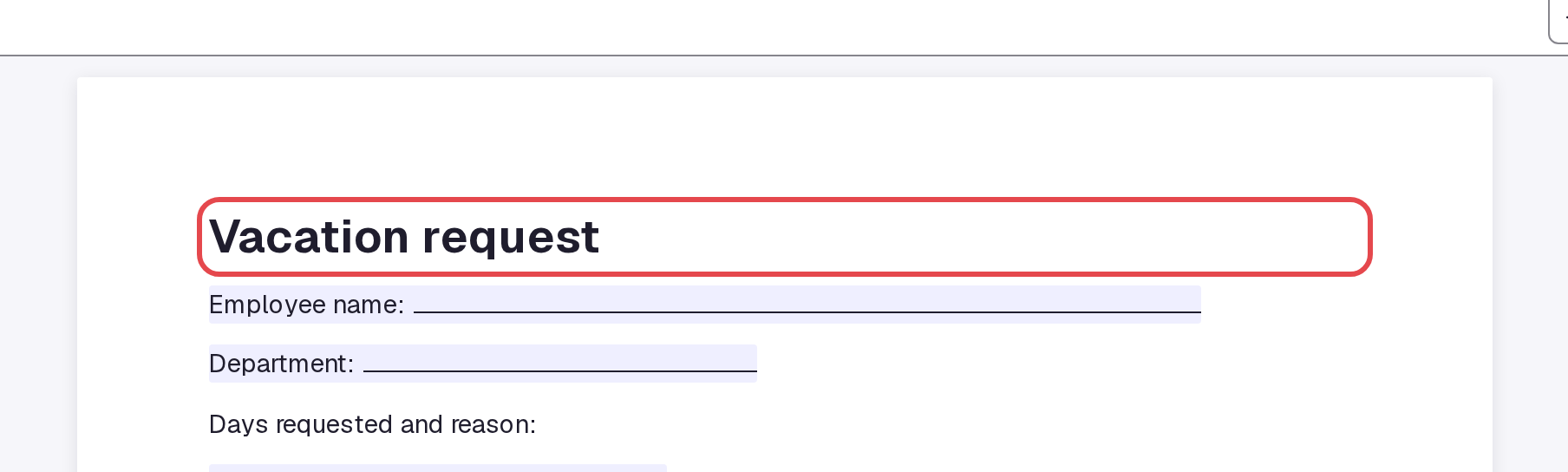
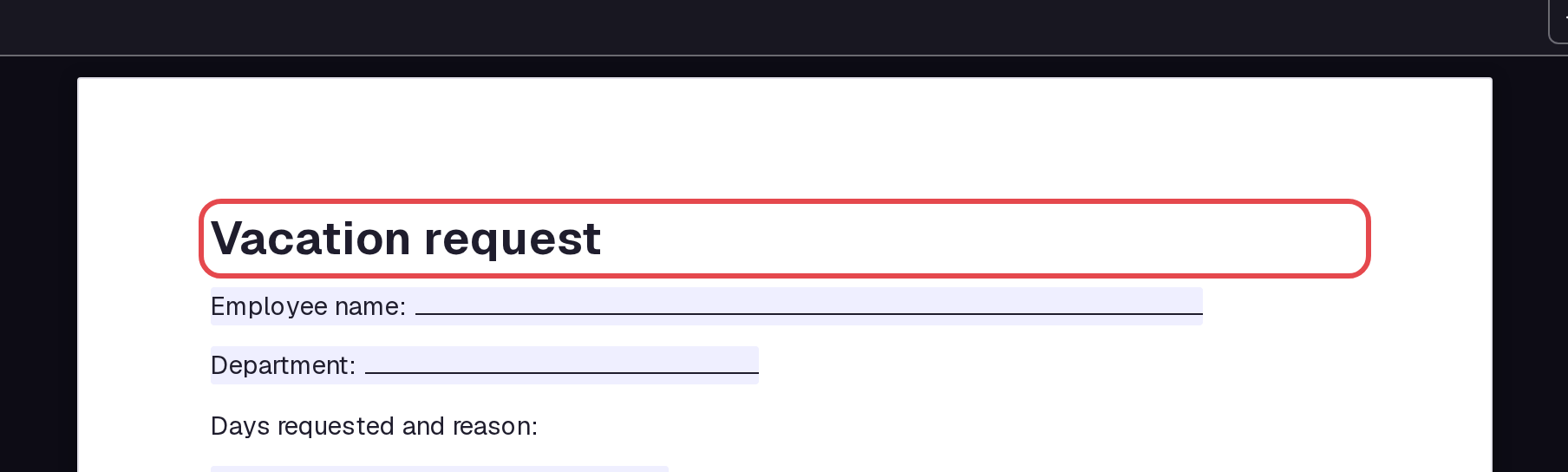
Click Create. The document opens with “Vacation request” as its heading and existing fields below it. The document title and its page heading are separate.
Step 6 — Choose the new field
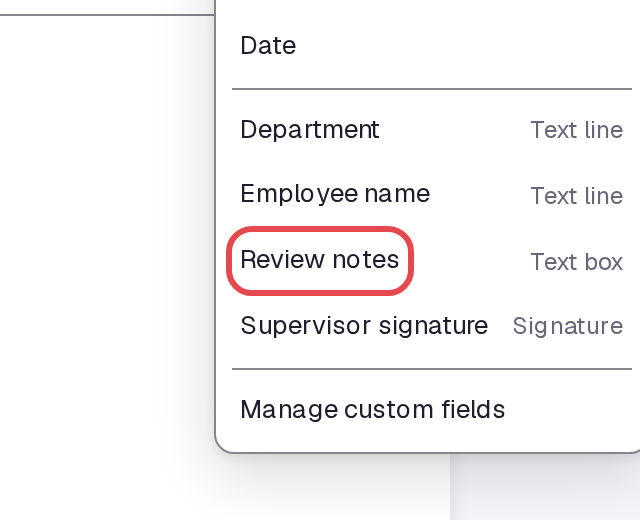
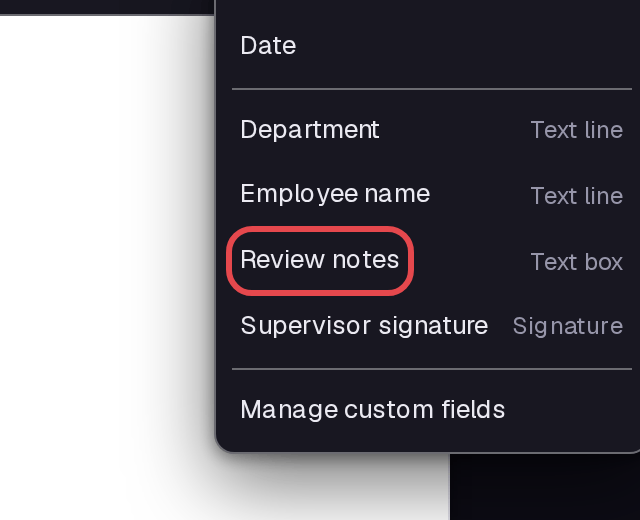
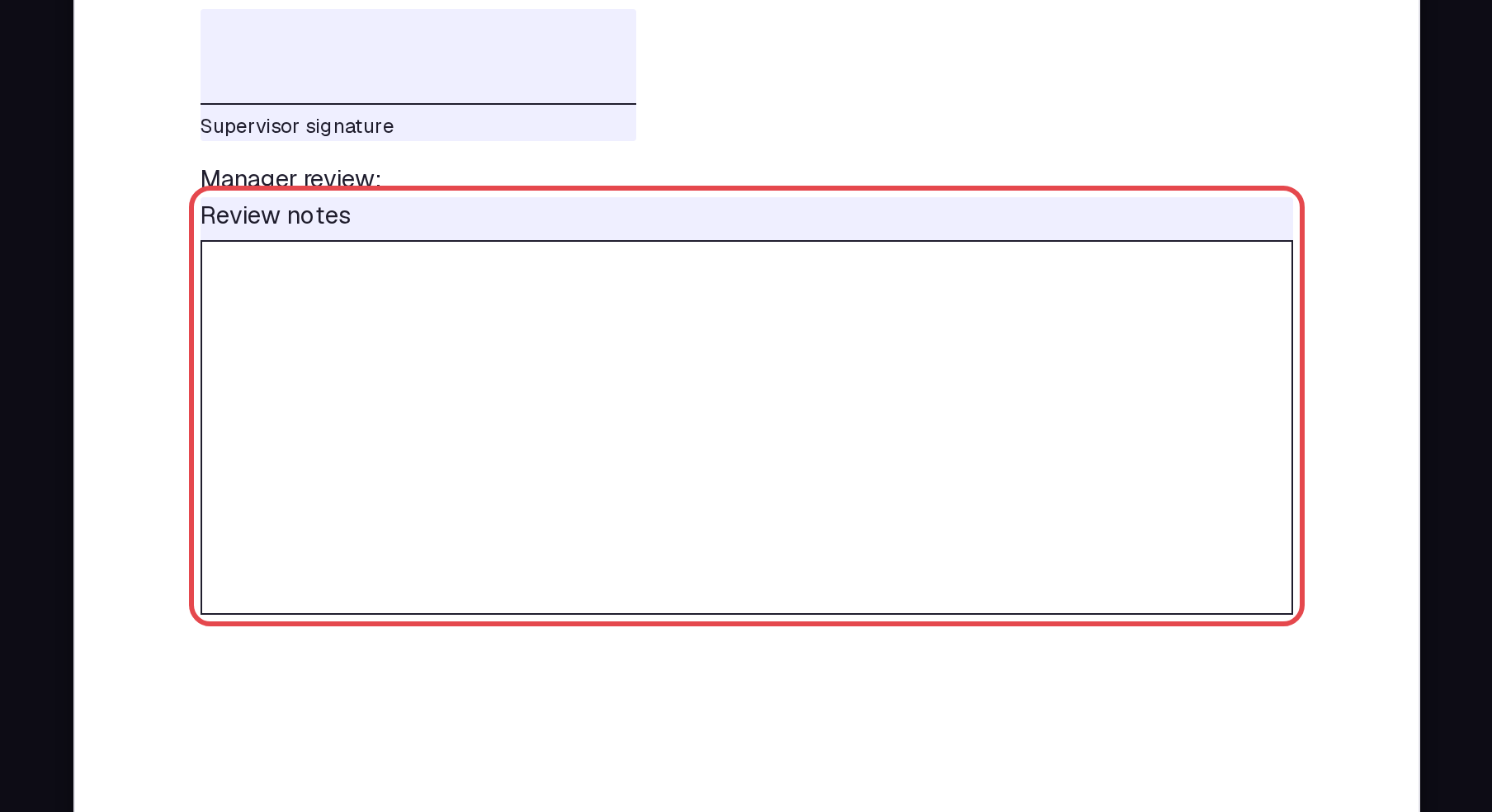
Click after the signature field at the end of the template and press Enter. Click the new blank line and type “Manager review:”. Open Insert field and select Review notes.
Step 7 — Check the inserted box
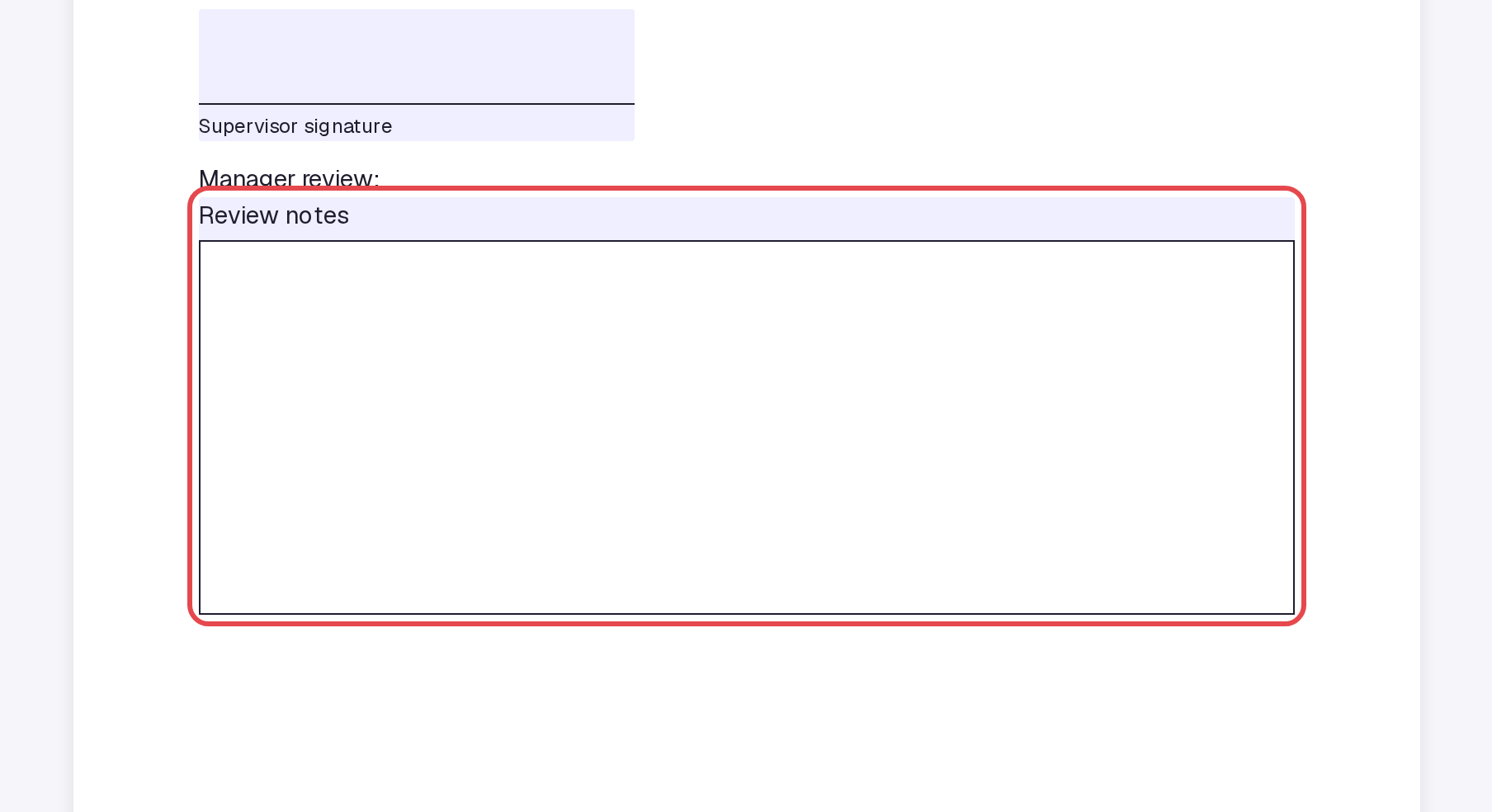
Check that the Review notes box appears after “Manager review:”. This gives the form a separate space for the review.
Step 8 — Wait for Saved
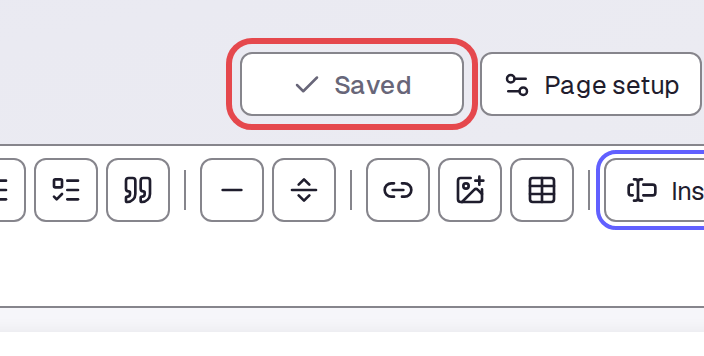
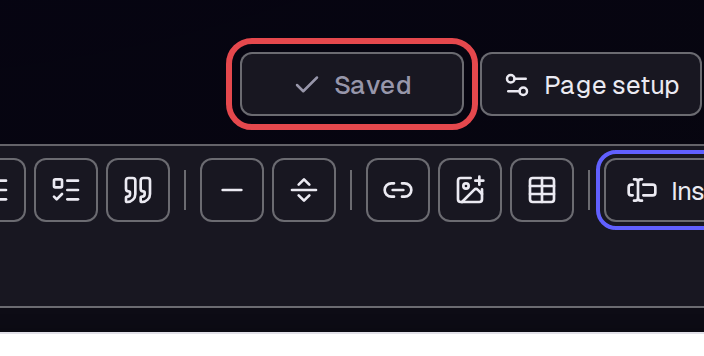
Wait until the top bar shows Saved. Reload the document to check that the field remains.
Tips
- Size applies to Text line and Text box fields.
- The field list also offers Date, Tick box, and Signature kinds.
- Insert field includes Manage custom fields if you need to return to the field list.
- Selecting a template keeps its page heading. The title you enter in New document does not replace that heading.
What next
Read Write SOPs and documents for general document work. Use Run a project to organize the work needed to review a form.